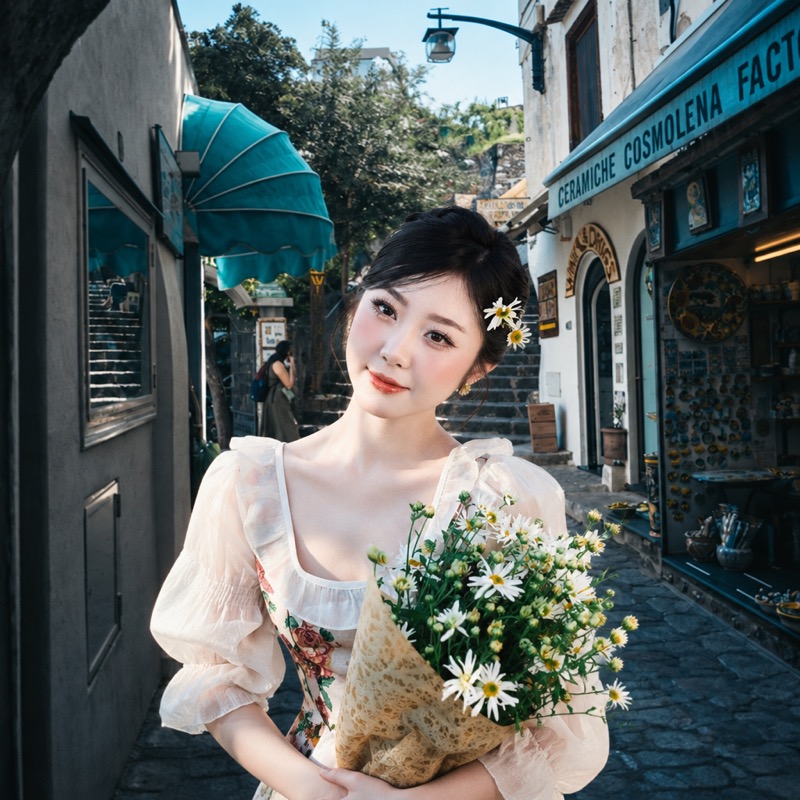
01 / Bring together
Your photo + a background
Put your person into the setting you choose.
Use this preset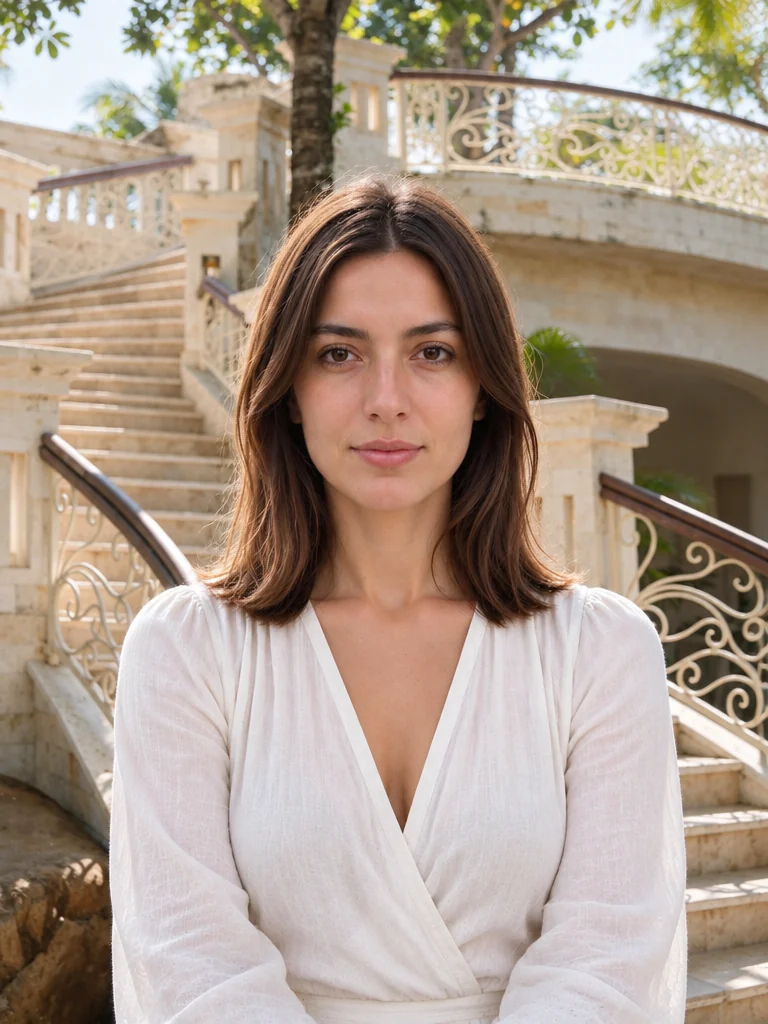 Example result
Place someone into a background photo or a setting you describe, with control over position and scale.
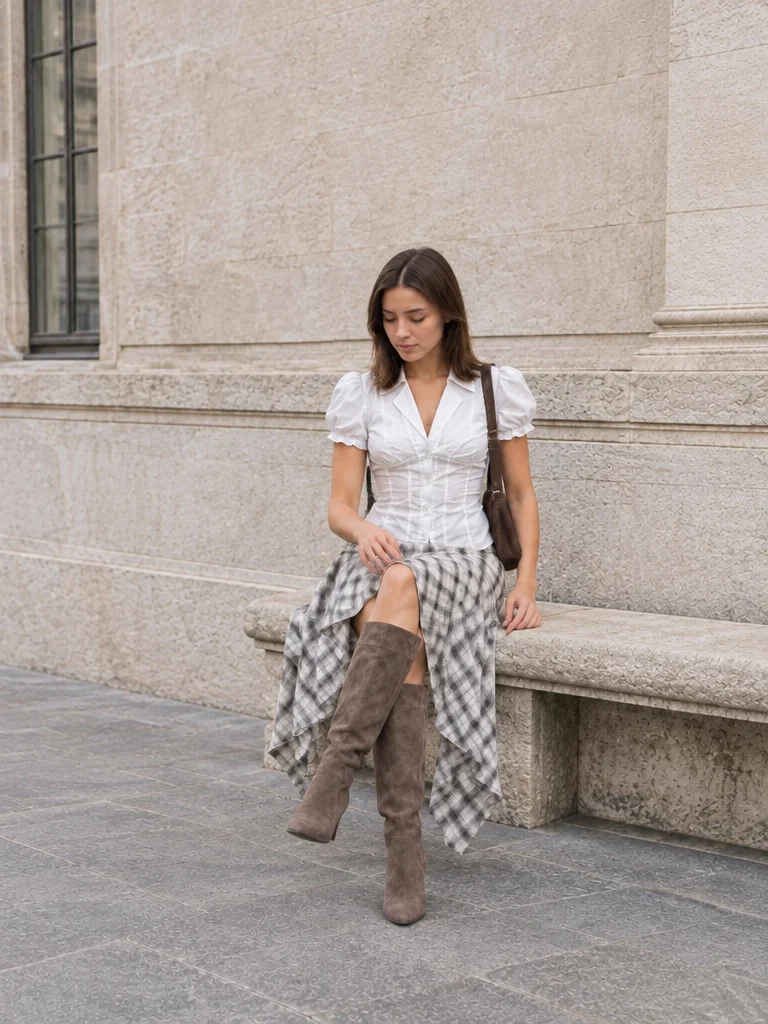
Keep the scene and place your person on the right.
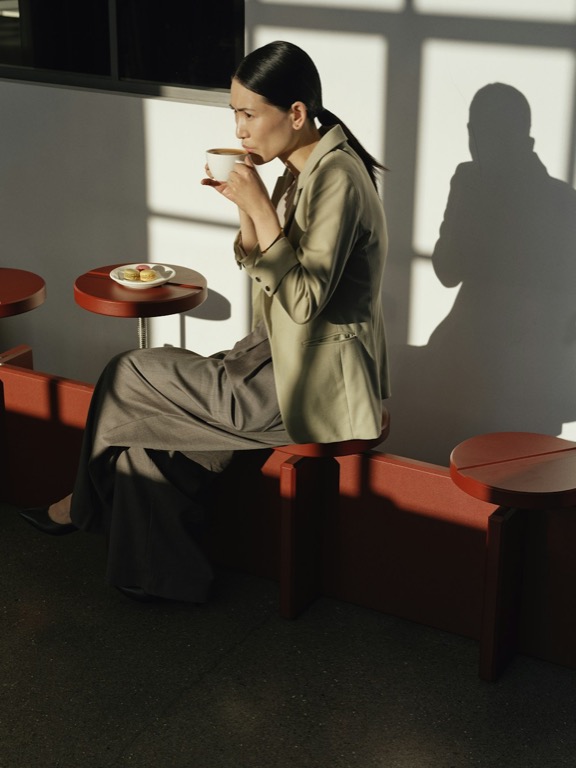
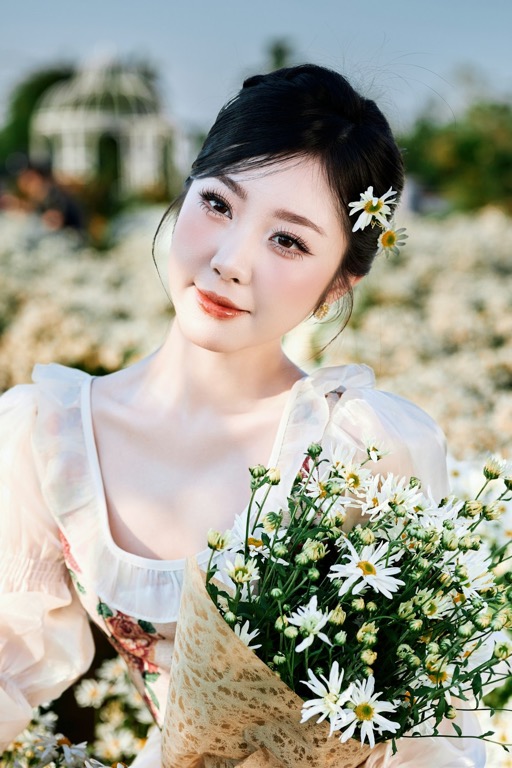
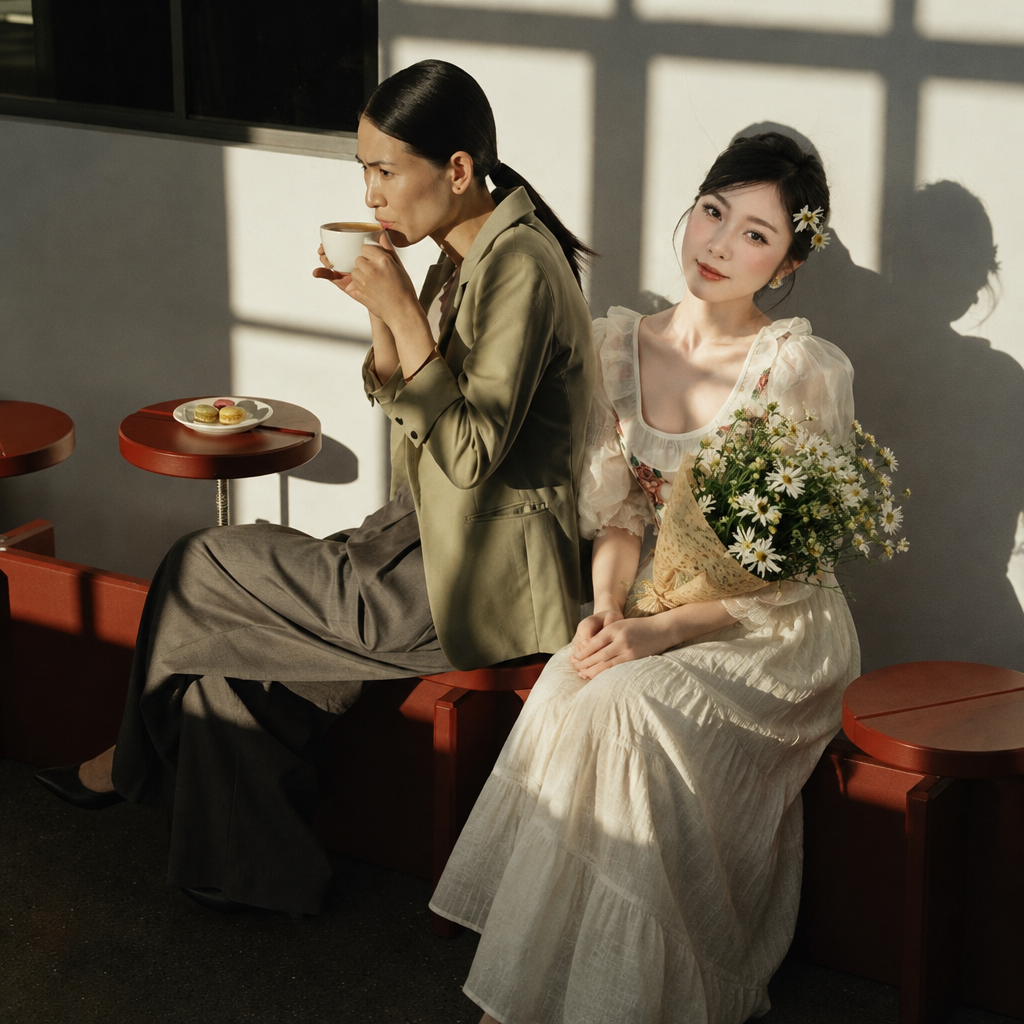
Put your person into the setting you choose.
Use this presetExample resultDescribe a place and put your person into that scene.
Use this preset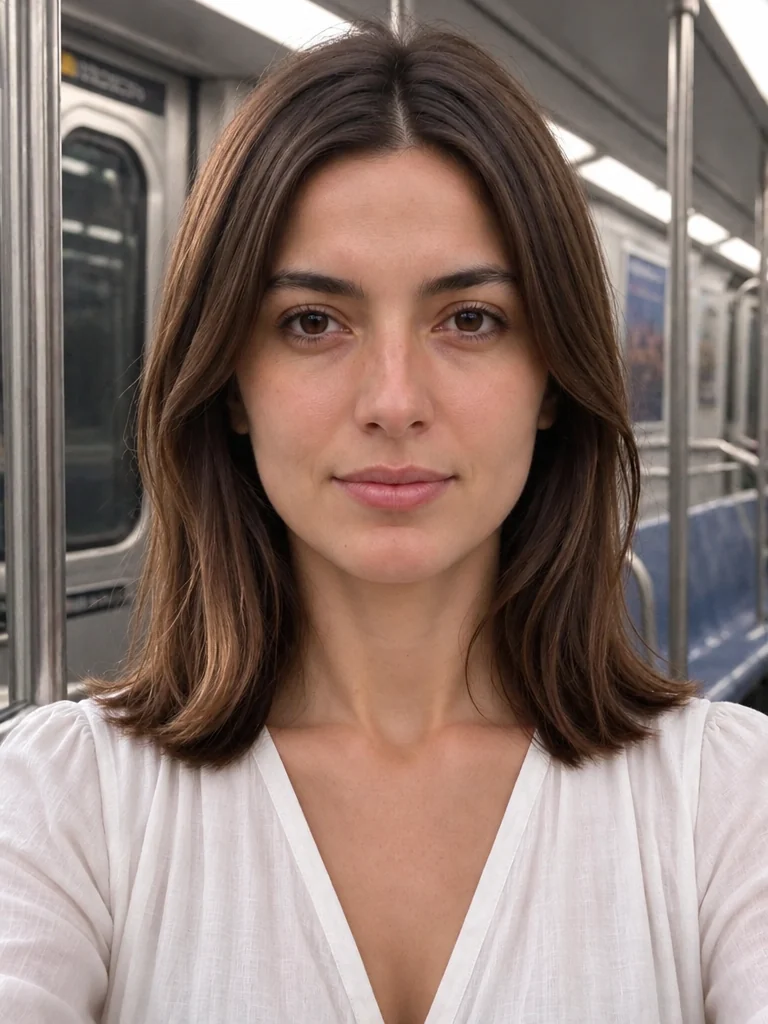 Example result
Choose a person photo, then upload a background or describe a new setting. Adjust the position and approximate size, and guide the lighting and spacing in the finished composition.
Keep a particular location with a reference image, or describe the setting when you do not have a background photo.
Choose left, center, or right and a relative size before creating the composition.
The new result becomes a separate asset so you can revisit the originals and try another direction.
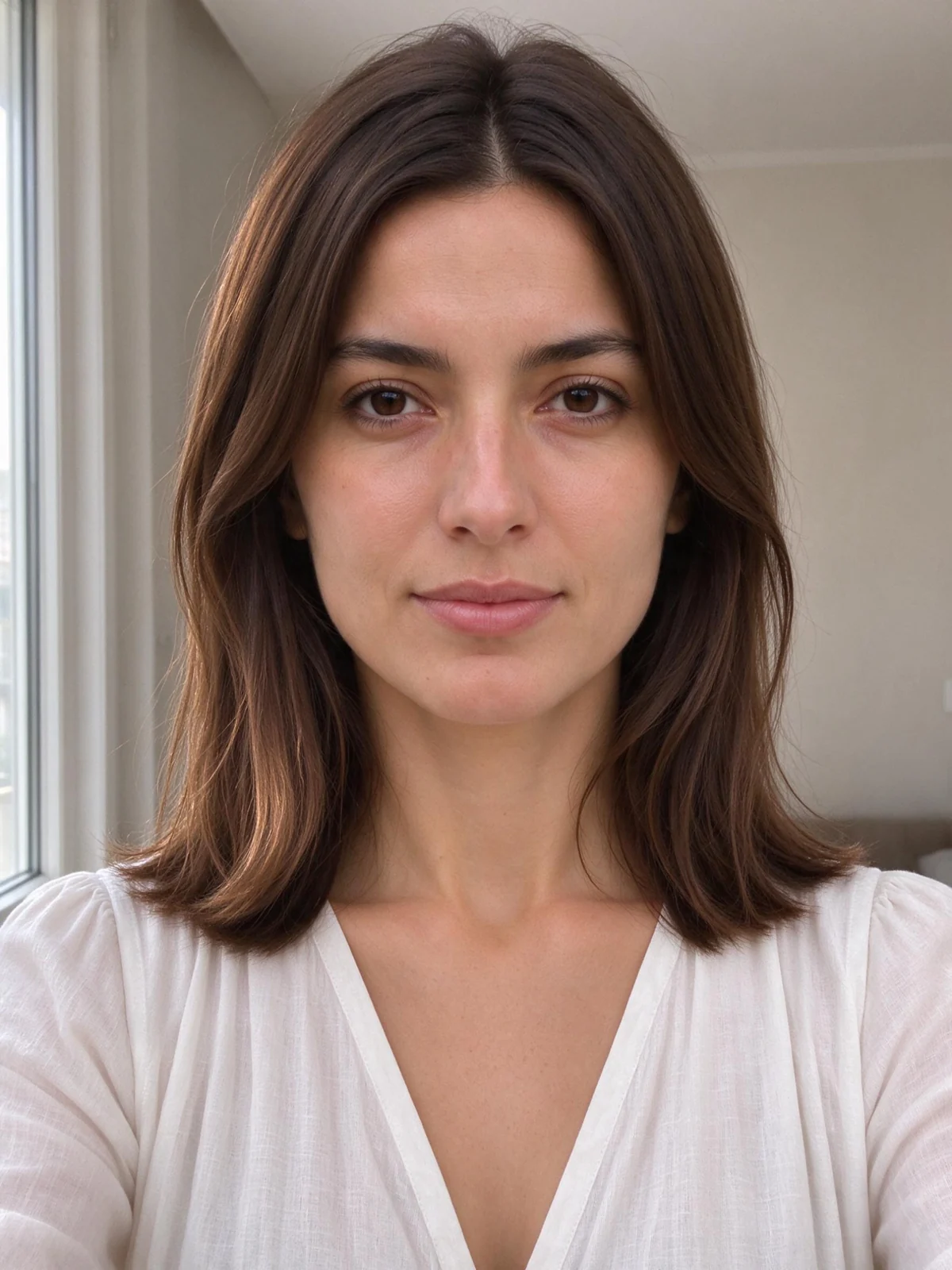
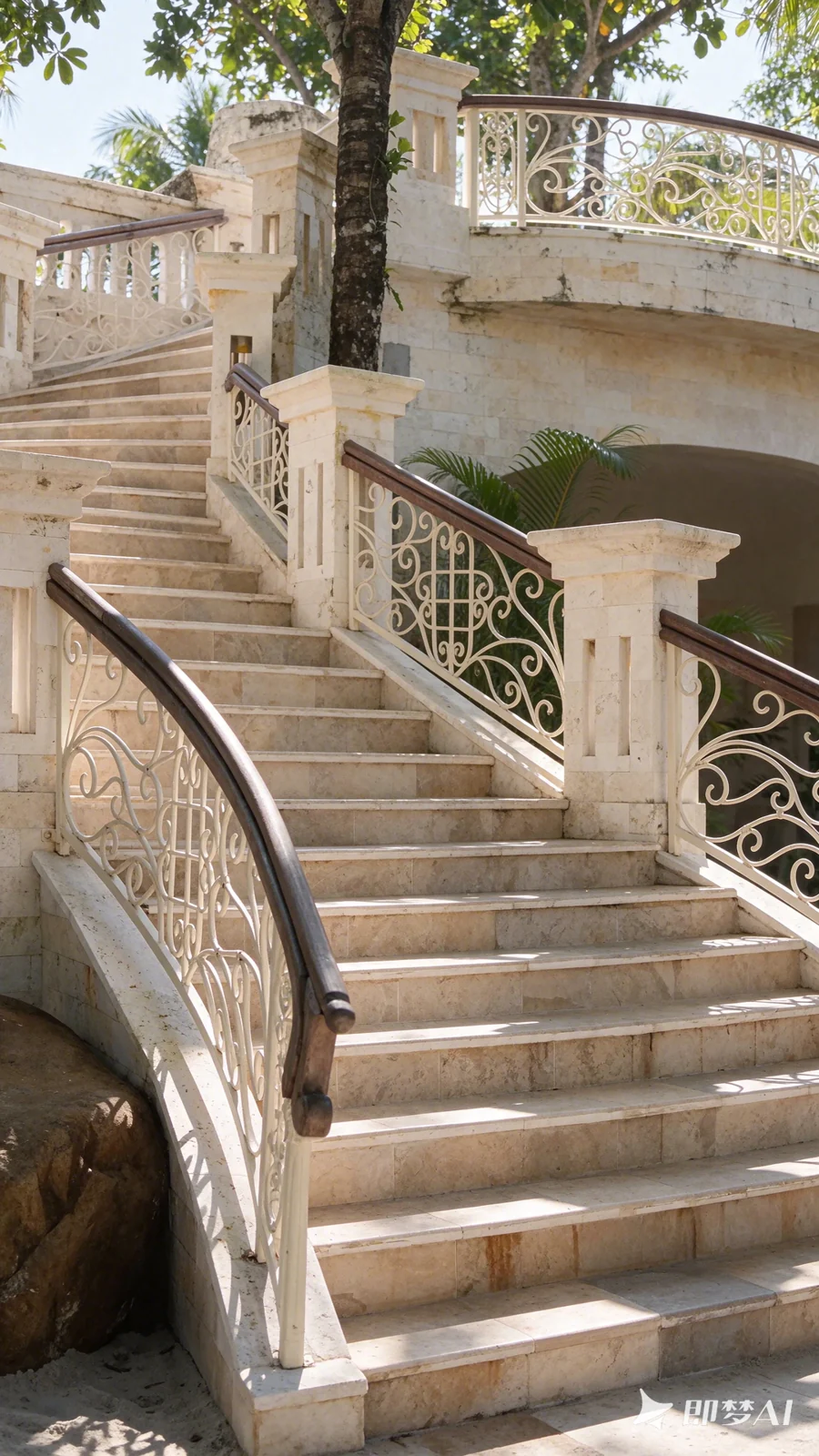
Upload the person and the target background. The background supplies the setting; the person photo supplies the face, hair and outfit to bring into it.
Start with one person photo and describe a place such as a subway carriage. Include the light and framing you want, then create a new scene around the person.
A candid everyday photograph inside a modern subway carriage, with metal poles, doors and seats in the background. Soft overhead lighting, natural perspective and a casually framed composition. Keep the person as the clear main subject.
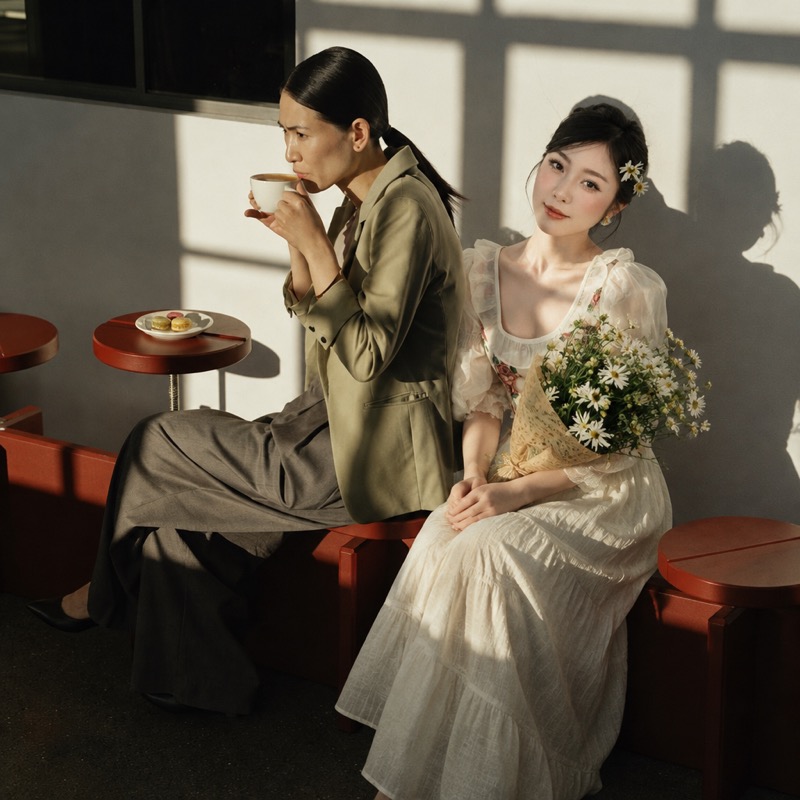
Give the added person a clear place in the photo. Match the source images’ viewpoint and ask for consistent eye level, spacing and light.
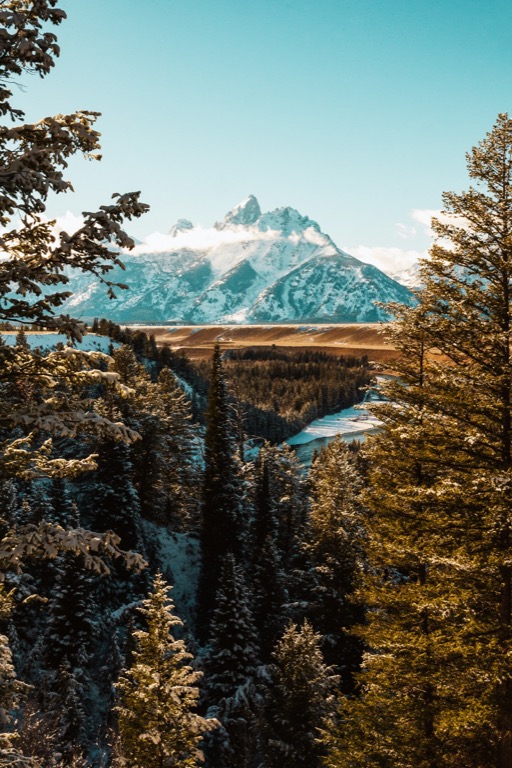
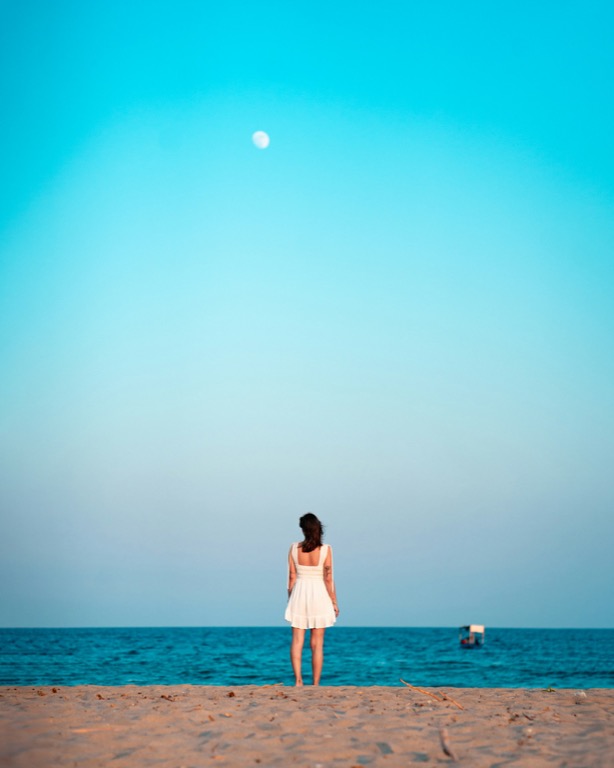
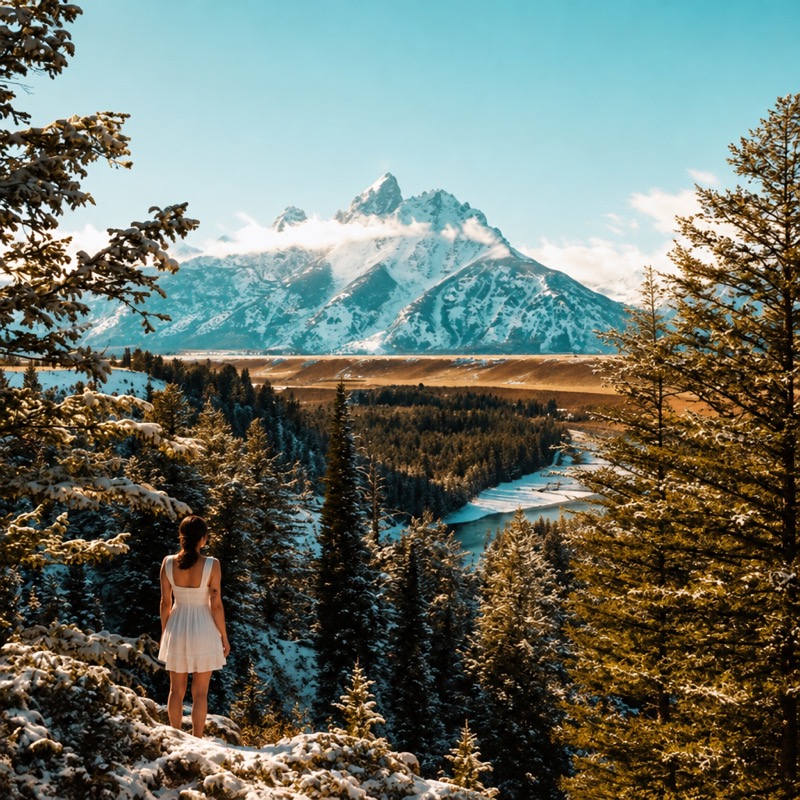
Choose a smaller relative size to leave space for the location. A full-body source is useful when the result needs feet, ground contact and a shadow.
Explore a new arrangement with someone who appears in a separate photograph.
Place a person into a location photo while keeping the setting recognizable.
Create an edited composition from photos you have permission to use.
See how a person might sit within a scene before planning a new shoot.
Upload a clear photo of the person. Add a background image to use an existing scene, or choose the written-background mode and describe a place.
Pick left, center, or right and an approximate size. Add instructions about light, spacing, or existing people to preserve.
Check the person’s scale, shadows, and boundaries. Download the new photo or continue with it in another photo tool.
Compose a scene, change a pose, bring someone into a picture, or give a moment a punchline.
ComposeBring people, places, and ideas from separate photos into one composition.
 Reimagine
Change a pose from a reference or written direction, create an action sequence, or choose a new background for your portrait.
You are herePlace someone into a background photo or a setting you describe, with control over position and scale.
 Make it loop
Find a reaction, add your punchline, and make it loop. Edit your GIF or video, or explore prompts for your next animated idea.
Choose a focused tool or find a little direction for your next picture.
Add a person to a background photo or a setting described in words. A scene reference keeps the location explicit; a written background lets you create a new setting around the person.
Use a background photo to keep a particular place, or choose a written background and describe the setting. Both modes use your uploaded person photo.
Yes. Choose left, center, or right, then small, medium, or large. The preview is a placement guide, not a prediction of the final AI result.
No. Original uploads and generated results are separate assets. You can return to the original or use a result as a new reference.
This tool adds one person to a background photo or a setting described in words. For a composition using several people or other references, try AI Image Combiner.
Use a clear photo with a compatible camera angle and light direction. A full-body reference is useful when the result needs the person’s whole body.
The tool asks the model to preserve the scene, but generation can change existing faces or details. Compare the result with the original before sharing it.
Yes. Choose a saved photo from My assets or use a previous output as a reference. Check that the scene and person roles are correct before creating.
Choose a scene, choose a person, and find their place in the frame.
Add a person