Choose a moving source
Upload a GIF, MP4 or WebM you can use. Keep a copy in My assets for later variations.
Find a reaction, add your punchline, and make it loop. Edit your GIF or video, or explore prompts for your next animated idea.
Pick a reaction, find your timing, and make the caption yours.
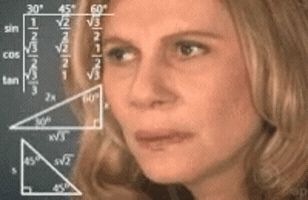
One expression does the work. Leave a beat for the caption.
Start with an existing clip, or prepare an AI animation for a character or an image you want to animate.
Bring an existing reaction, trim the moment, add your caption and export a looping GIF.
Describe a character, a reaction and a repeatable motion. Short actions work better than a whole scene.
Start with a character or photo and describe one small action: a blink, a nod or a tiny celebration.
Choose a frame-based animation or a short moving scene, with timing and controls for each.
Plan a compact reaction: a blink, a nod, or a small repeating gesture.
2–16 frames. Set the time per frame; 9 frames at 200 ms makes a 1.8-second animation.
Plan a short moving scene, a larger gesture, or a camera move.
1–15 seconds at 480p, 720p or 1080p. Choose the video shape for text prompts; image animations use the starting image.
Explore expressions, timing and caption ideas for your next reaction GIF.
One expression does the work. Leave a beat for the caption.
ME CALCULATING HOW MUCH SLEEP I CAN STILL GET
A close-up reaction: glance to one side, pause, narrow the eyes in confusion, then return to the opening expression. Keep the camera still and the background simple. No text inside the animation.
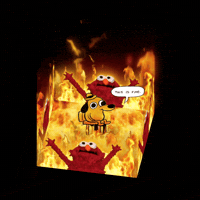
A calm setup makes an over-the-top reaction land harder.
ME WITH 27 TABS OPEN AND NO PLAN
An original cartoon character raises both arms with theatrical delight while abstract orange lights swirl behind them. Hold the central pose, animate the background in a repeating cycle, and keep the camera locked. No words or logos.
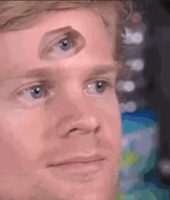
A tiny movement can carry the entire punchline.
WHEN THE QUICK FIX CREATES THREE NEW PROBLEMS
An original character gives a small double blink, freezes in disbelief, then makes a tiny head tilt. Chest-up composition, fixed camera, no cuts. Return to a neutral face for the end of the short loop. No text.
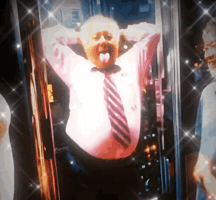
Repeat one readable move instead of a whole dance routine.
WHEN IT WORKS ON THE FIRST TRY
An original playful character does a two-step victory dance, shifting left then right and lifting both hands. Keep the whole body in frame. Repeat the same small movement and end on the opening pose. No camera movement or text.
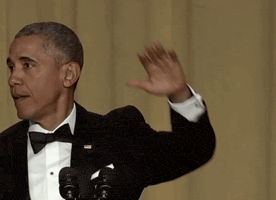
Keep the pause after the payoff. That is part of the joke.
SENT THE EMAIL. CLOSED THE LAPTOP.
An original fictional presenter finishes speaking, lifts a handheld microphone, drops it, and looks calmly toward the camera. One continuous medium shot with a clean background. Leave a short pause after the drop. No text.
Use a familiar feeling with a situation from your own day.
TRYING TO REMEMBER WHY I WALKED INTO THIS ROOM
A person looks upward thoughtfully, moves their eyes from side to side, and gives a small puzzled shrug. Use a fixed close-up, keep their appearance unchanged, and end on the first expression. No equations or captions in the generated image.
Write the reaction first. Add the movement, framing and return pose. Keep the caption separate so it stays readable when you edit the GIF.
Subject + reaction + one action + fixed camera + return pose
Fast loop uses OpenAI’s native GIF approach for a small sequence of frames. Smooth motion uses Grok’s short-video approach, followed by GIF conversion.
Adjust frames and timing with OpenAI, or duration and resolution with Grok. Keep the action short and the return pose clear.
A small original cartoon cat sits beside a coffee cup, slowly blinks, gives one tiny nod, and returns to its starting pose. Keep the camera fixed and the background still. A short repeating loop with no text.
Upload a GIF, MP4 or WebM you can use. Keep a copy in My assets for later variations.
Choose a segment, set the speed and crop, then add one short caption at the top or bottom.
Export the animated GIF and check the timing. Download it or reopen the edit from History.
A blink, a pause or a gesture can say more than several cuts. Keep the subject large enough to read on a phone.
Pair the expression with a situation people recognize. Keep the line short enough to read once through.
Stop after the payoff, or return to the opening pose. Check the jump from the last frame back to the first.
Shorter clips and smaller frames make lighter GIFs. GIF has no audio, so give the moment its context in text.
Choose Create from text to describe a new character or scene. Choose Animate an image when you have a starting photo, then describe what should move. For a GIF or video you already have, choose Edit a GIF or video.
A fast loop is a short sequence of animated frames, using OpenAI’s native GIF format. Smooth motion starts with a Grok-generated video and converts it to GIF. These are different motion styles; neither guarantees a seamless loop.
Use GIF, MP4 or WebM up to 120 seconds long. GIF uploads must be under 20 MB; videos under 50 MB. Export a selected segment up to 15 seconds.
Yes. Set a top or bottom caption, adjust its size, choose original, square or portrait crop, and change speed from 0.5× to 2×. Play the exported file to check the final text and timing.
Yes. Your uploaded source and exported GIF are separate assets. Open My assets or return to the task from History to make another version.
Bring your clip. Find the reaction. Add your line.
Make a GIF meme