
How to Combine Photos into One Scene with AI
Choose source images, assign each reference a role and write a clear brief for a single blended scene.
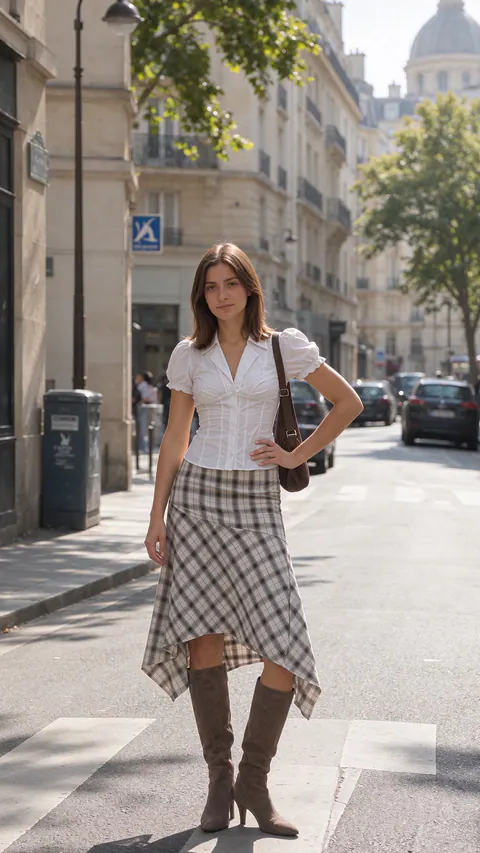
Combining photos into one scene starts with a decision: which image supplies the setting, and which supplies the subject? Give each reference one job. A short, specific instruction is easier to evaluate than a request to “blend everything beautifully.”
A composite or a collage?
A collage keeps separate pictures in a layout. A composite places their subjects inside a shared scene. If you want two unaltered holiday photos side by side, use a collage editor. If you want a person from one picture standing in the street from another, use an AI image combiner.
For one missing person in an otherwise finished group photo, the Add Person to Photo workflow gives that task a more specific starting point.
Choose the background first
Look for enough space to place the subject without covering the part of the scene you care about. A full-length figure needs a visible ground plane. A portrait behind a café table needs a plausible seat and room for the torso.
Then inspect the subject image. Is the camera above eye level or below it? Is the face lit from the left or right? A source photographed from a similar height and direction gives you fewer mismatches to resolve. Adobe’s compositing guidance also identifies perspective, scale and light direction as key checks.
Write the brief in three parts
- Identify the scene: “Use the narrow street photo as the background.”
- Identify what to transfer: “Place the woman from the portrait on the lower step.”
- Describe the relationship: “Keep her face and blue jacket. Make her full length, facing up the stairs, with sunlight coming from the same side as the buildings.”
These are example instructions, not a claim about a tested result. Replace the objects and positions with details visible in your own images. Avoid asking for a new outfit, a new pose and a new setting unless you actually want all three changed.
Work through the result in order
First look at the whole frame at the size you intend to share. Does the person belong at that distance? Next, zoom in on the face, hands, clothing edges and contact with the ground. A believable face cannot fix feet that float above a step.
If the subject is too large, revise the placement instruction using a visible landmark: “Her head should sit below the shop sign.” If the blend is confusing, remove a reference that does not have a distinct role. Keep your original source files for the next attempt.
When several references help
Use another reference when it answers a specific question, such as which jacket to retain or what the destination looks like. More images are not automatically more useful. Two competing backgrounds leave the intended setting unclear.
For a reusable brief with separate subject, scene and style instructions, read how to organize image references. If the background already works and only the posture needs changing, follow the pose-editing guide.
Can I keep the original photos unchanged?
A collage can display the originals without blending them. Generative compositing creates a new image, so inspect important details before using it. For exact pixel-level control over a particular region, a layer-and-mask editor gives you a different kind of workflow.
Ready with a scene and a subject? Open AI Image Combiner and describe where each belongs.