
Kling Image 4.0 Series Mode vs Single Images
Plan a Kling Image 4.0 image series or a batch of independent drafts. Includes a four-card prompt, count settings and a continuity check.
Choose Series in Kling Image 4.0 when the images have jobs in a sequence. A storefront carousel might open with a clean product view and use the following cards for materials and details. Choose Single when you want several interchangeable versions of the same brief, such as cover options for a pitch.
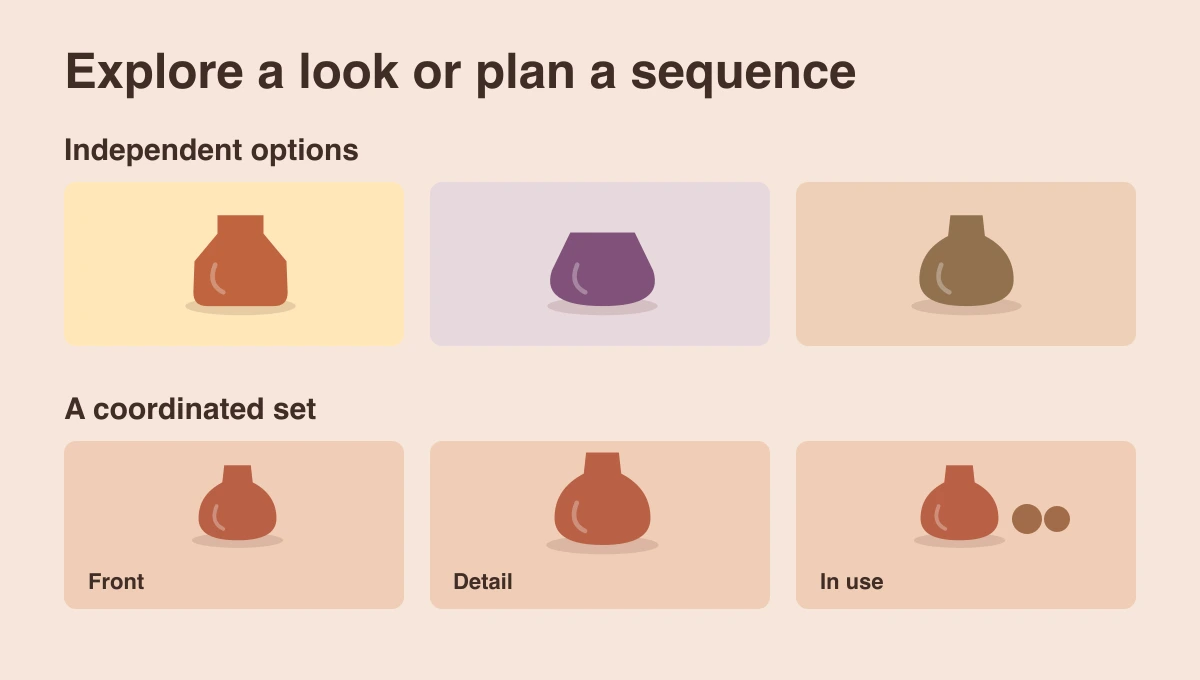
What is the difference between a batch and a series?
Both options can give you multiple files. The difference shows up when you review them. With a batch, you might use only your favorite composition. With a series, each image contributes information, so an attractive frame can still need a revision if it repeats the same angle or changes the subject.
| Deliverable | Select Result type | Select the count |
|---|---|---|
| Alternative directions for one cover | Single | 1–9 independent images |
| Four cards in an existing carousel template | Series | Set Series size to 4 and assign a role to each card. |
| Early storyboard with room to add a frame | Series | Use Auto if the model can choose the number. |
In Jovoscope, set the output count to 2–10. Choose Auto if the model can decide how many images to make within that range. Jovoscope quotes and charges Auto at the ten-image limit. Use a fixed count when the files have to fit a layout or when you want a quote for an exact count.
How do you write a prompt for an image set?
Write the parts that stay the same once. Then give every frame a reason to exist. If a product already exists, open the Kling Image 4.0 tool, choose Image to image, attach a sharp reference and bind it with @. If you are inventing the product, switch to Text to image and describe the identifying features. For a four-card candle campaign with an existing jar, set Result type to Series, choose four images and use one aspect ratio for the set:
Create four separate 4:3 files for the candle in @Image1. Keep the smoked-blue jar, pale wax and narrow silver rim in every shot. Use the same matte stone surface and cool light from the left throughout.
- Open with the whole jar, straight on and centered, with the lid sitting beside it.
- Move close enough to show the glass and the rim together.
- Show the open jar from above so the wick and wax are visible.
- Place the jar on a shelf beside one folded linen towel. Keep the front of the jar clear.
When you brief a narrative sequence, give each frame one action the audience can see. A panel for “she spots the ferry lights” can show a face turned toward the harbor. Save the run to the dock for a second panel so the cut reads clearly.
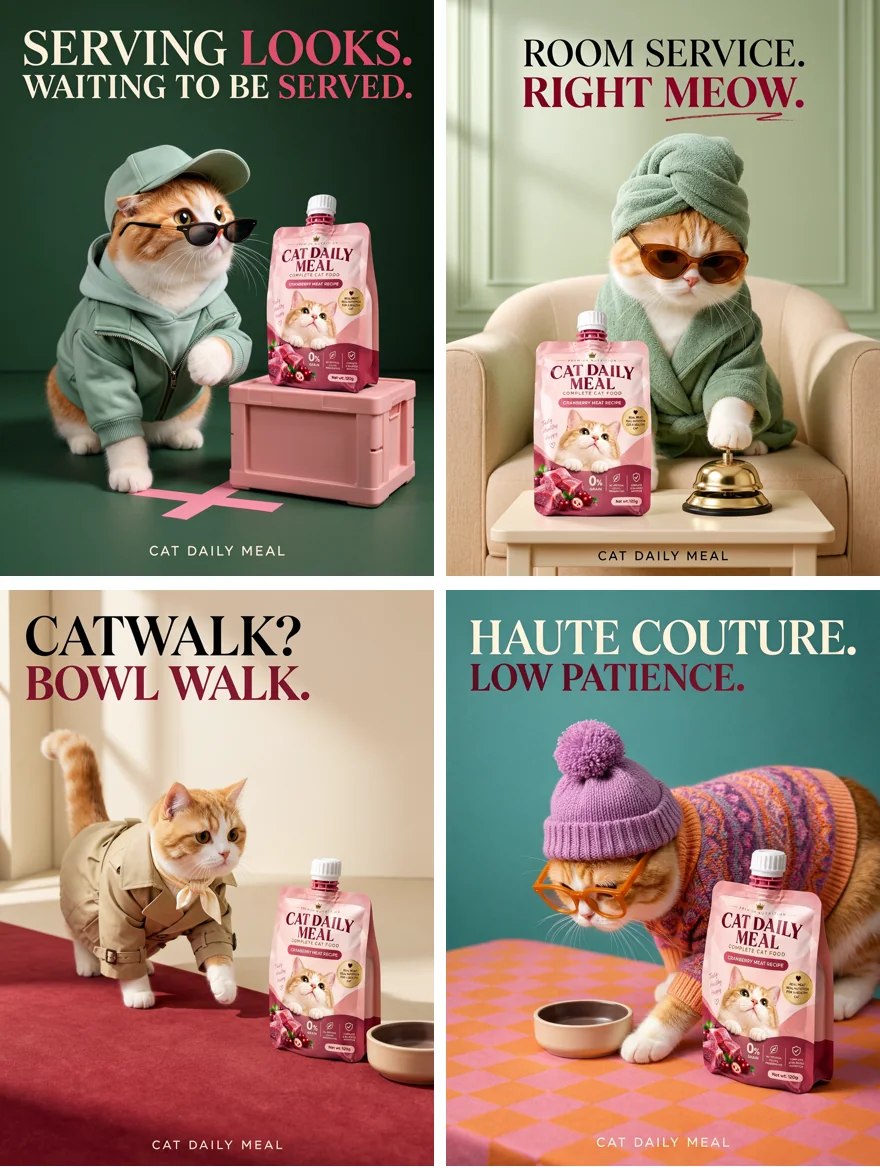
Four shots from Kling AI’s product series. The pink pouch appears in each shot while the cat’s clothes, headline and setting change. Check the package shape and lettering before you select the shots for the carousel. Kling Image 4.0 user guide
How do you check consistency?
Put the result files in a row in their intended order. First look for details likely to drift between crops, such as the jar profile and rim. Use the approved product photo as the baseline for every frame. Then cover the captions and try to name the job of each card. If two cards show essentially the same view, revise one shot instruction to make its role more specific.
- Check the file count and reading order before naming the files.
- Inspect the main subject at full size, especially the smallest product detail people will recognize.
- Preview the set at the final card size to check crop safety. If a channel needs a different ratio, plan a separate crop or a separate set.
Keep the best set and its reference images together. When you need to repair one framing problem, start the next brief from the frame that carries the approved details. For a page review where the sections need to scroll together, see what to put in a Long Image.