
Example
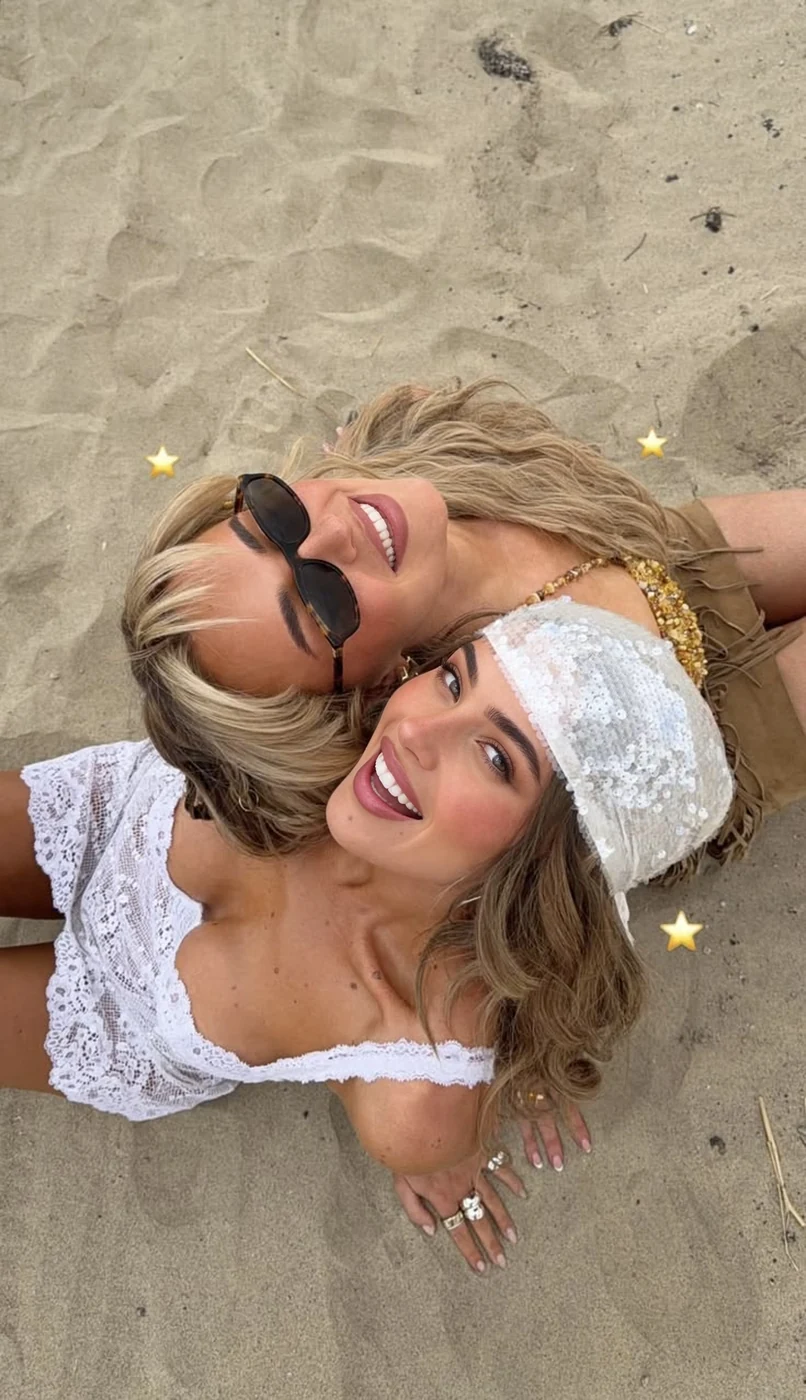
Beach group portrait
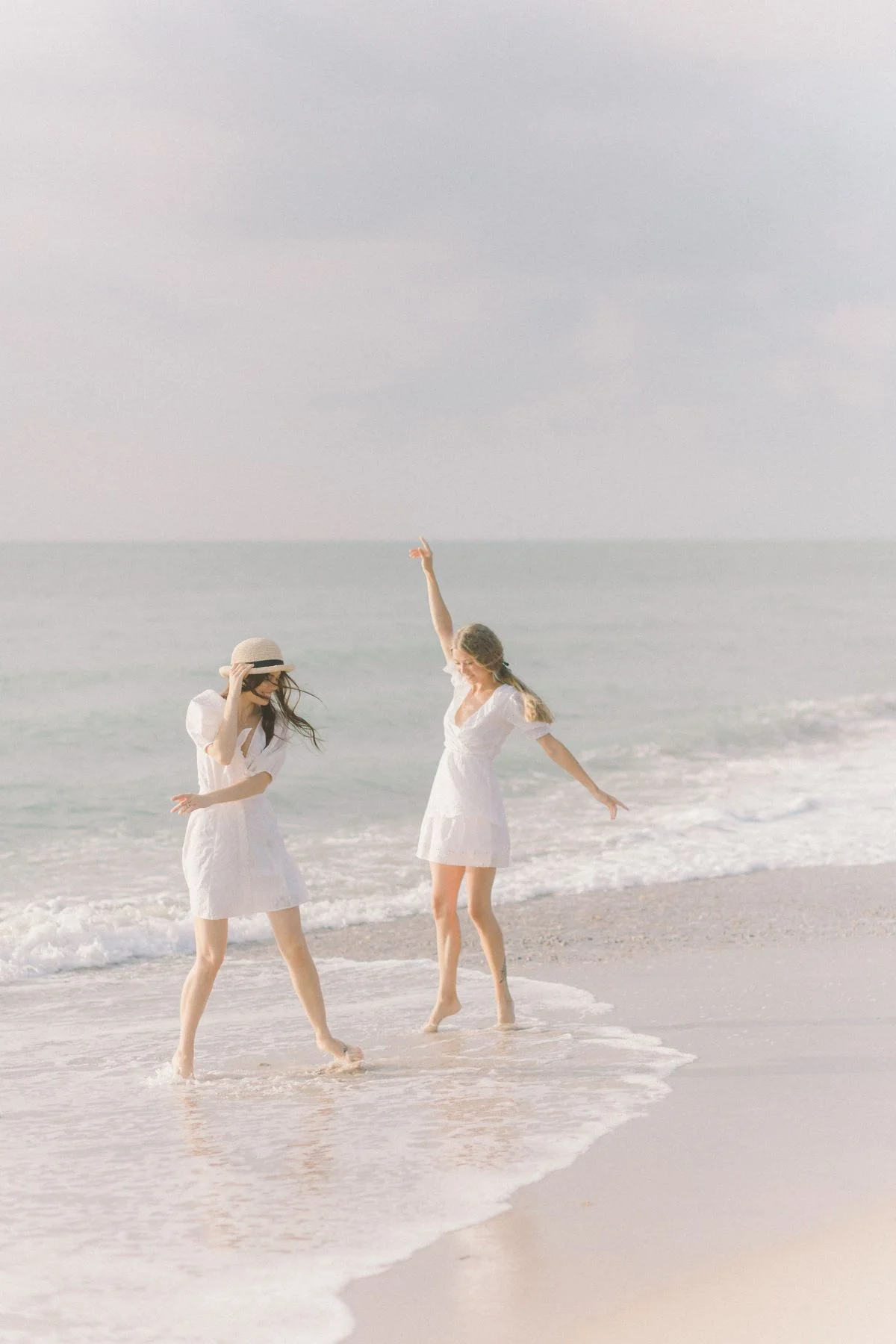 Source beach photo
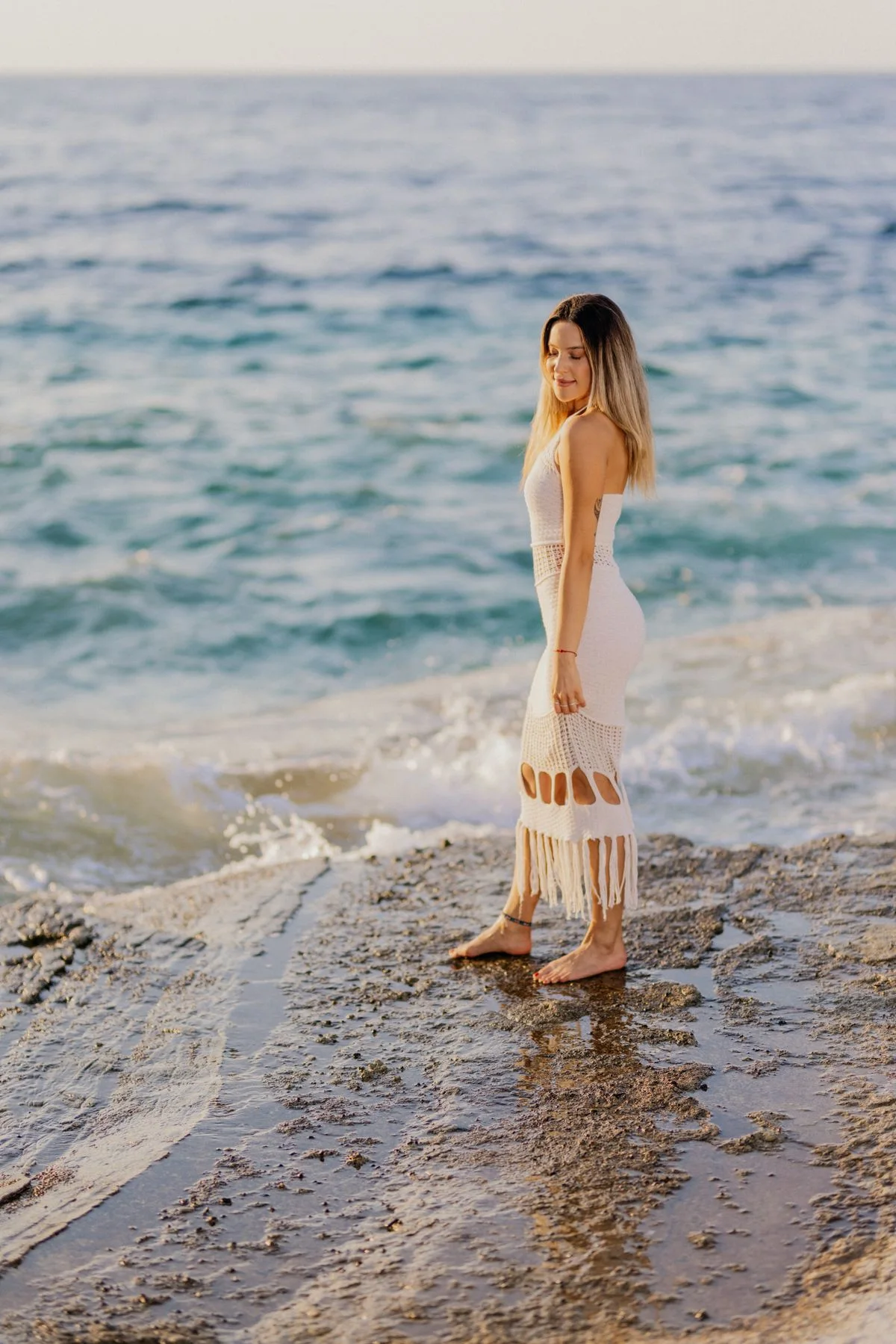 Person to add
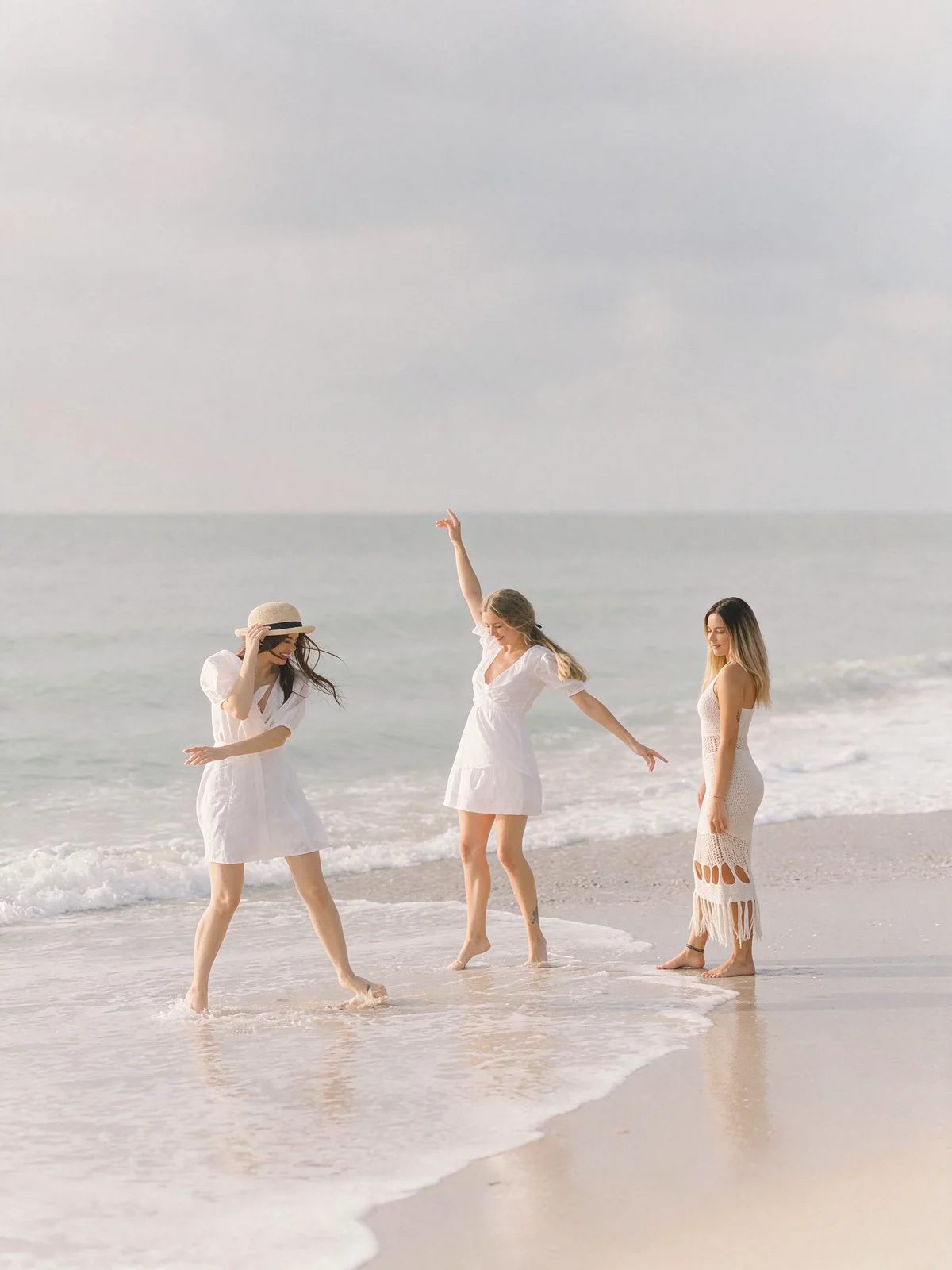 Example result
Templates
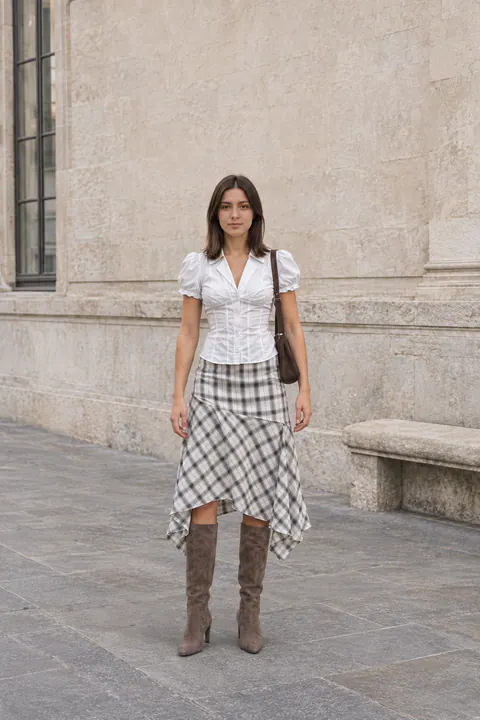
Inspire
Explore gallery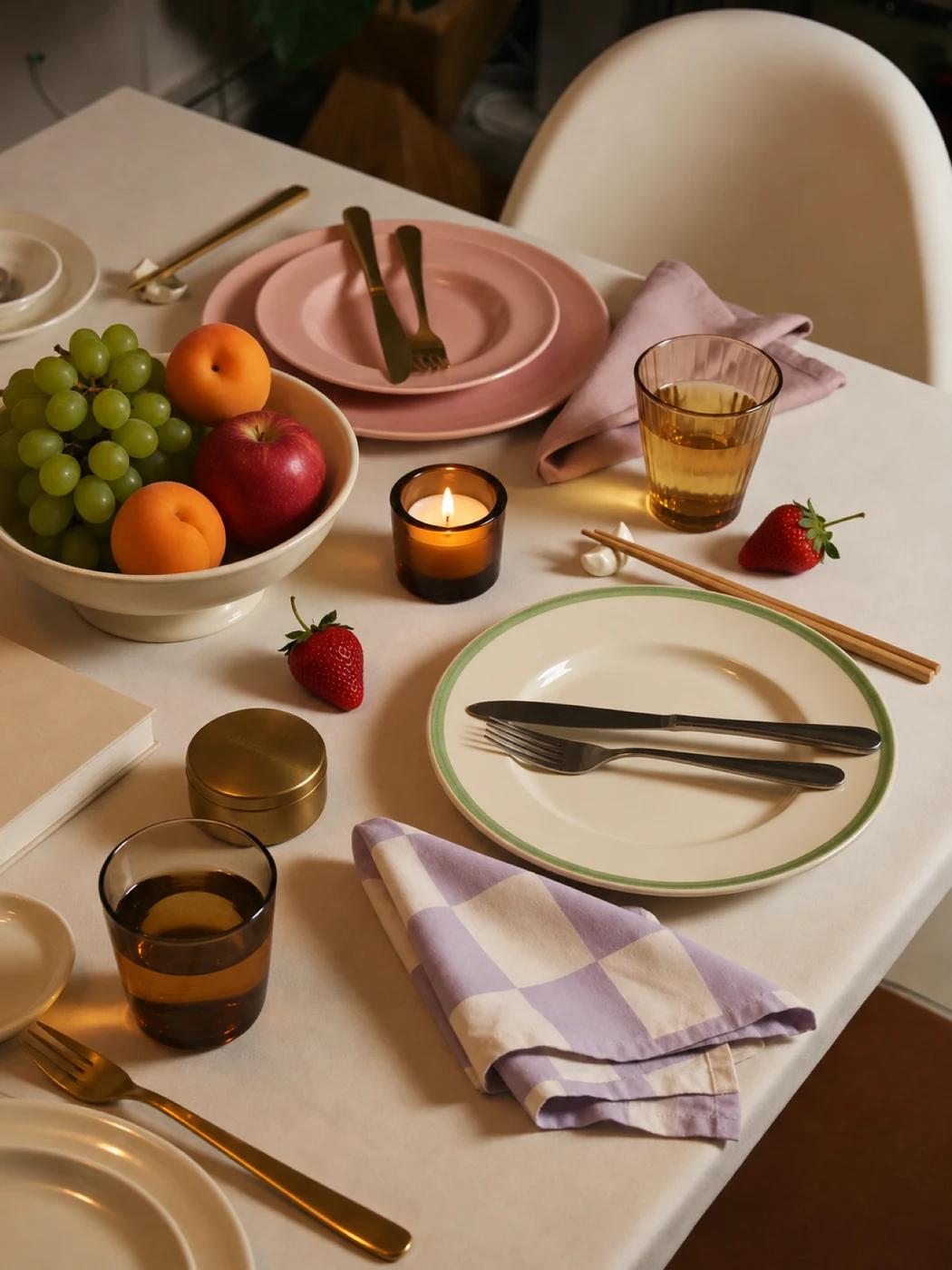
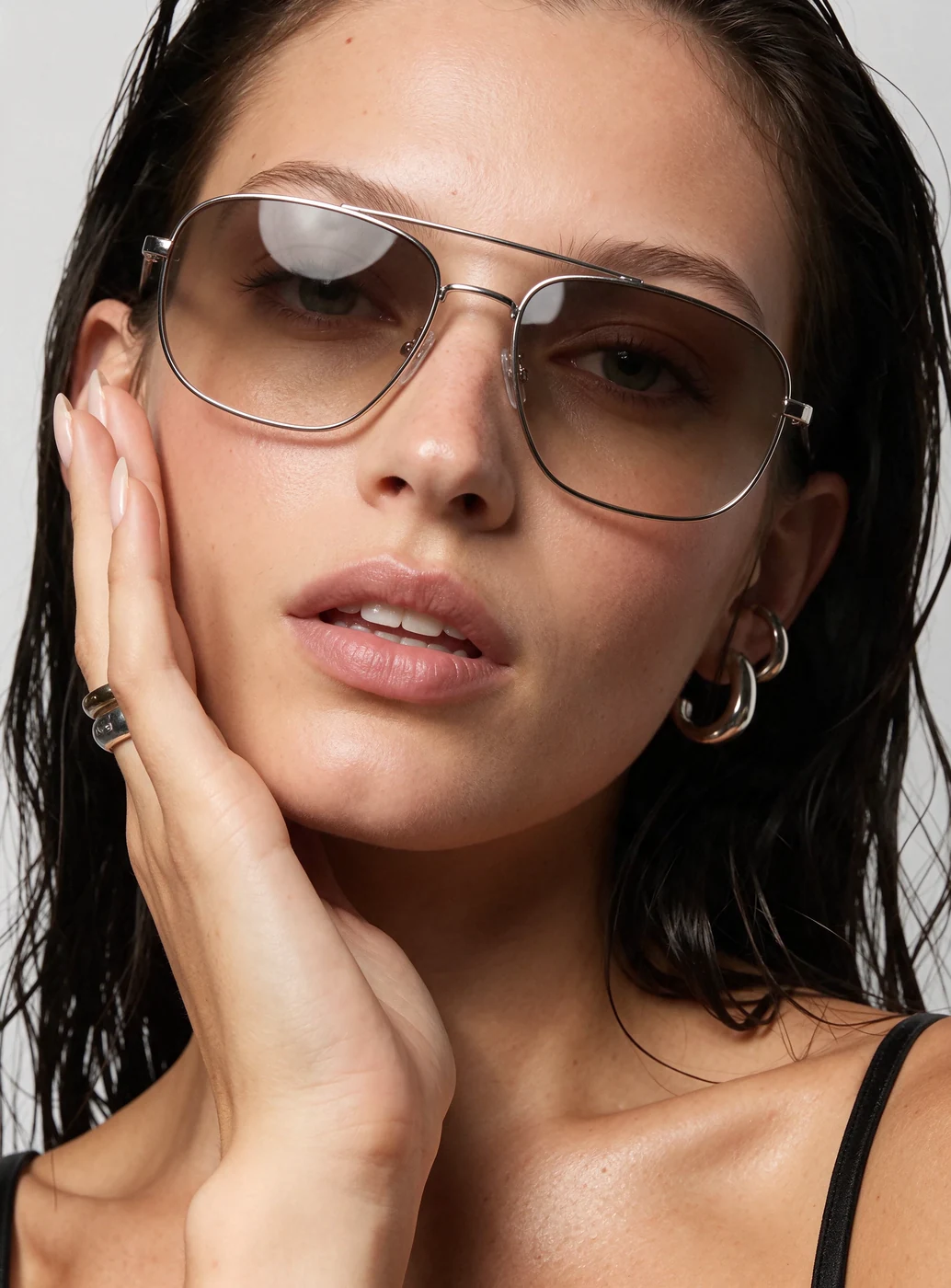
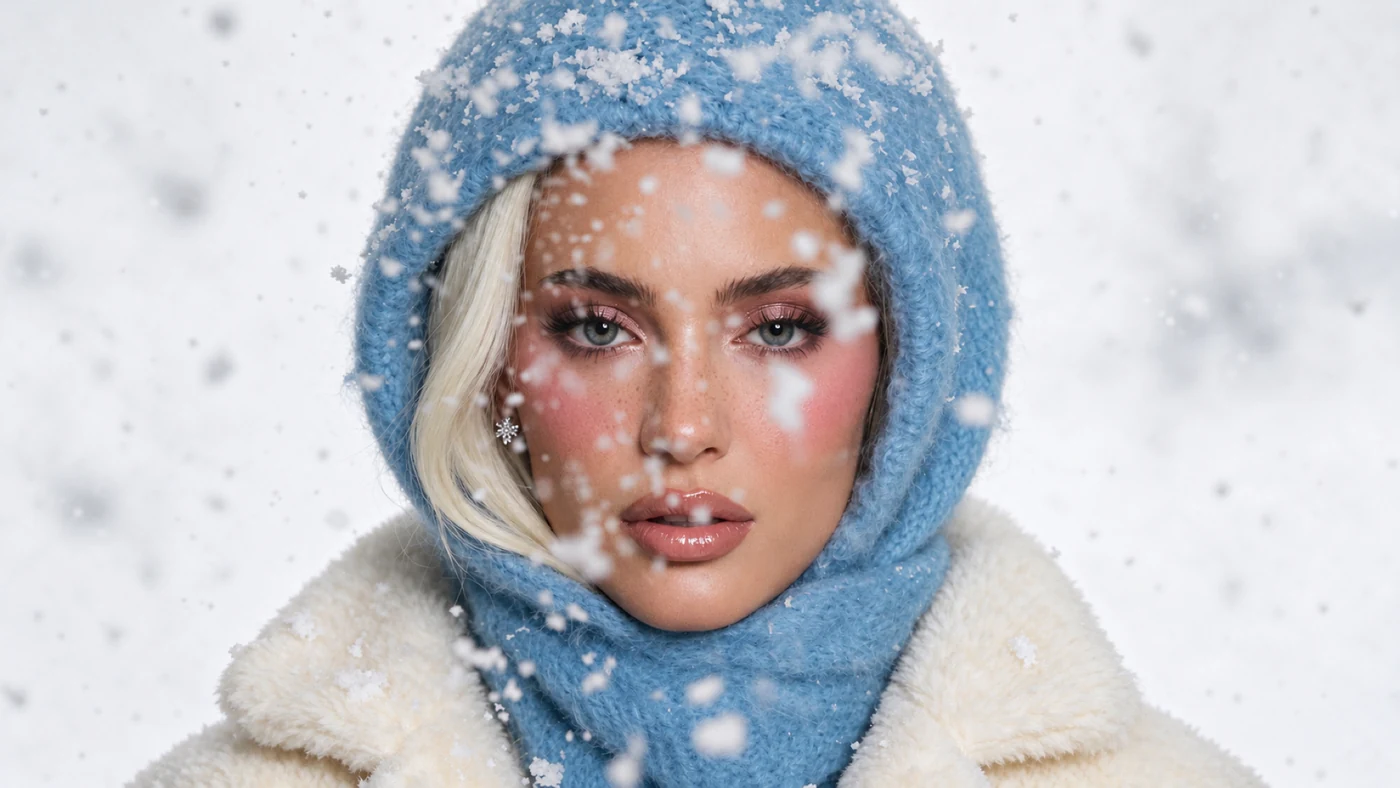
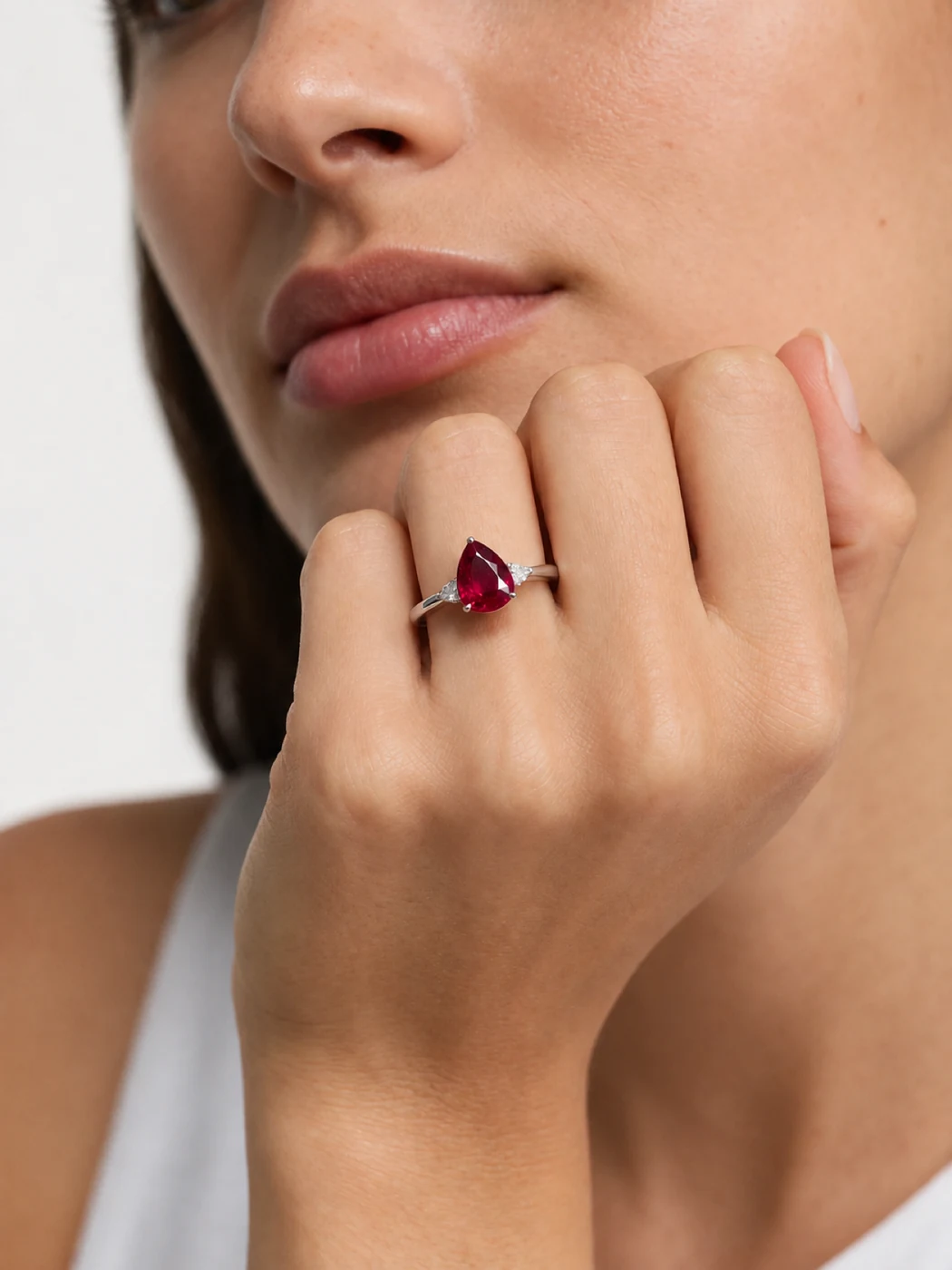
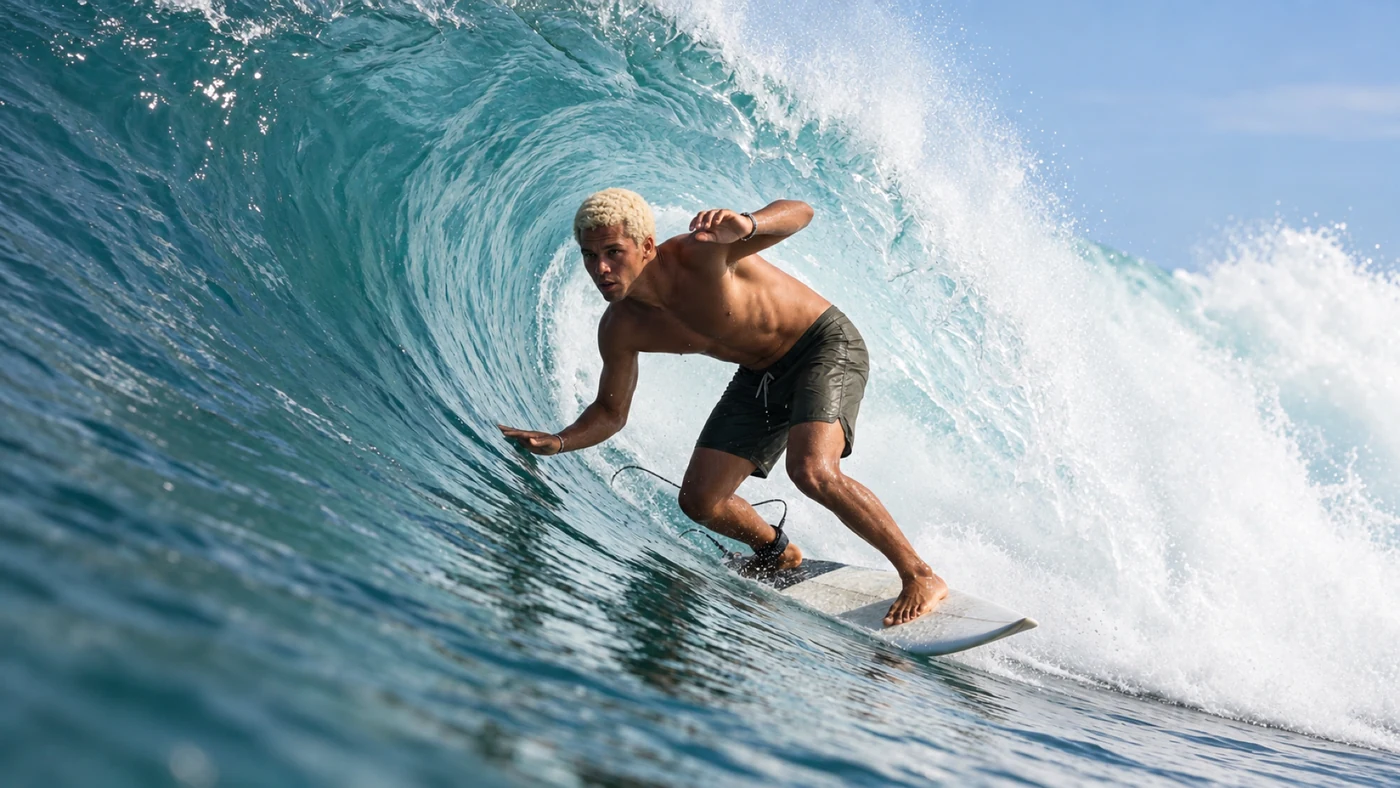
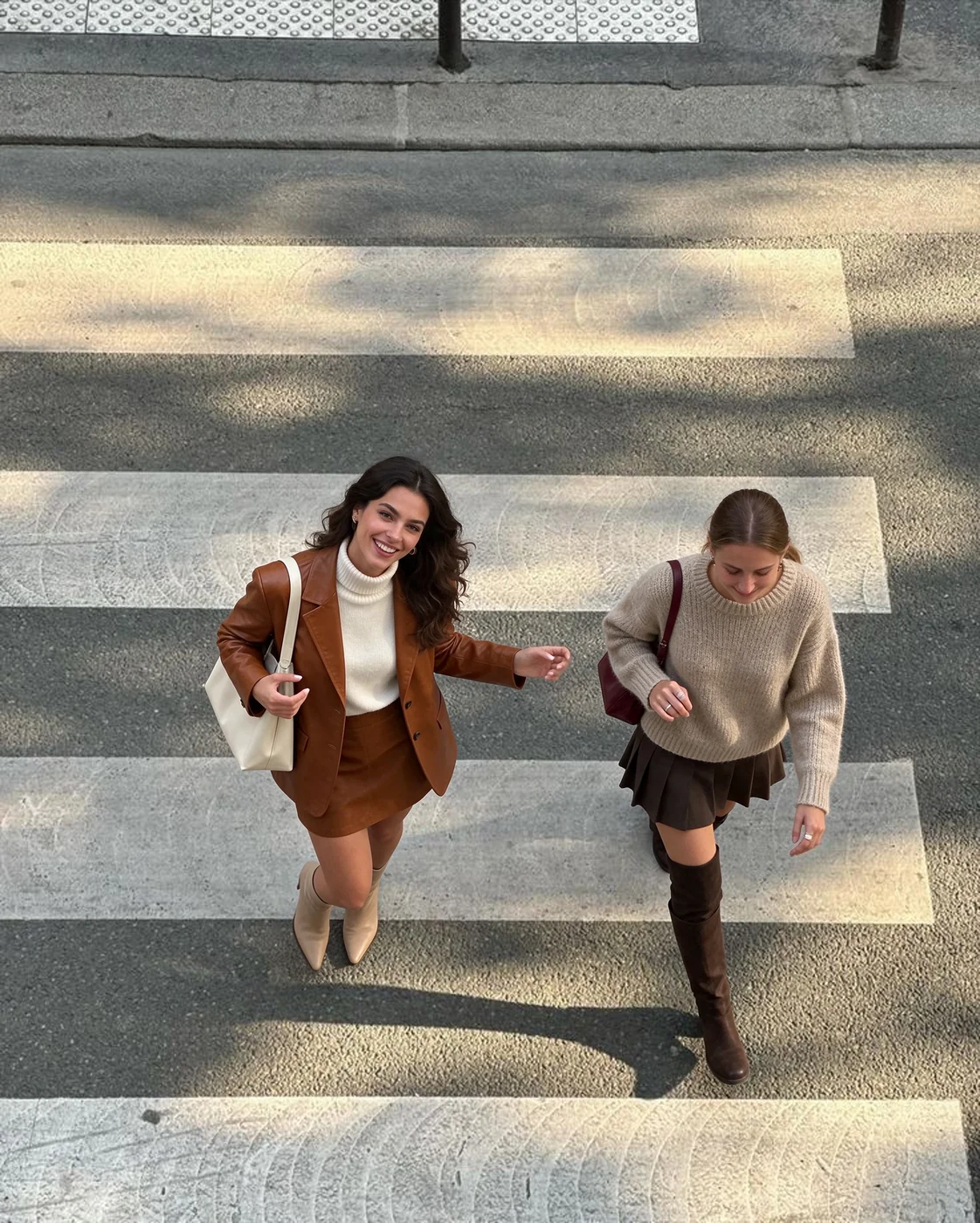
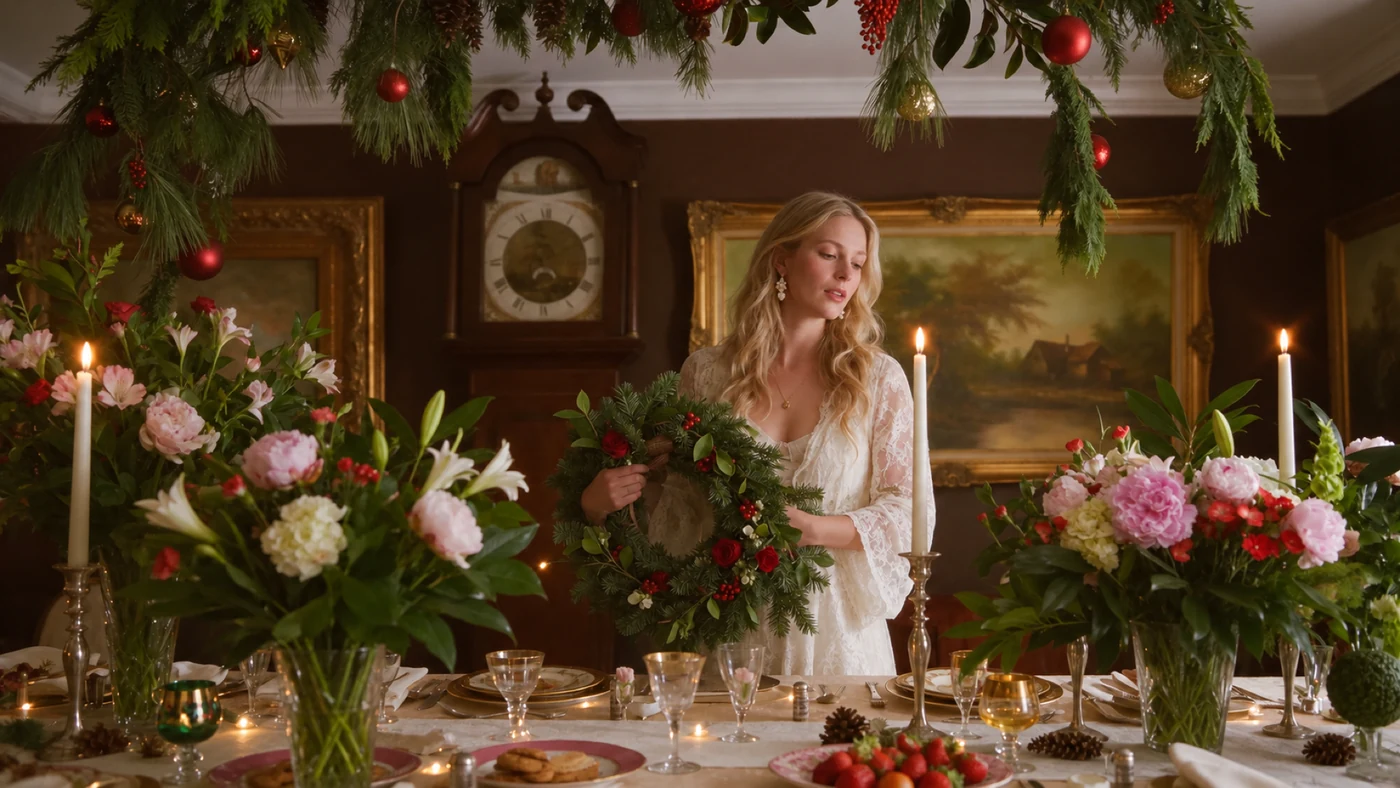
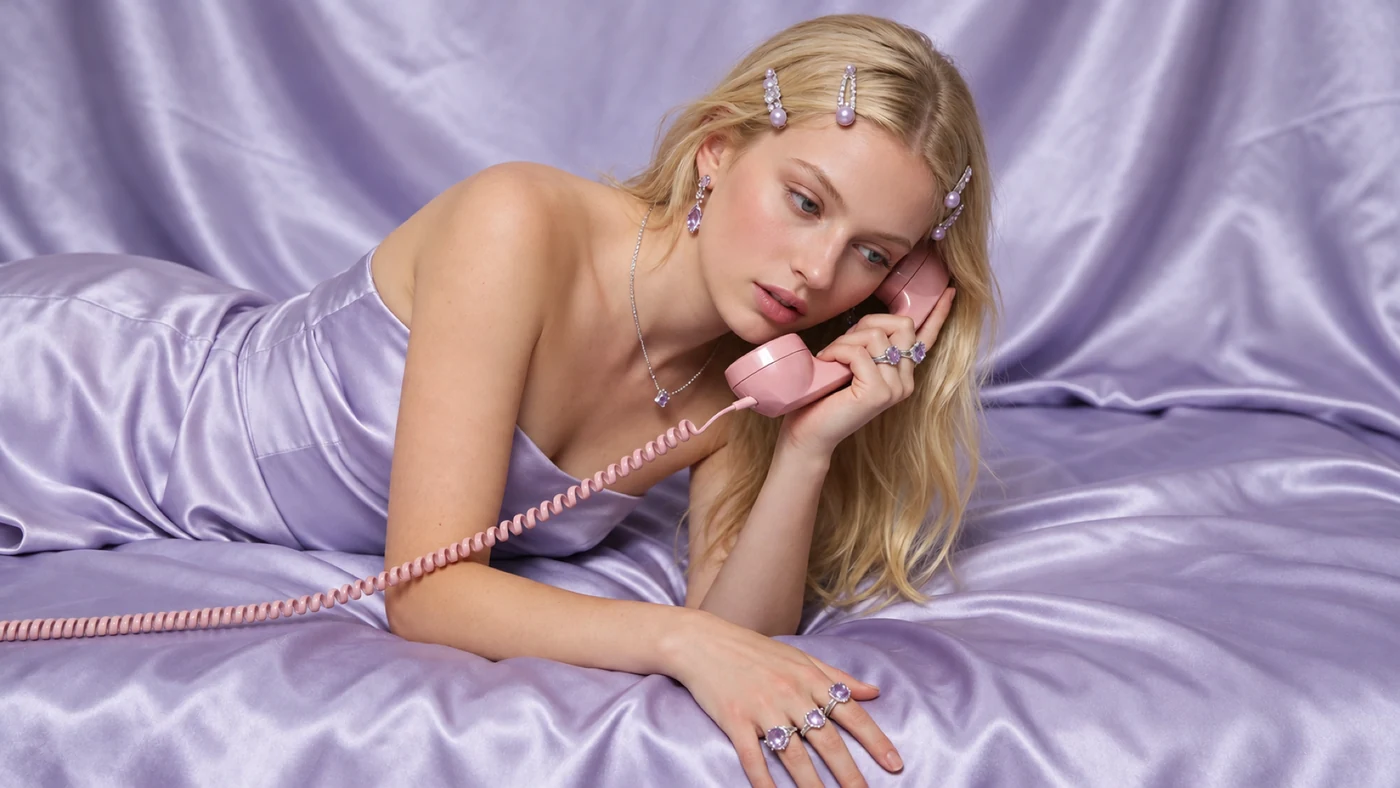
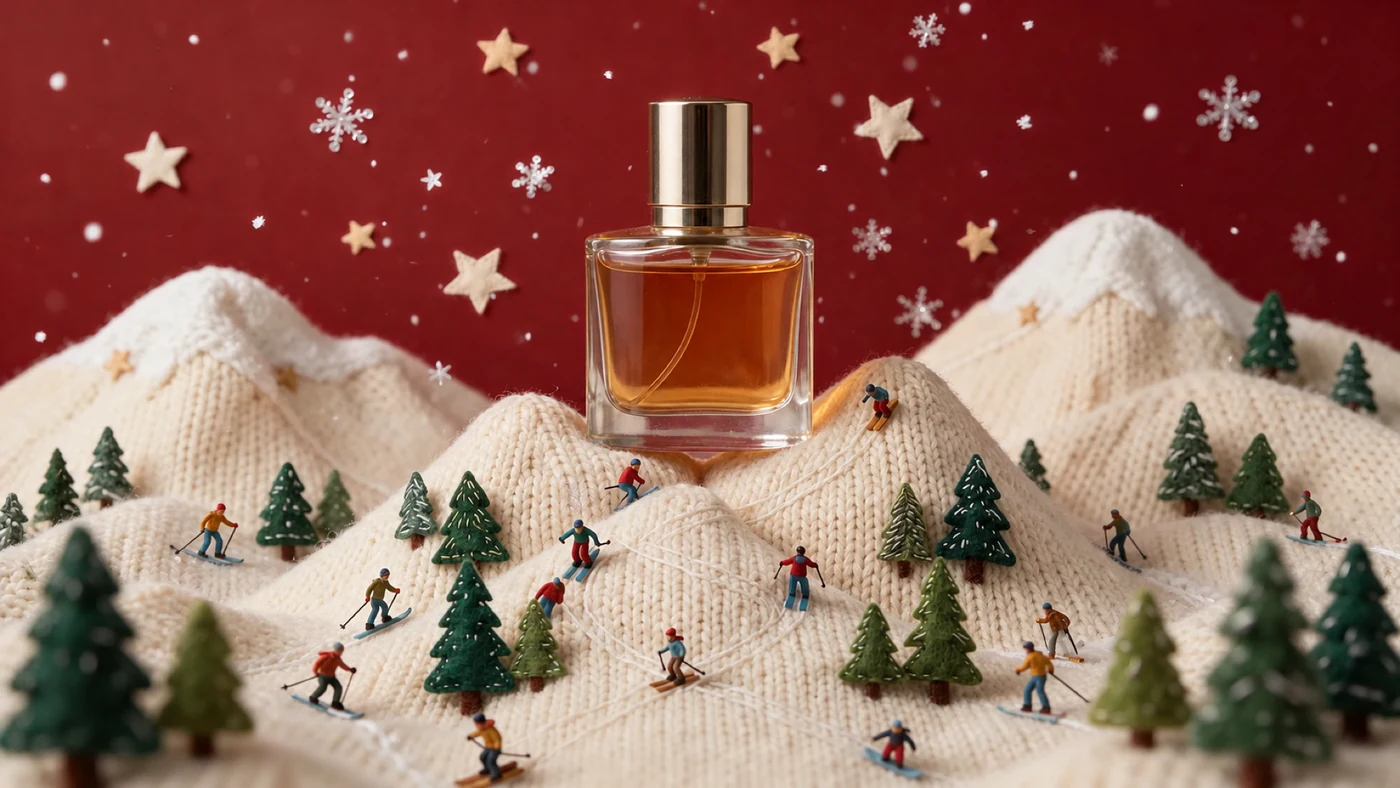
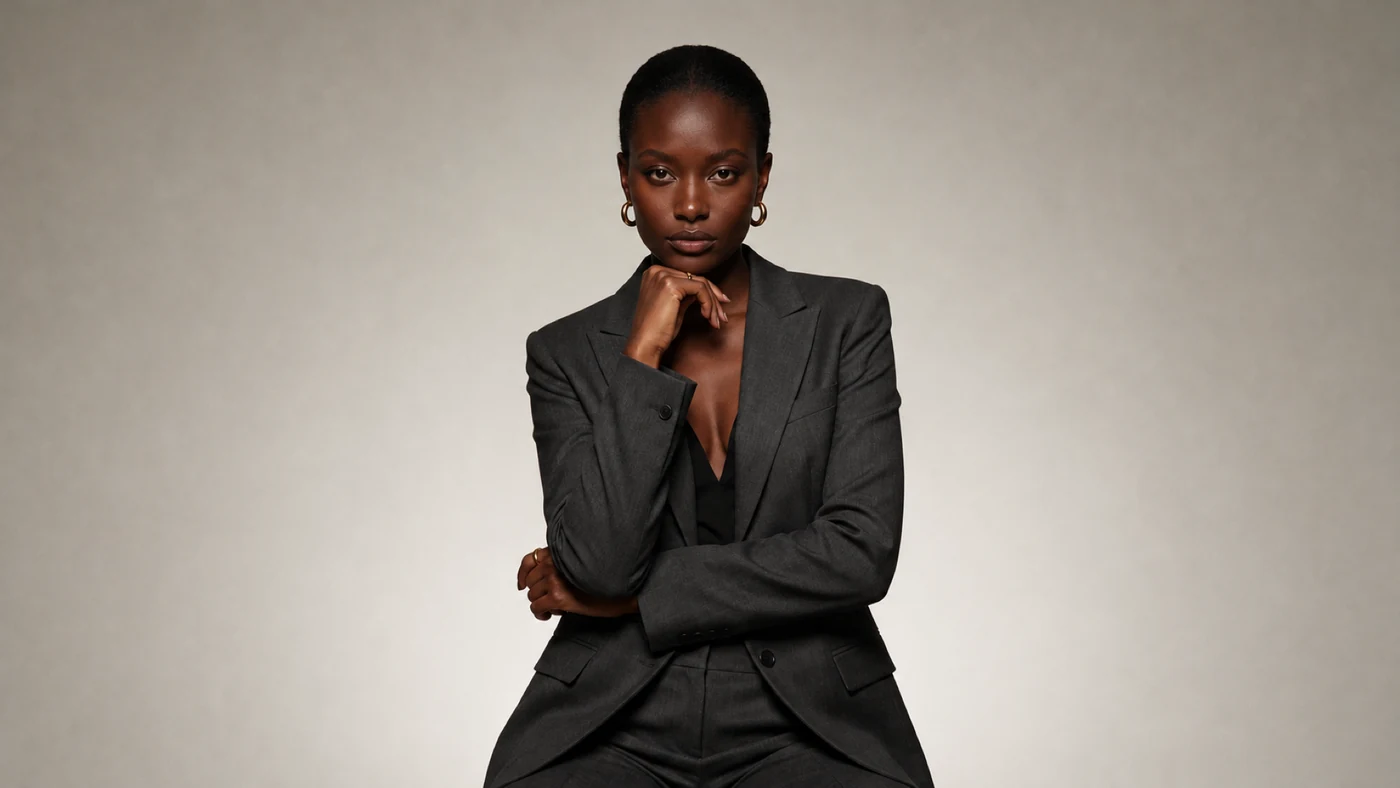
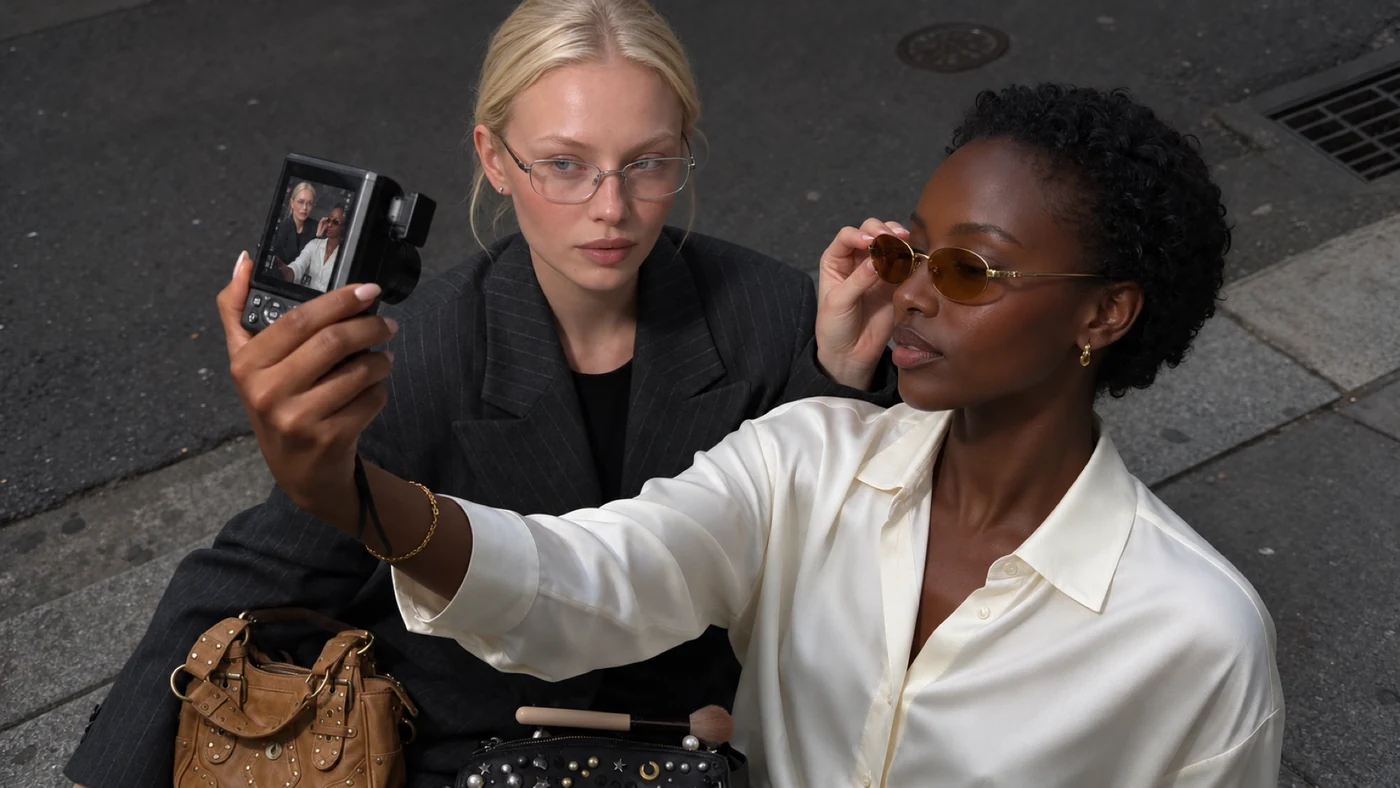
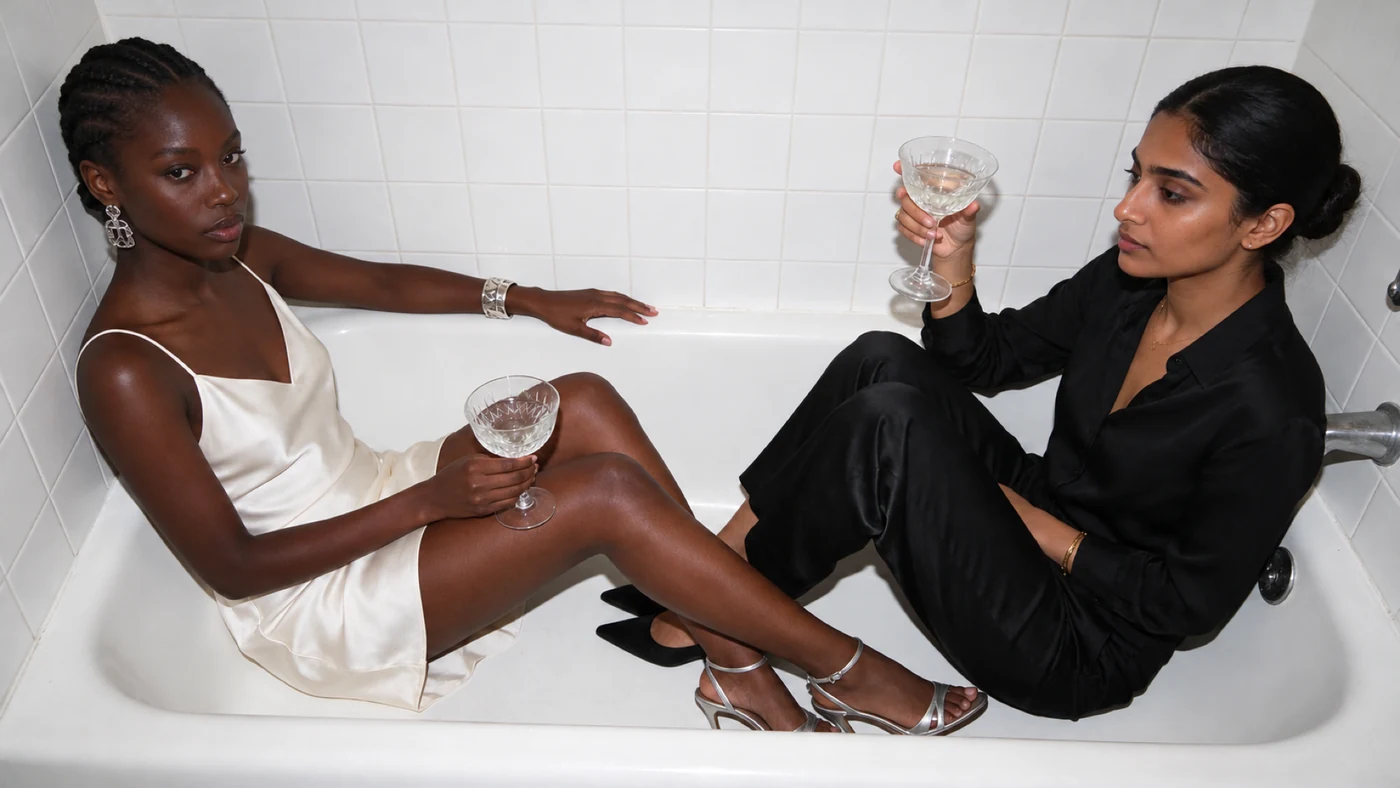
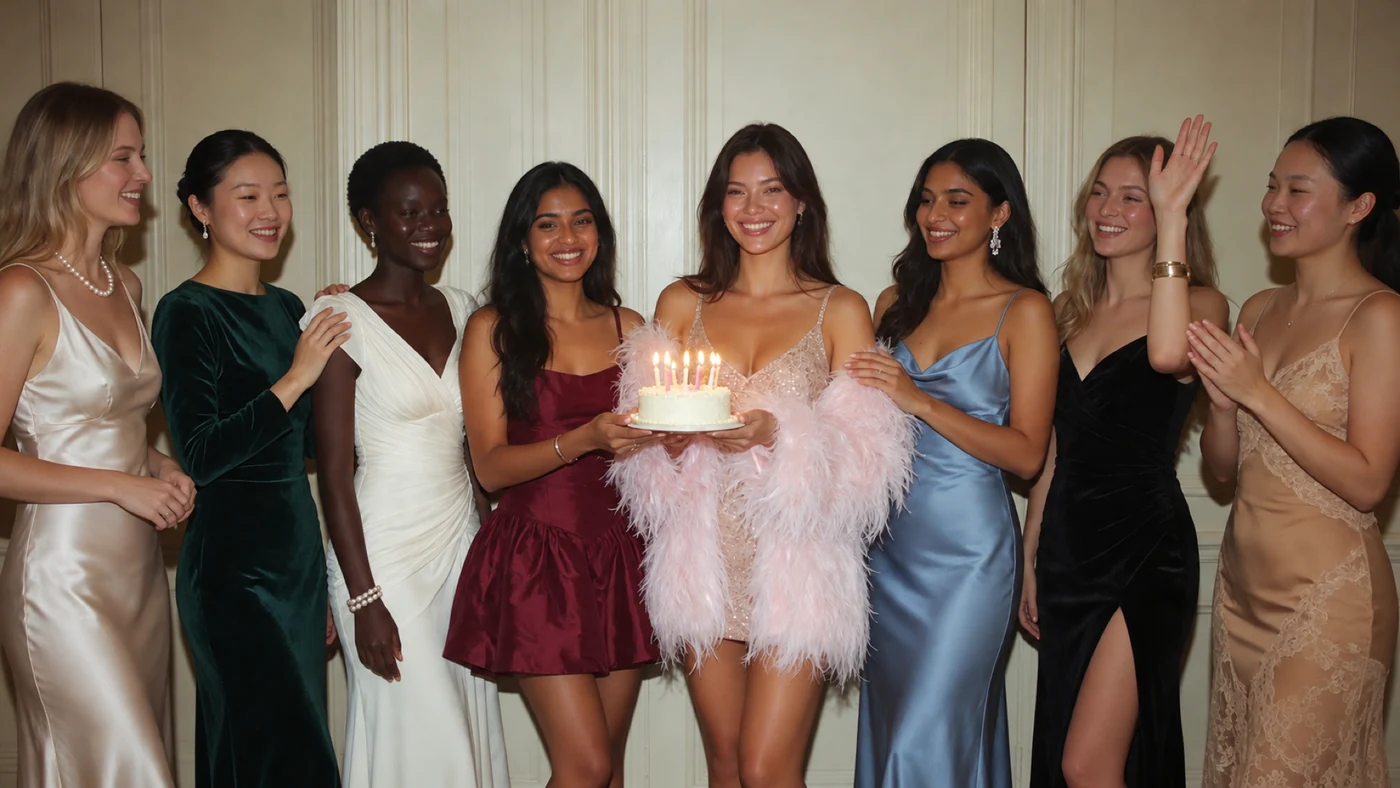
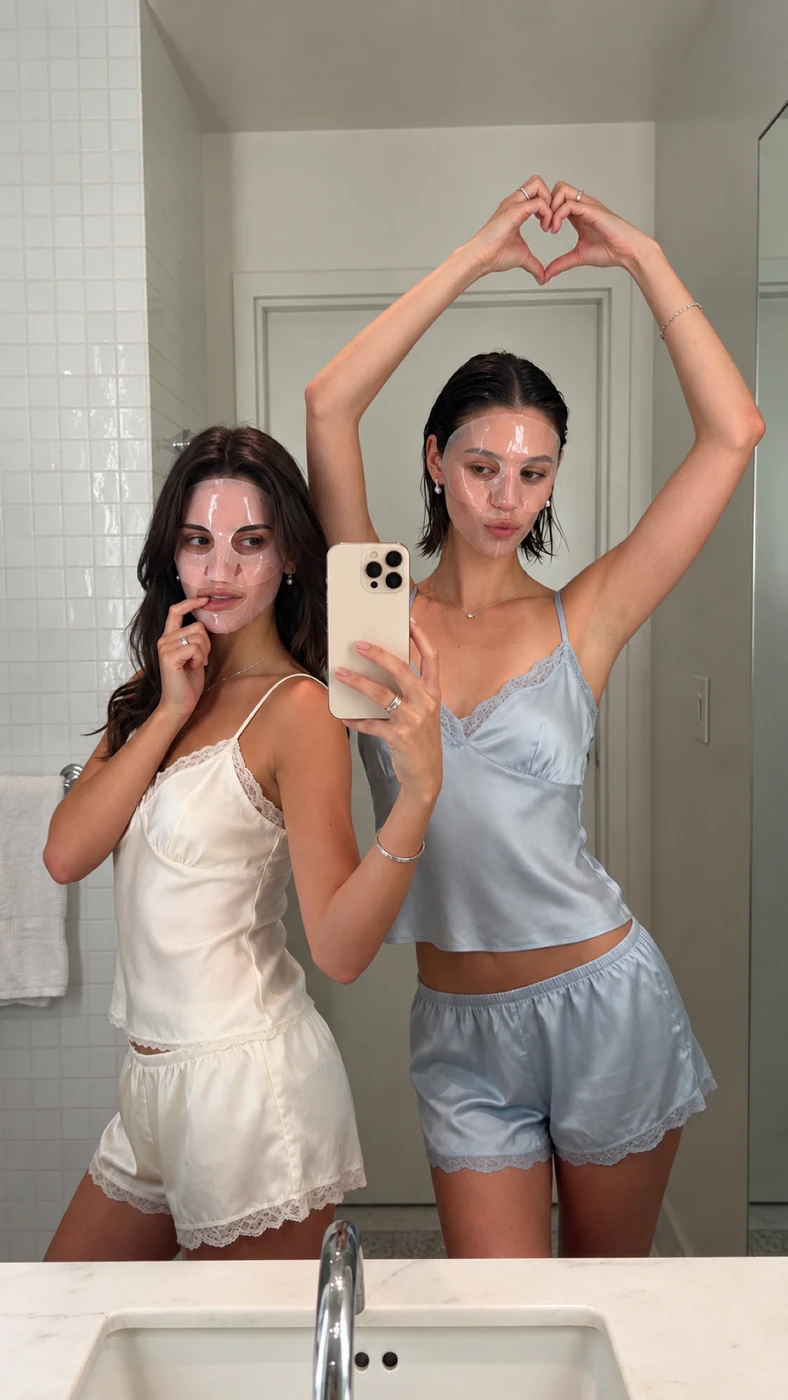
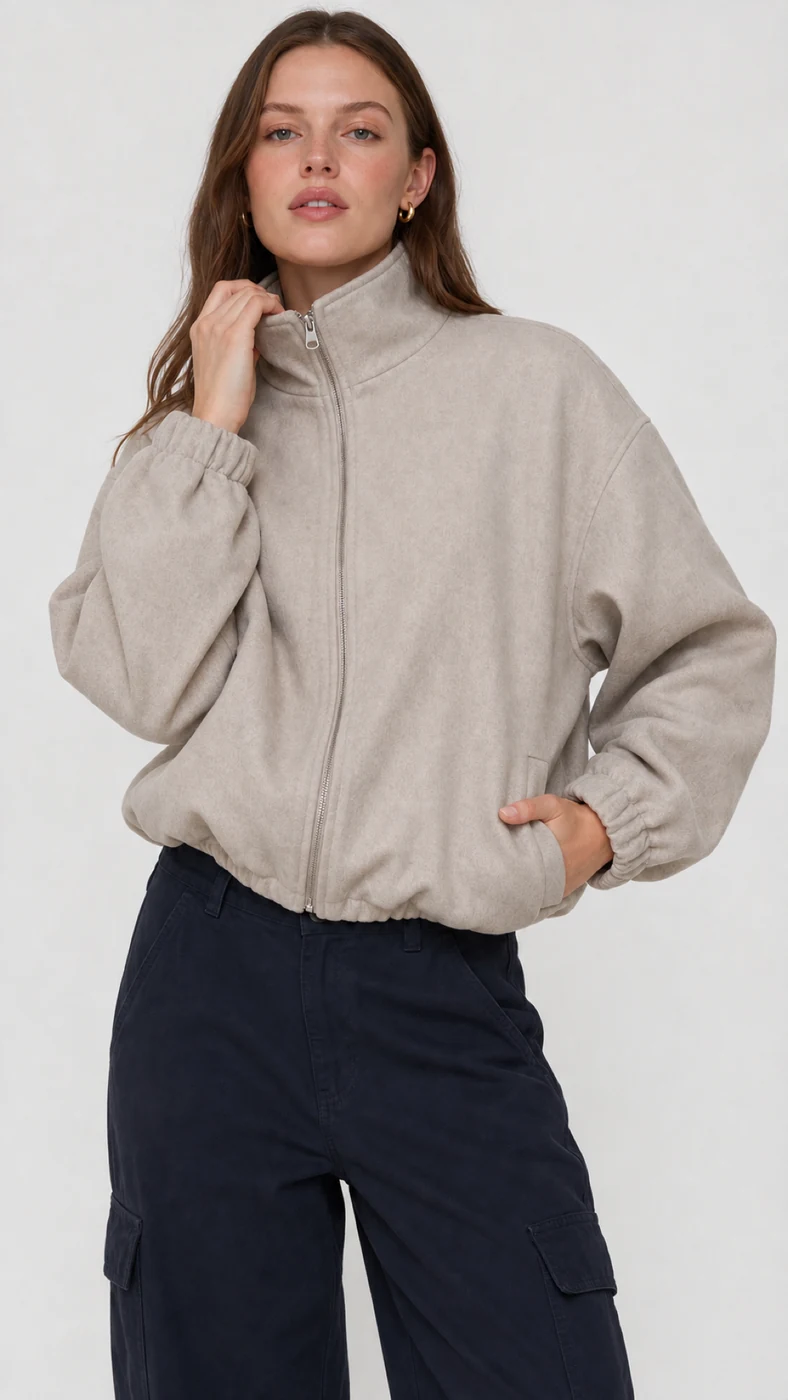
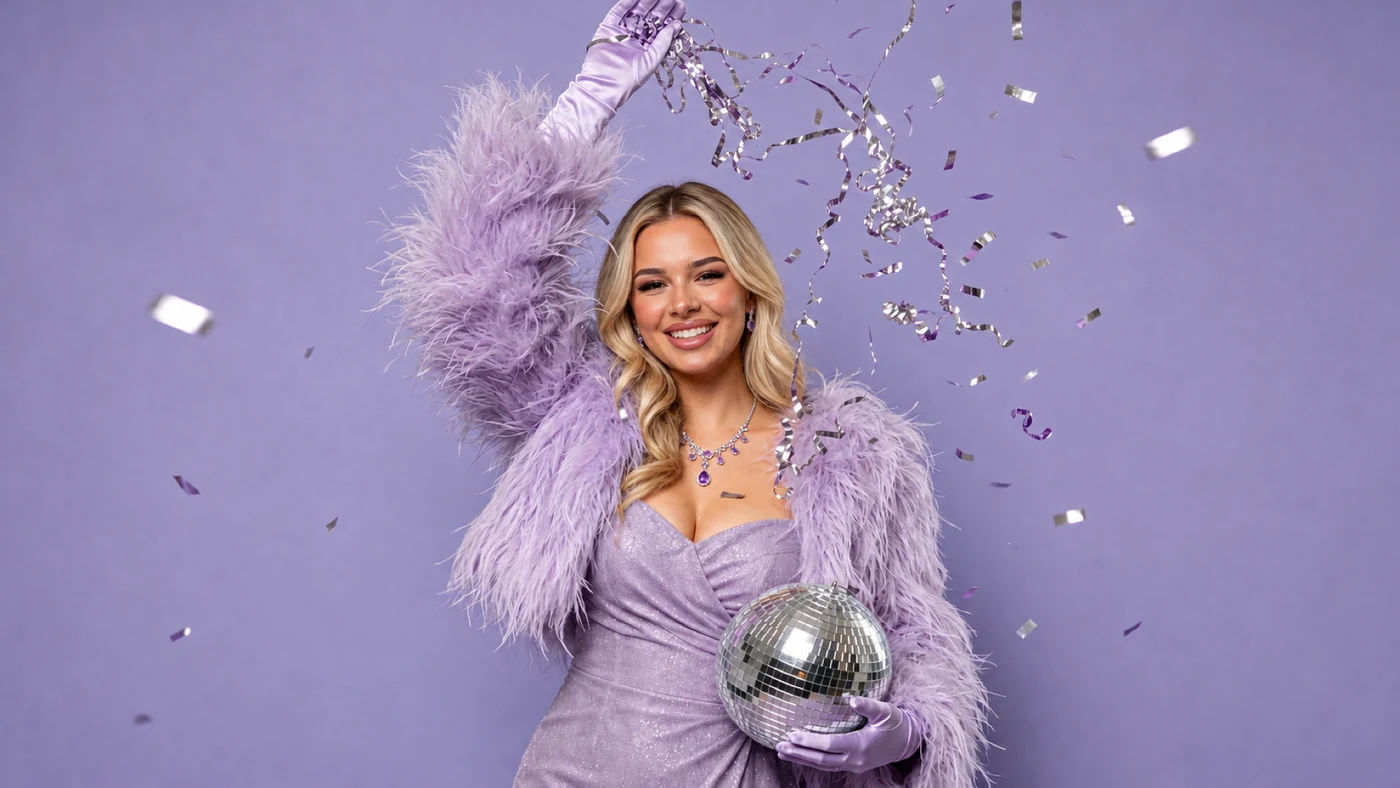
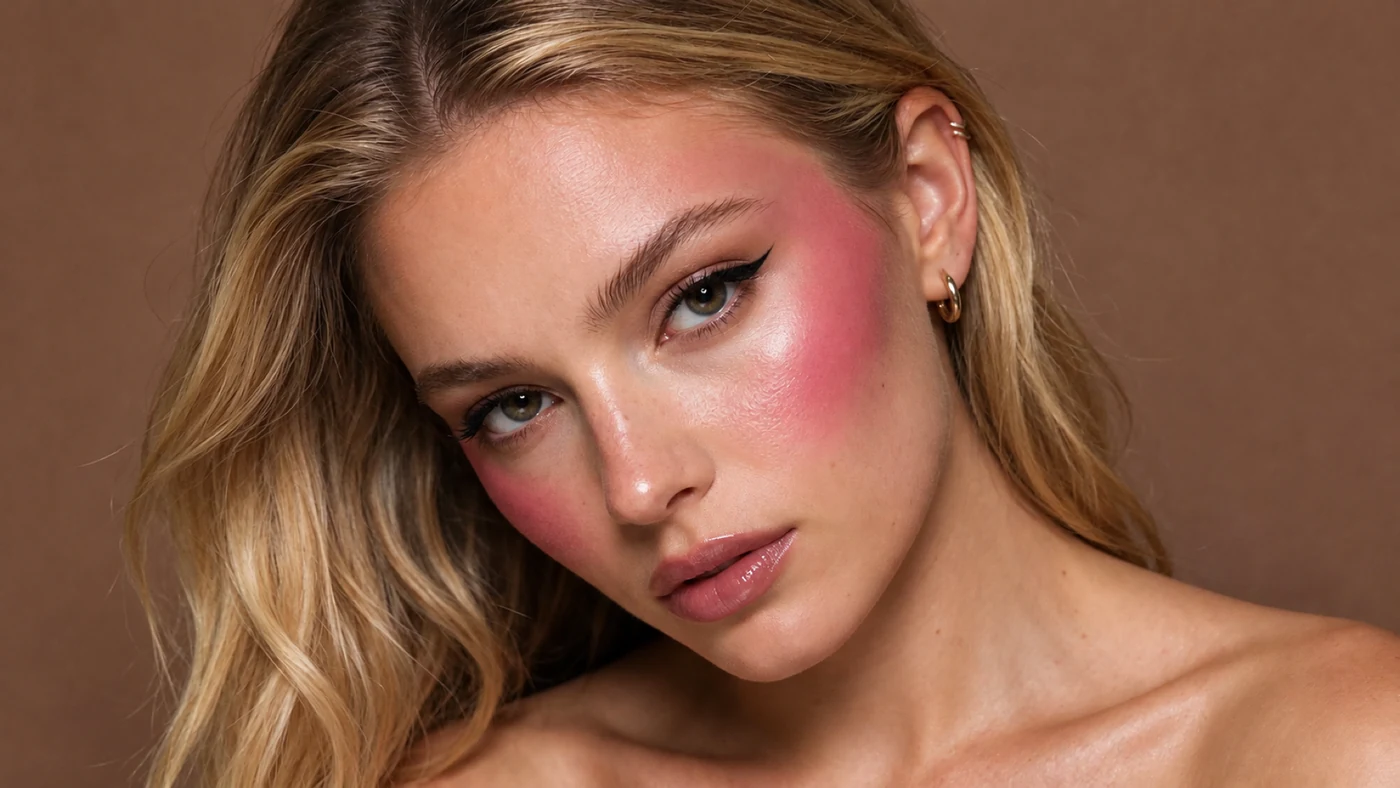
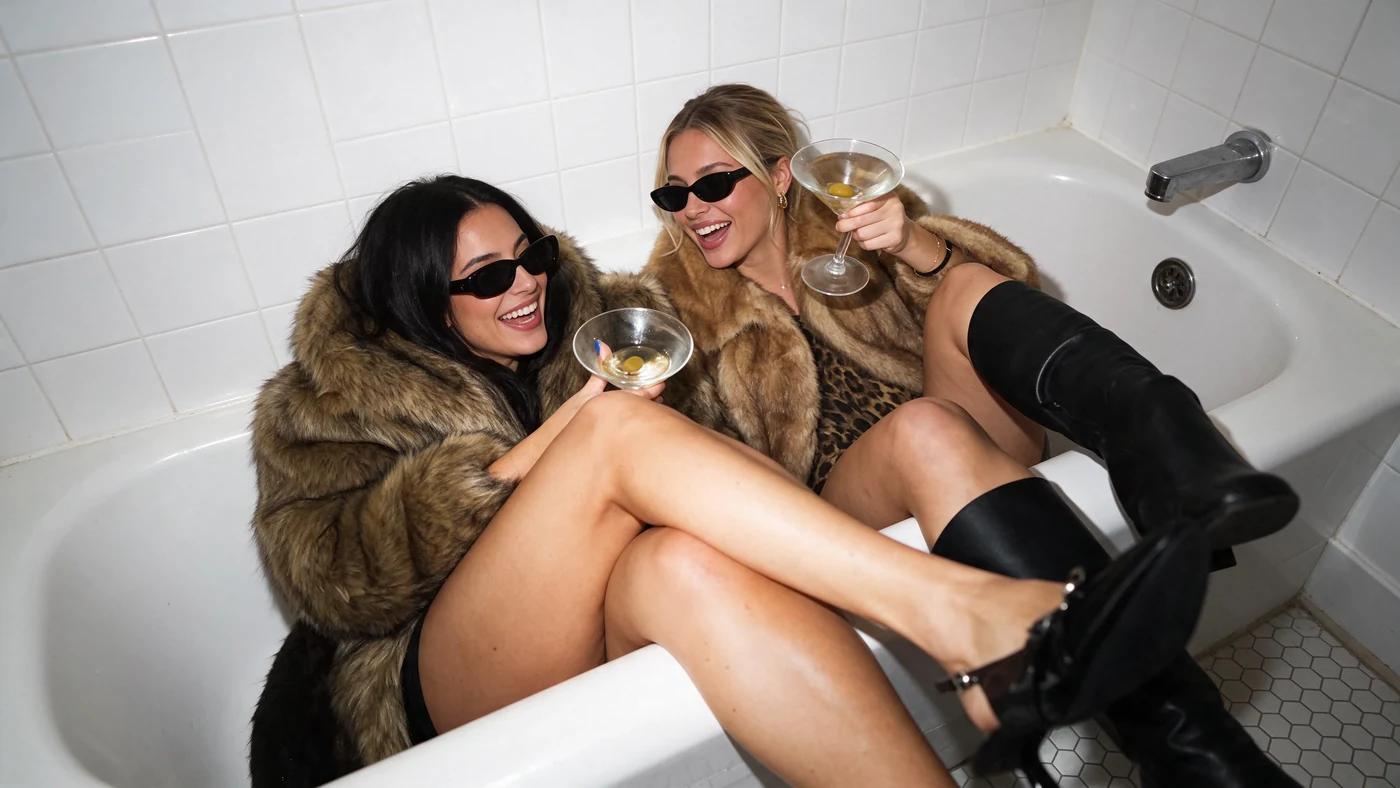
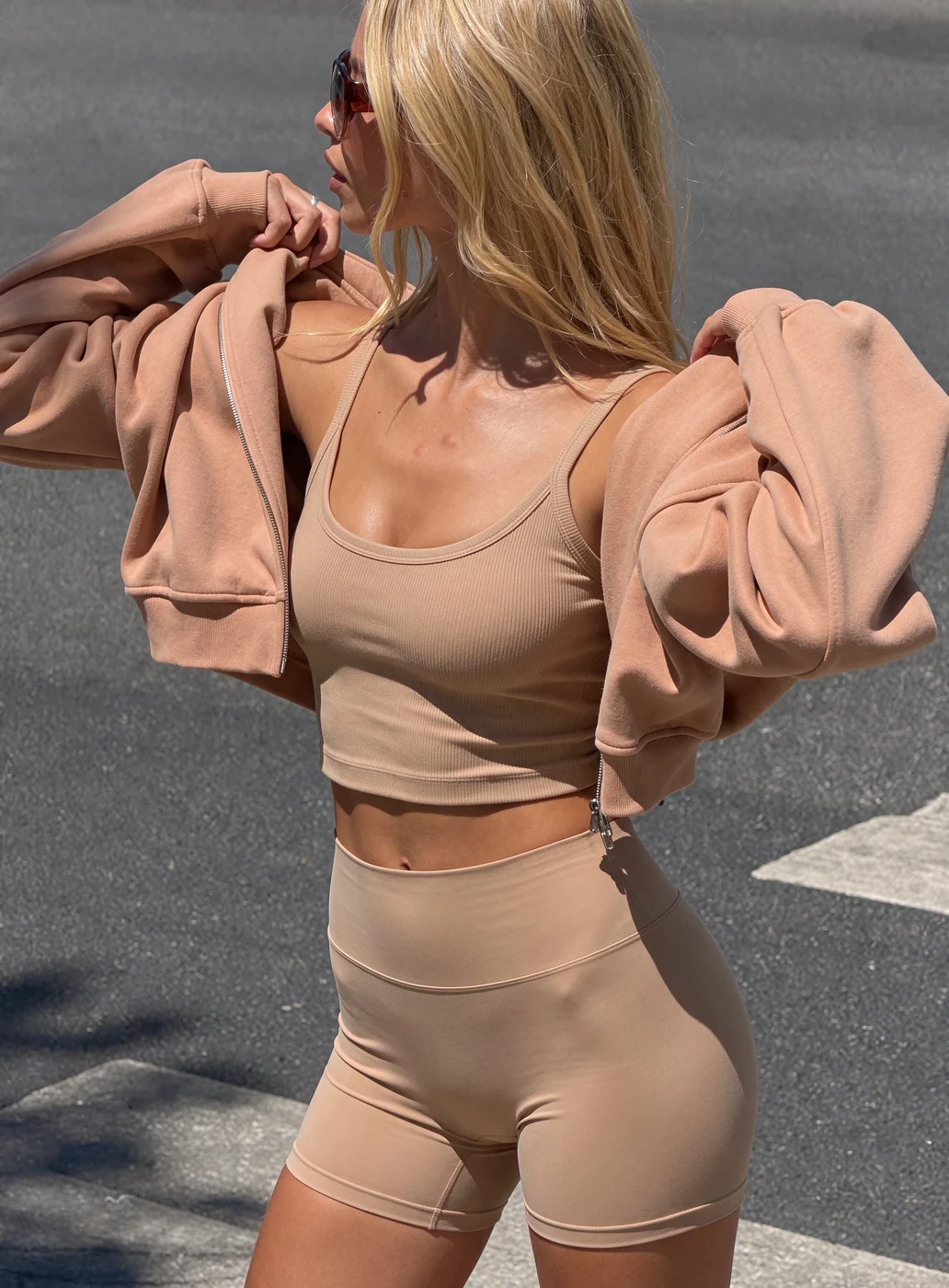
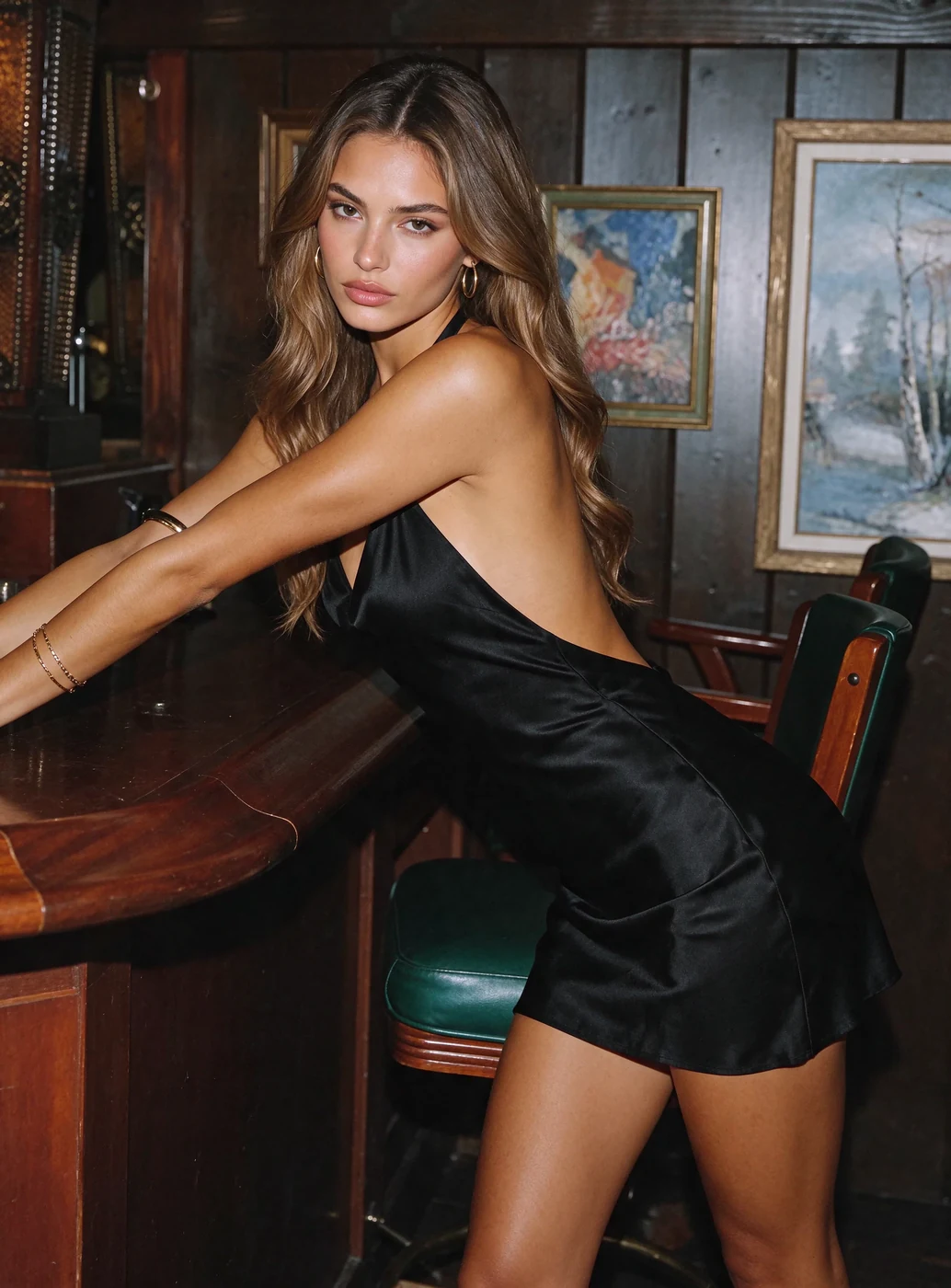
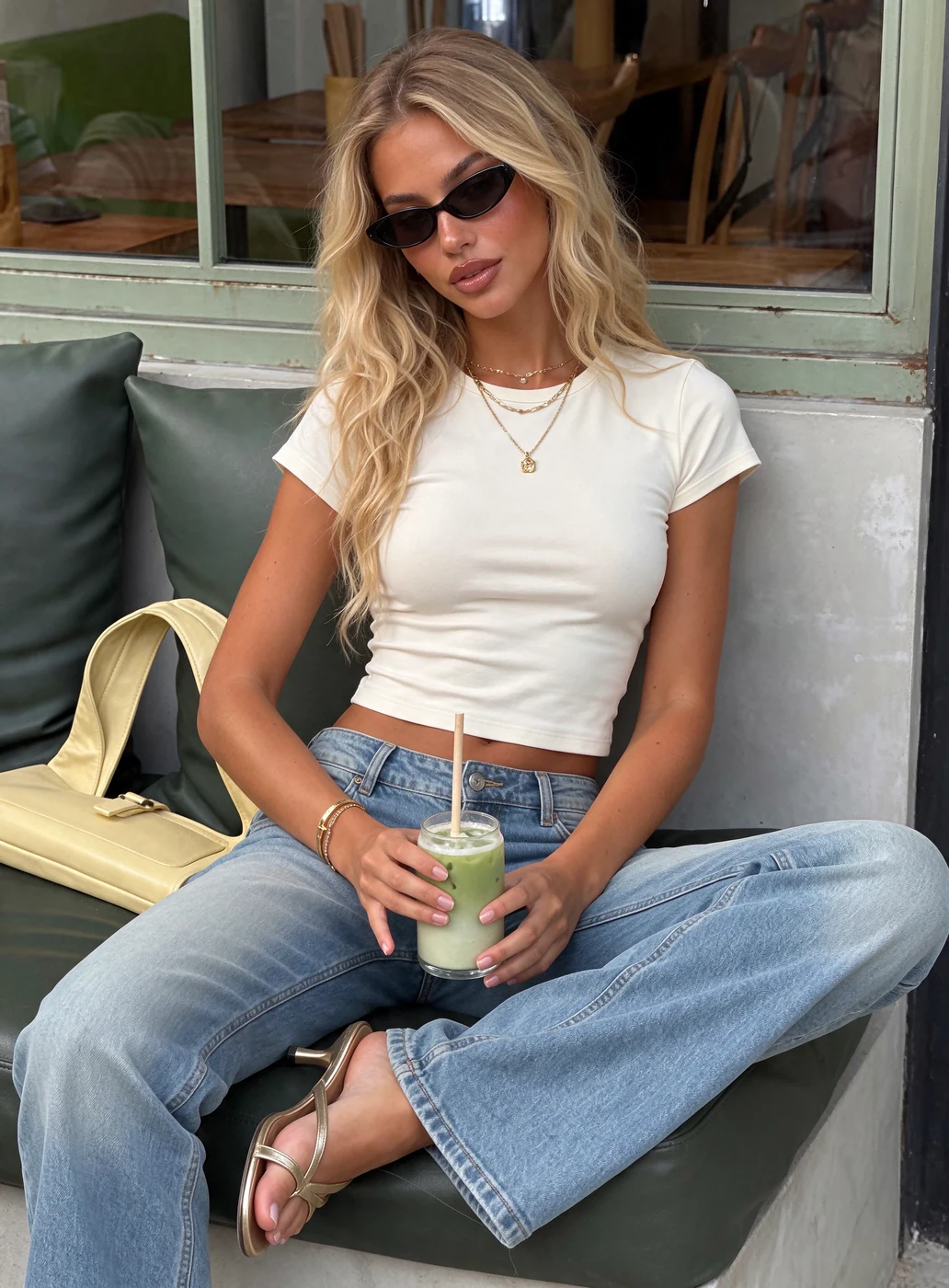
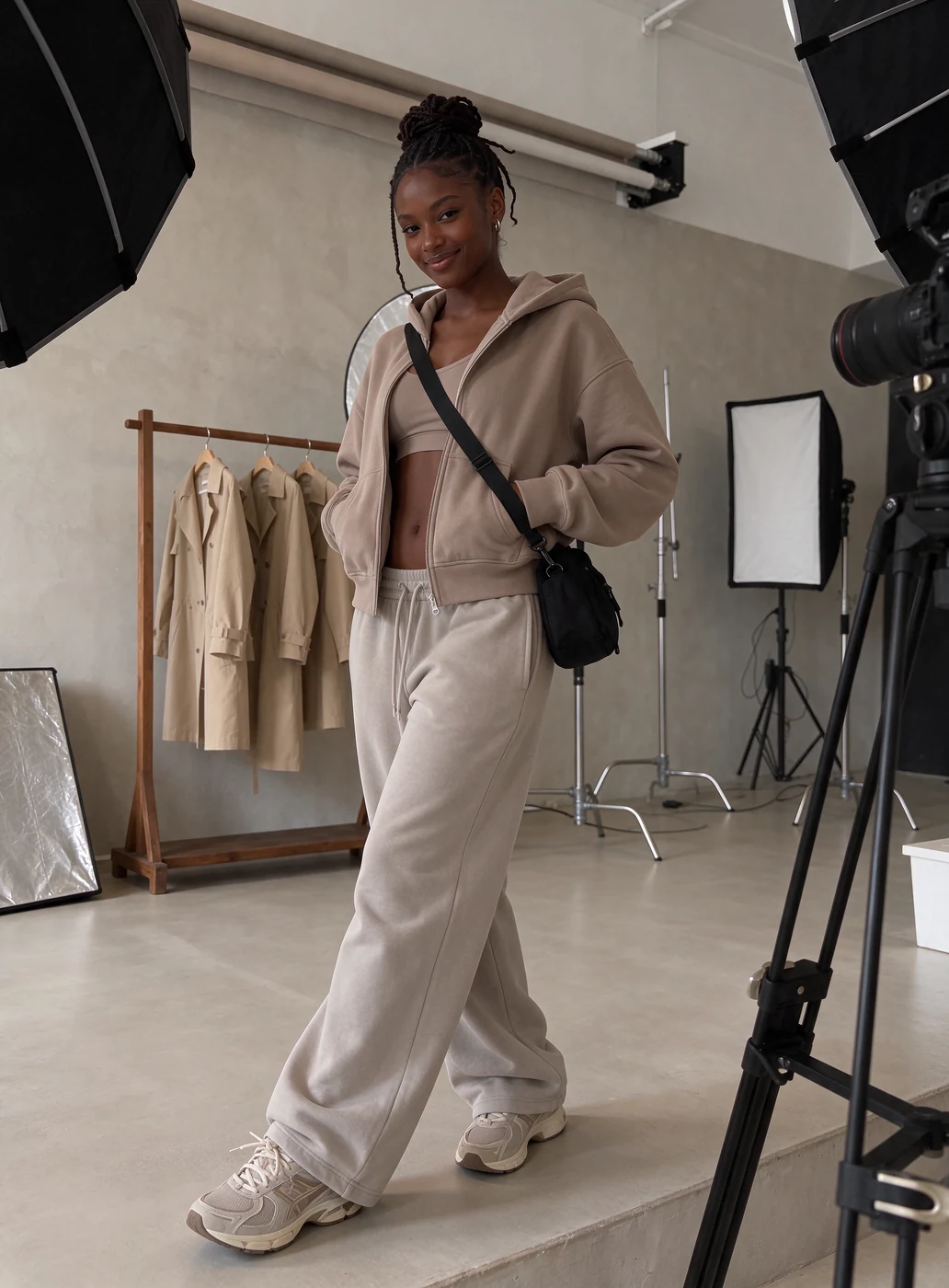
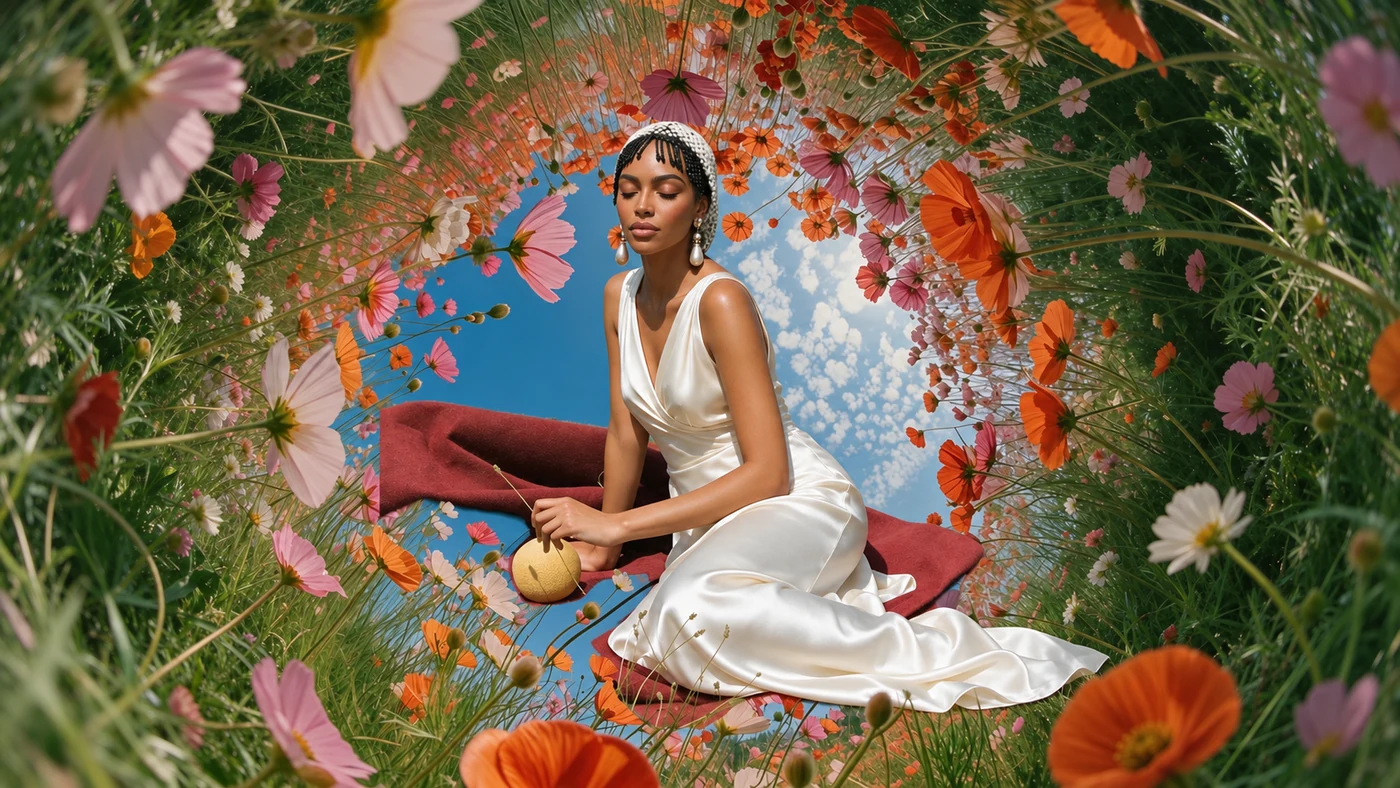
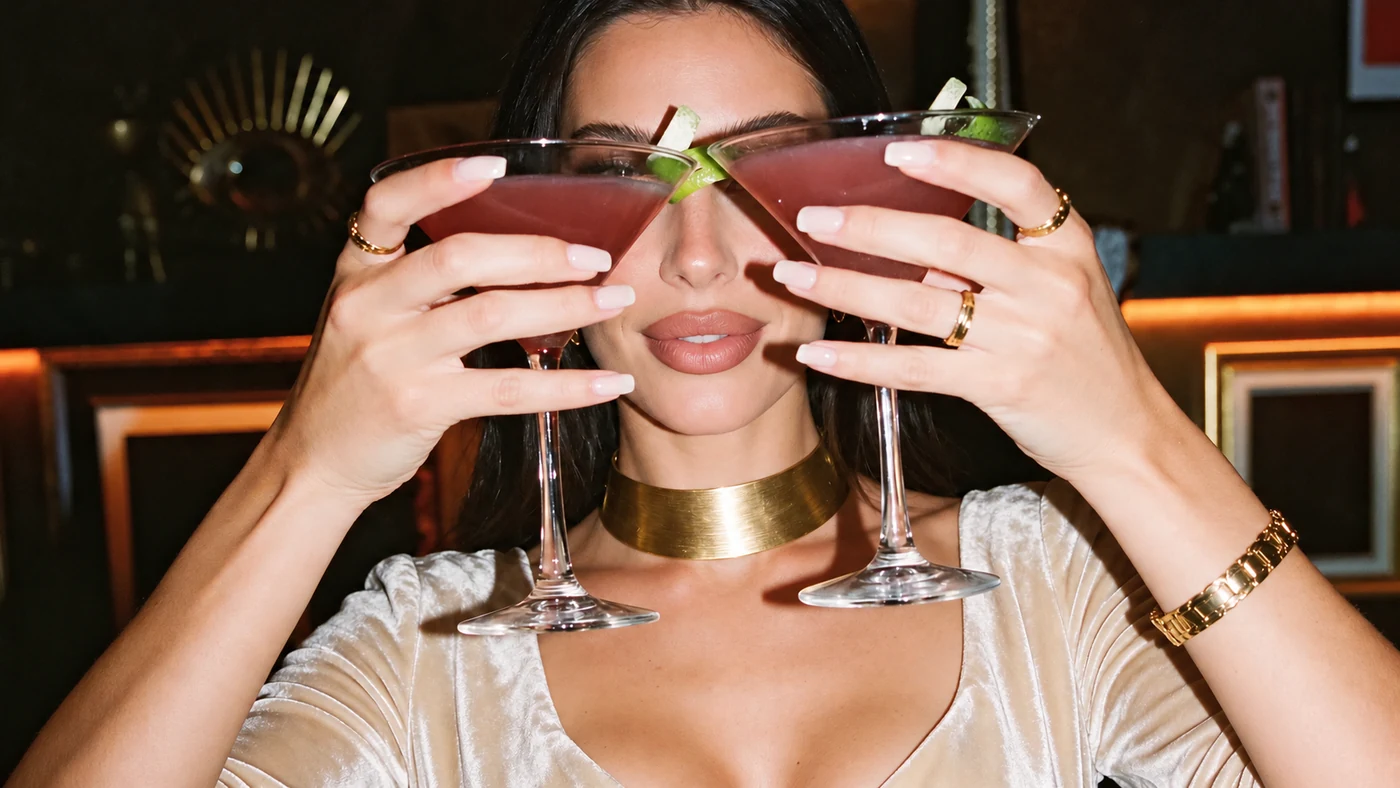
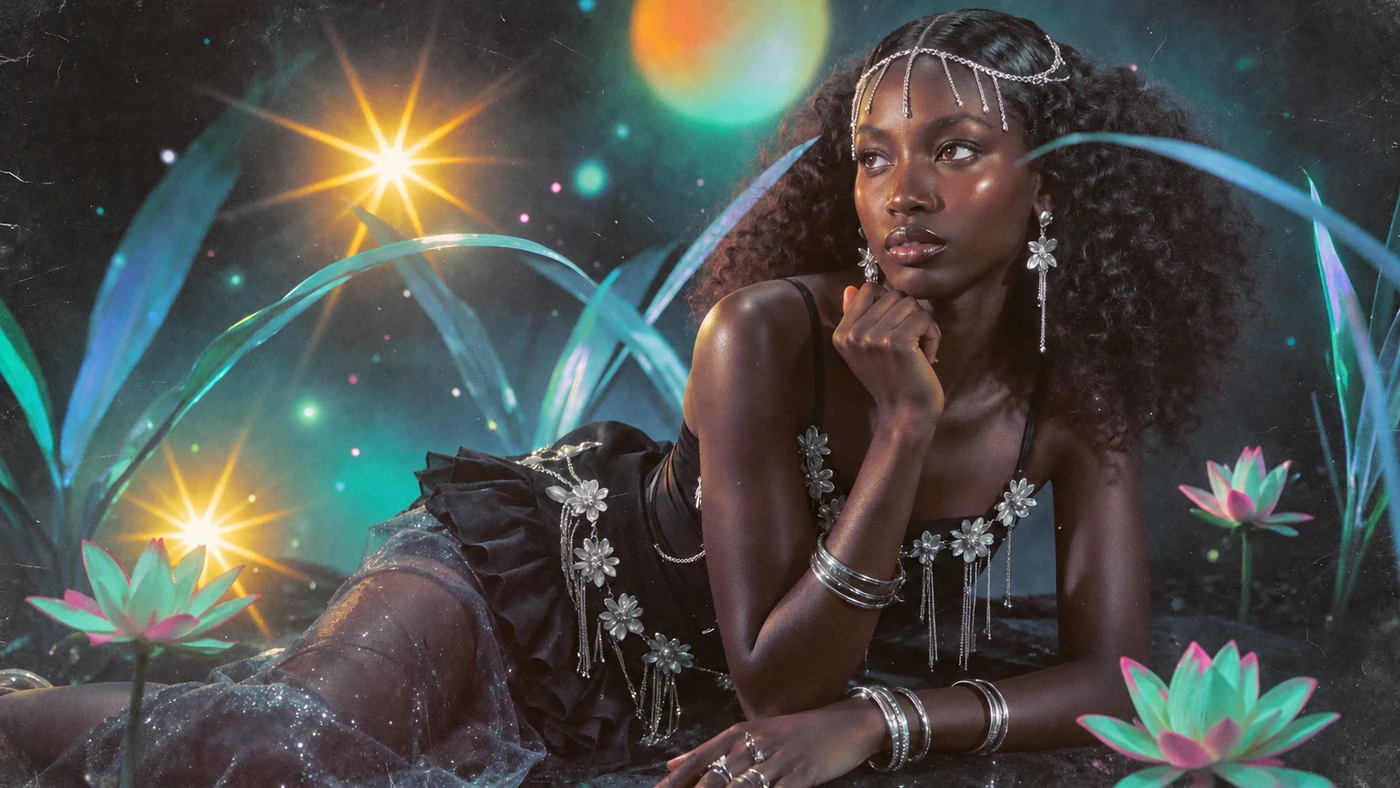
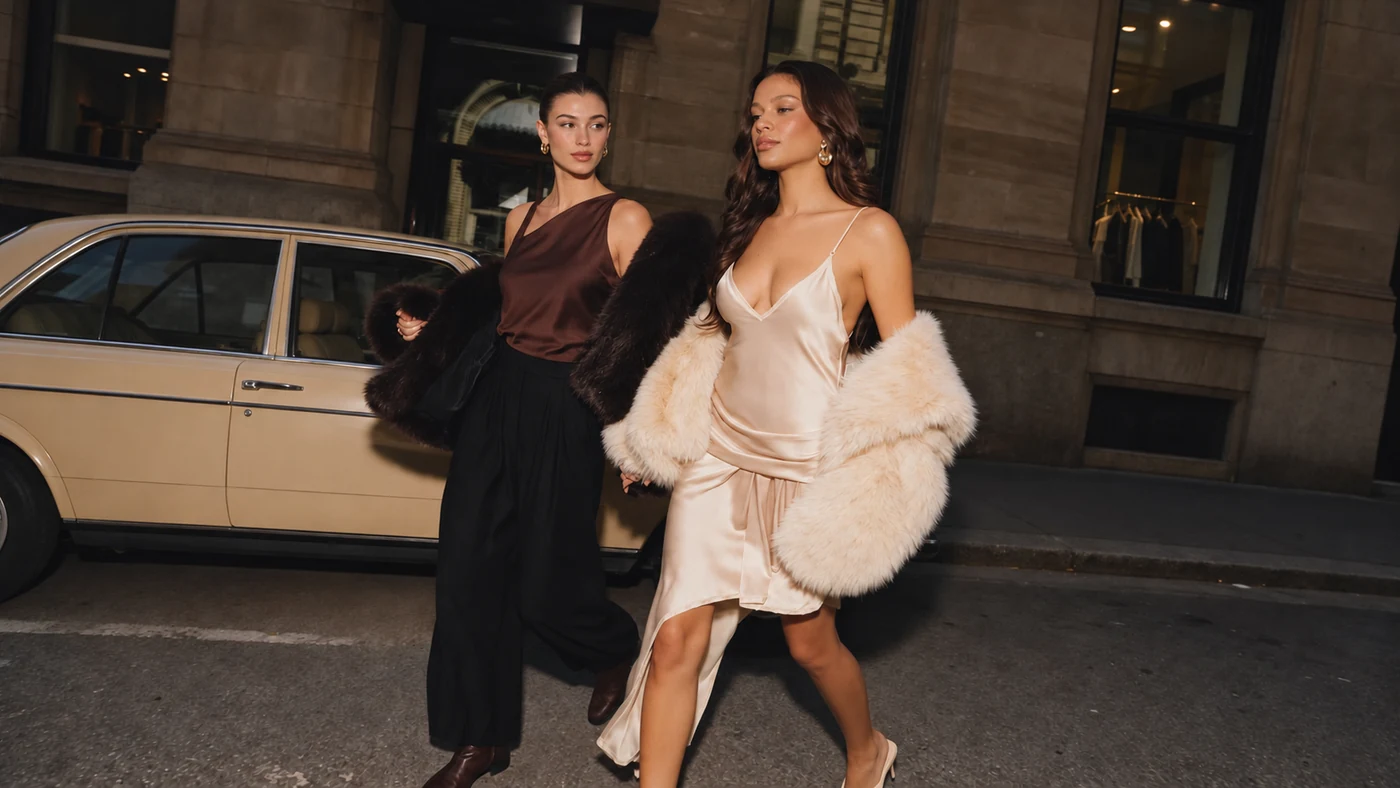
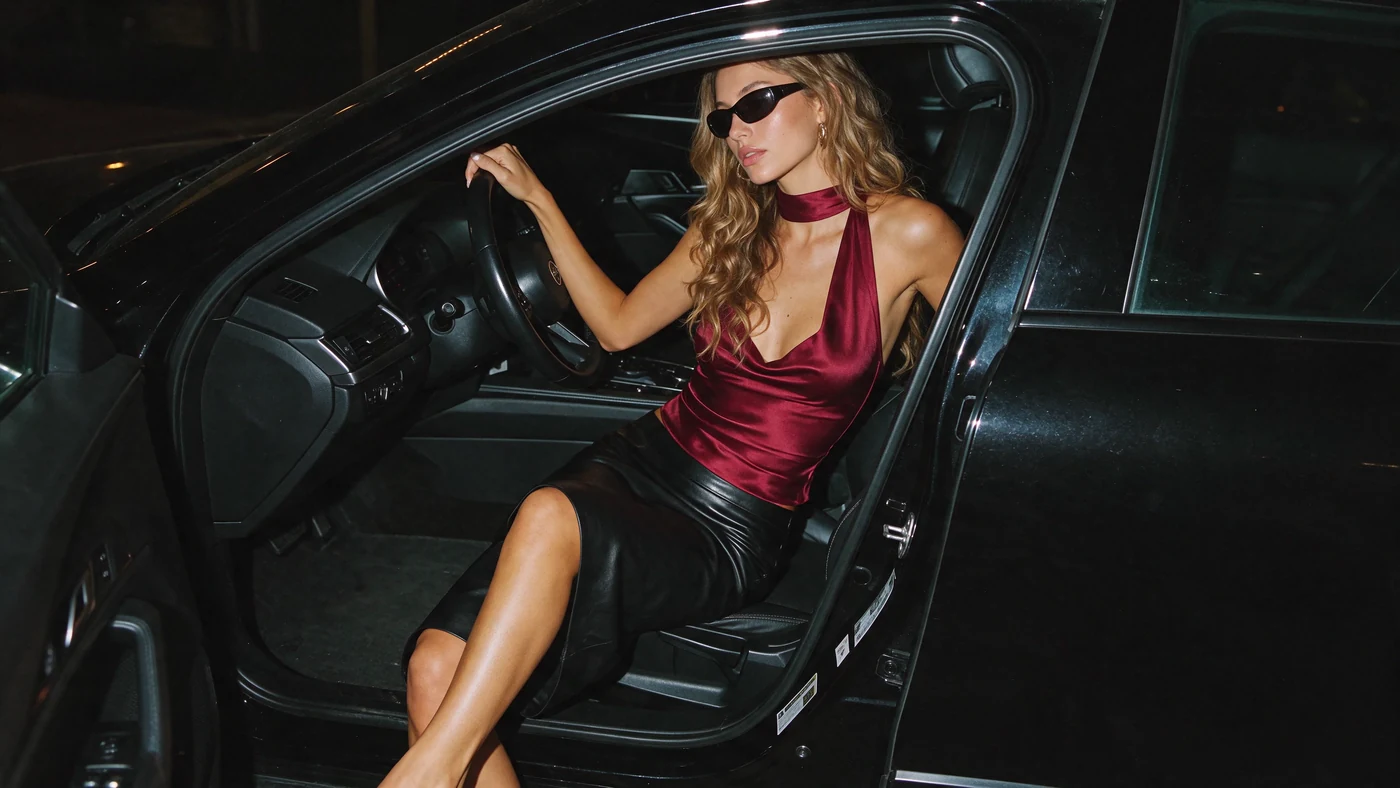
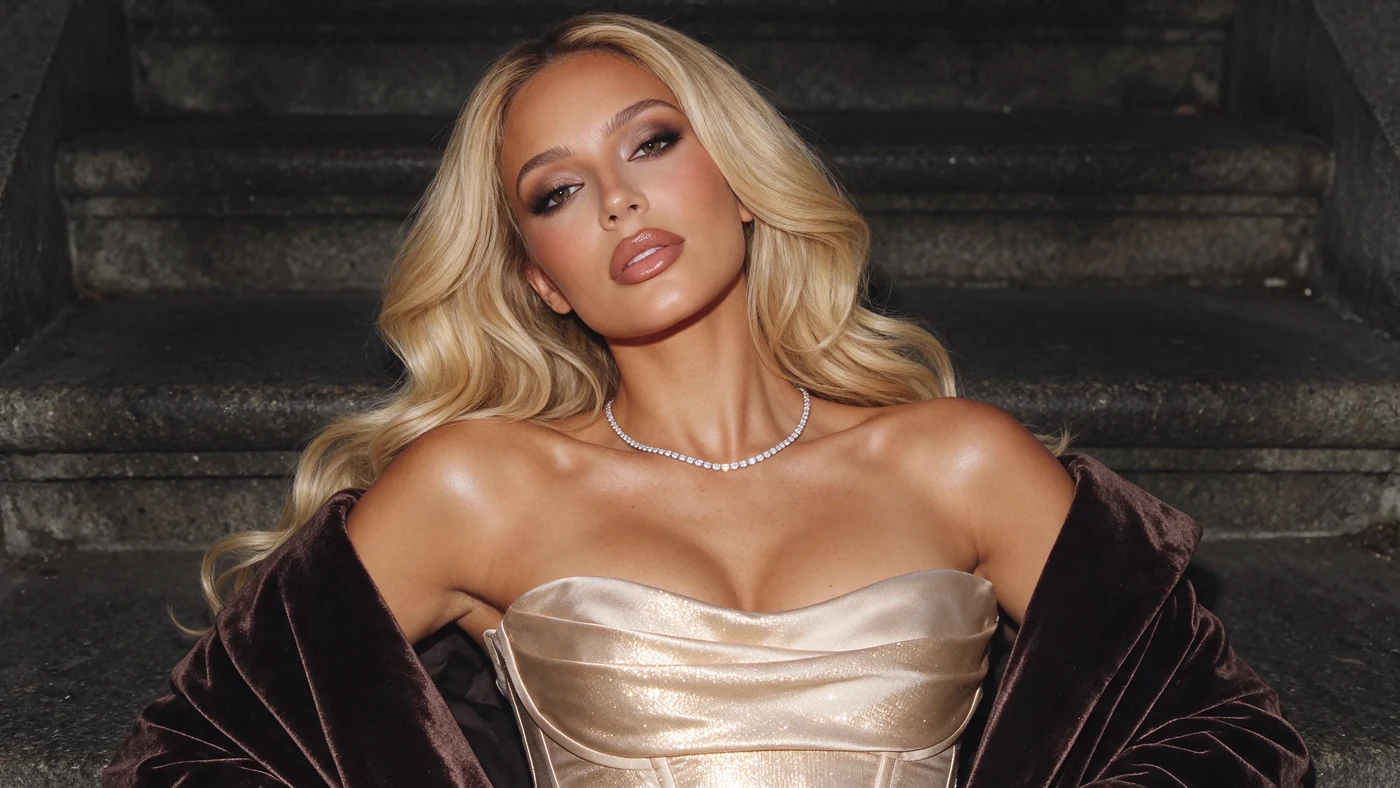
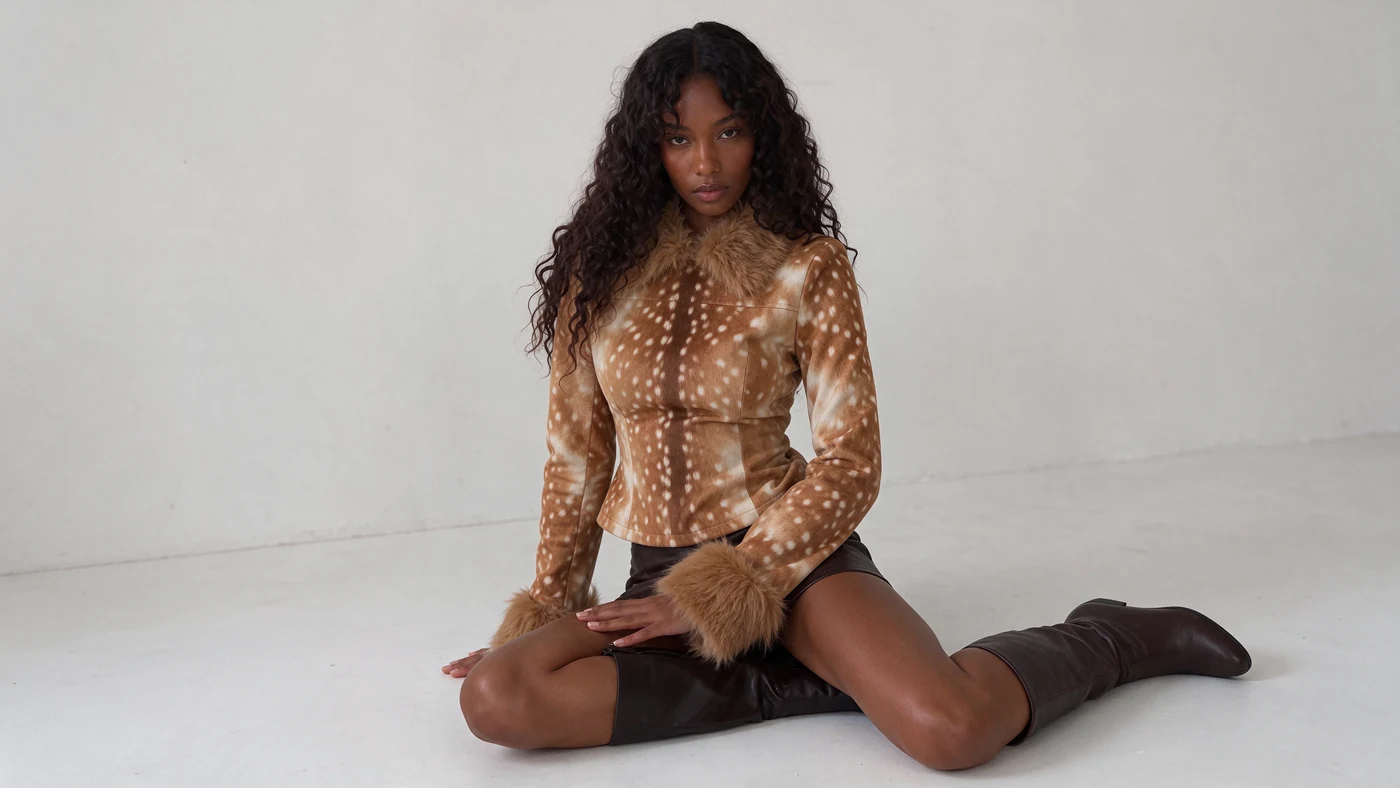
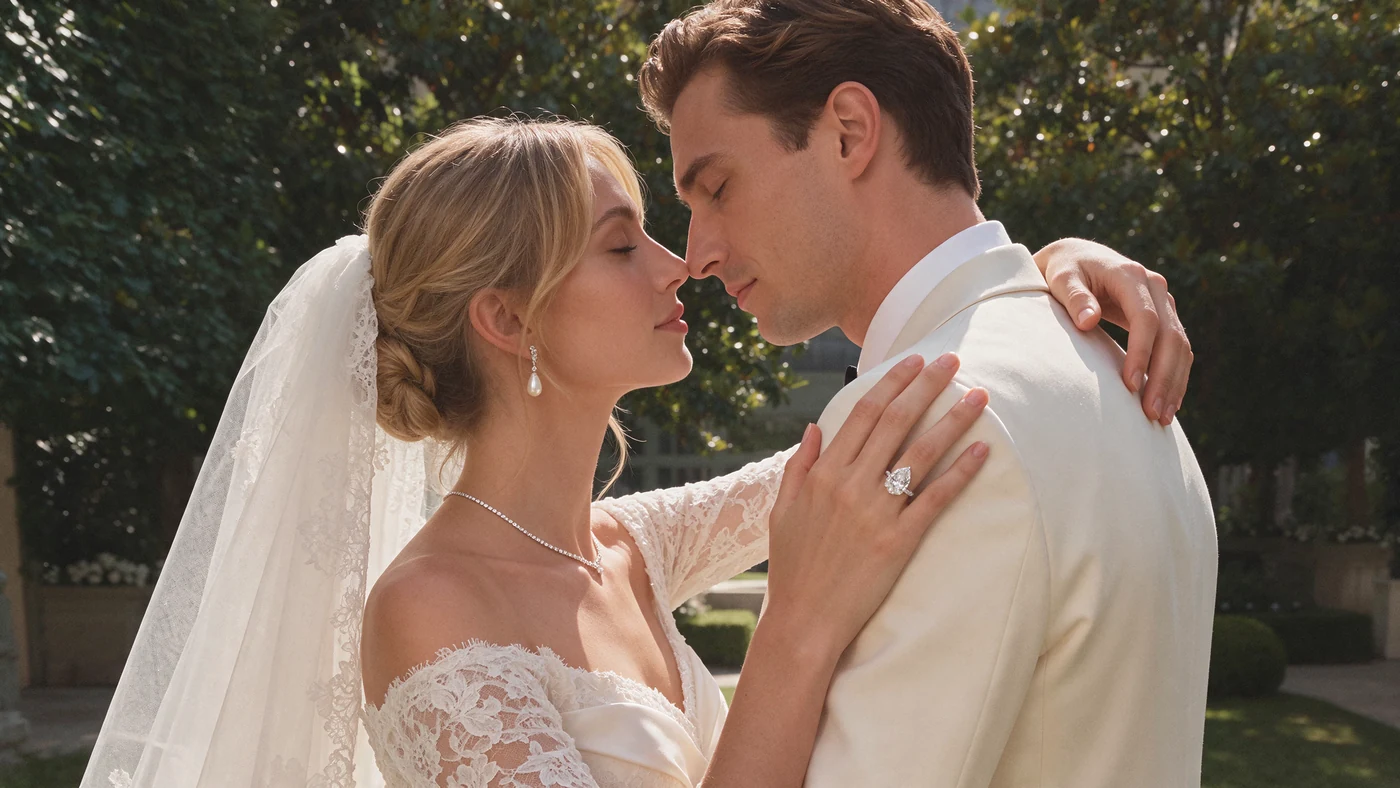
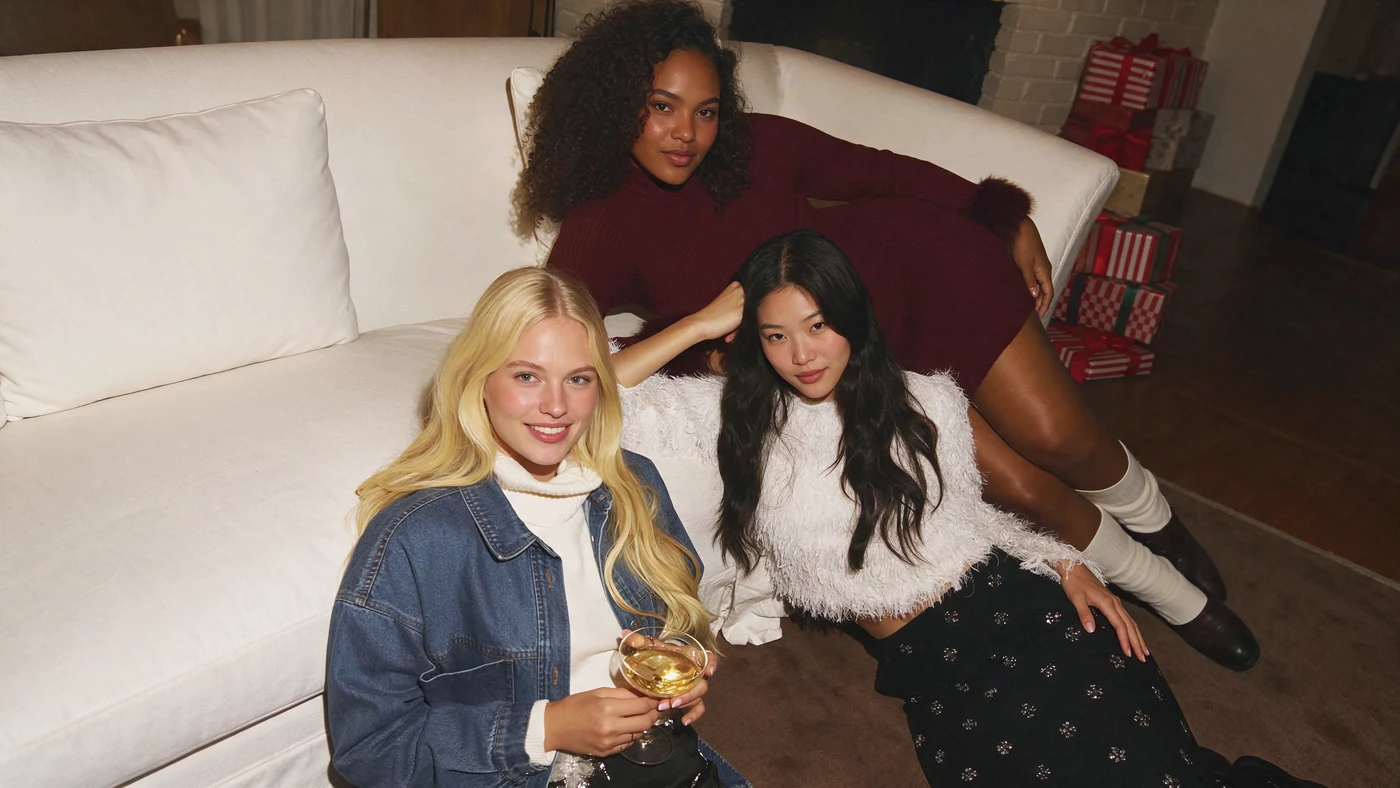
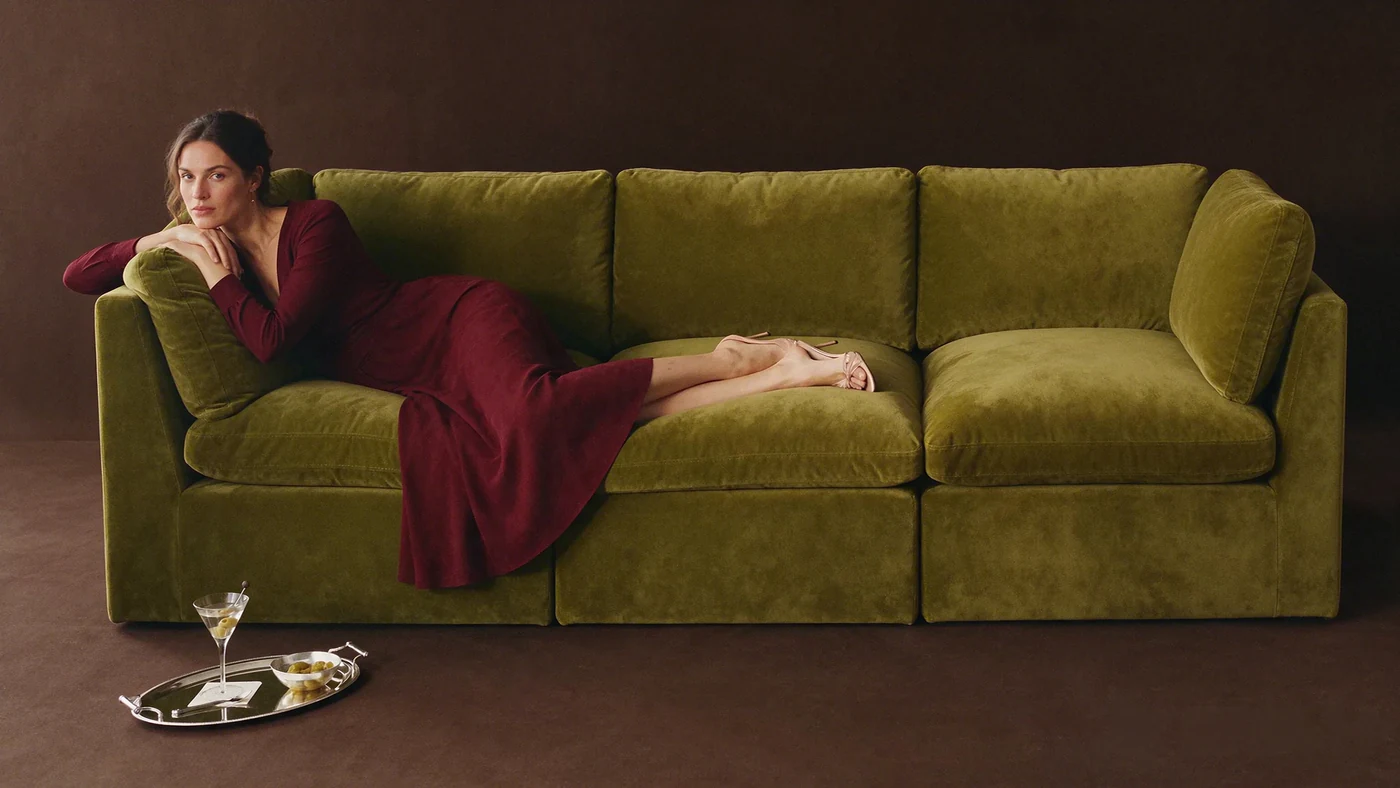
See what you can create with Jovoscope
Create images from text or start with a reference photo. Explore five ideas for directing the subject, styling, lighting, and camera angle.
Create, edit, and finish images in one workspace
Use prompts and references to direct the shot, compare models, and choose a canvas for the finished image.
Create the shot you have in mind
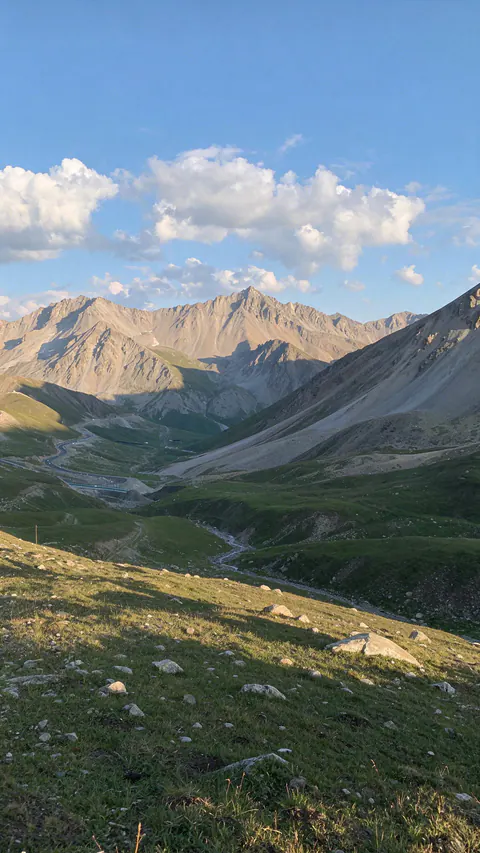
Use Text to image for a product shot, portrait, or illustrated scene. Describe what the camera sees. A landscape prompt might put a winding trail in the foreground, distant peaks above it, and late-afternoon light across the valley.
Enhance prompt can develop a short brief. Prompt from image gives you editable words for a look you already have. Turn on Auto Polish to refine the prompt when you generate.
Try the landscape prompt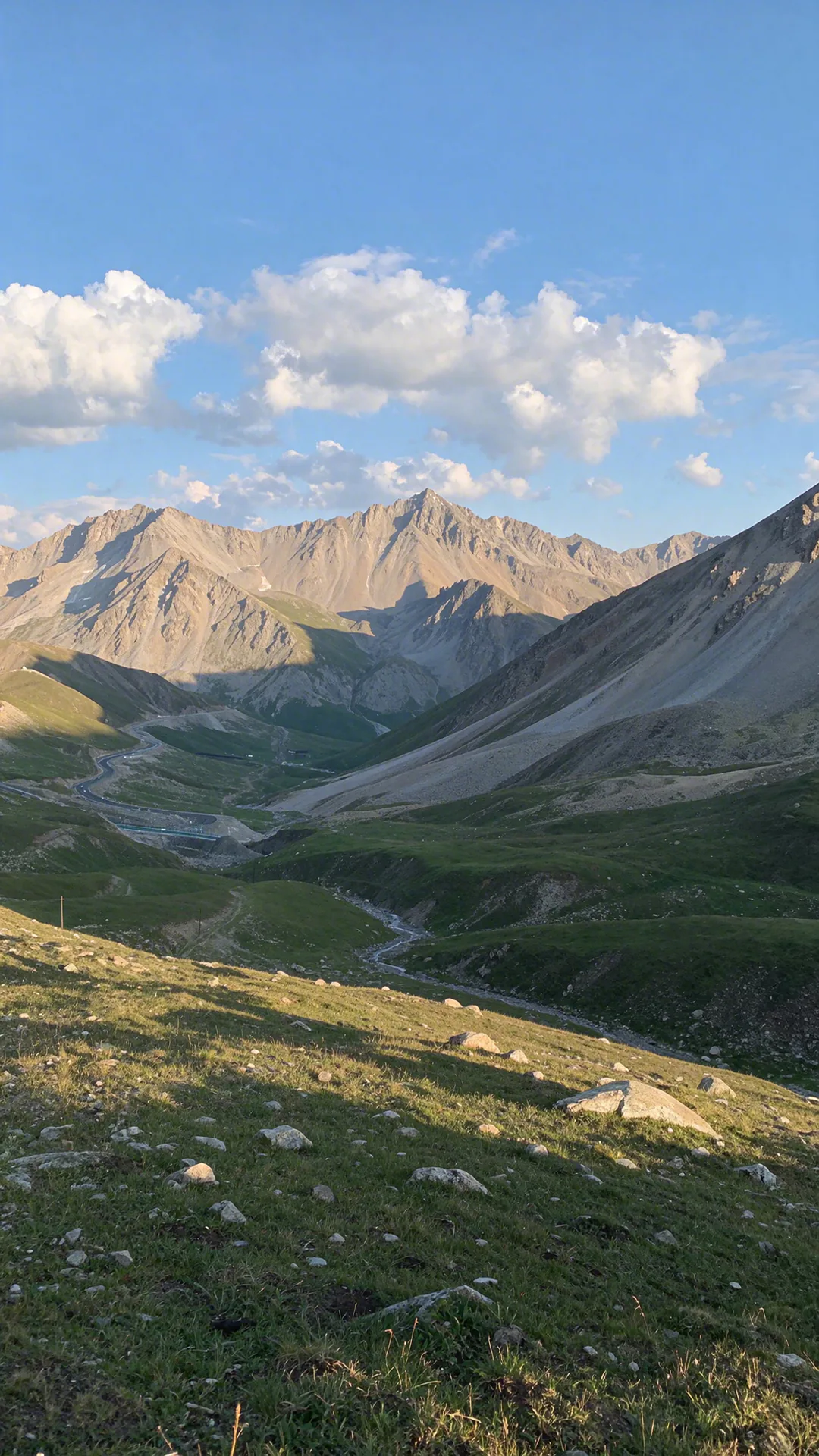
Tell the model what to take from each photo
In Image to image, upload PNG, JPEG, or WebP images and use @ to give each reference a job. For this beach edit, the prompt asks the model to keep the scene and group from @Image1 and add the person from @Image2 on the right. The number of references you can add depends on the model.
Try the two-photo prompt@Image1@Image2Generated resultGuide the pose and camera angle
Sketch Poses has 280 poses across 1,212 views. Browse standard full-body, upper-body, sensual full-body, and two-person poses. Filter by actions such as standing, sitting, kneeling, reclining, and movement, then switch views to pick the angle you need.
A sketch makes details like a bent elbow, a head turn, or the distance between two people easier to specify. Add the view as a reference and name it with @ in your prompt. Ask for the body position from the sketch and use a separate photo or description for the subject.
Find Sketch Poses in the editorBuild the look around an outfit
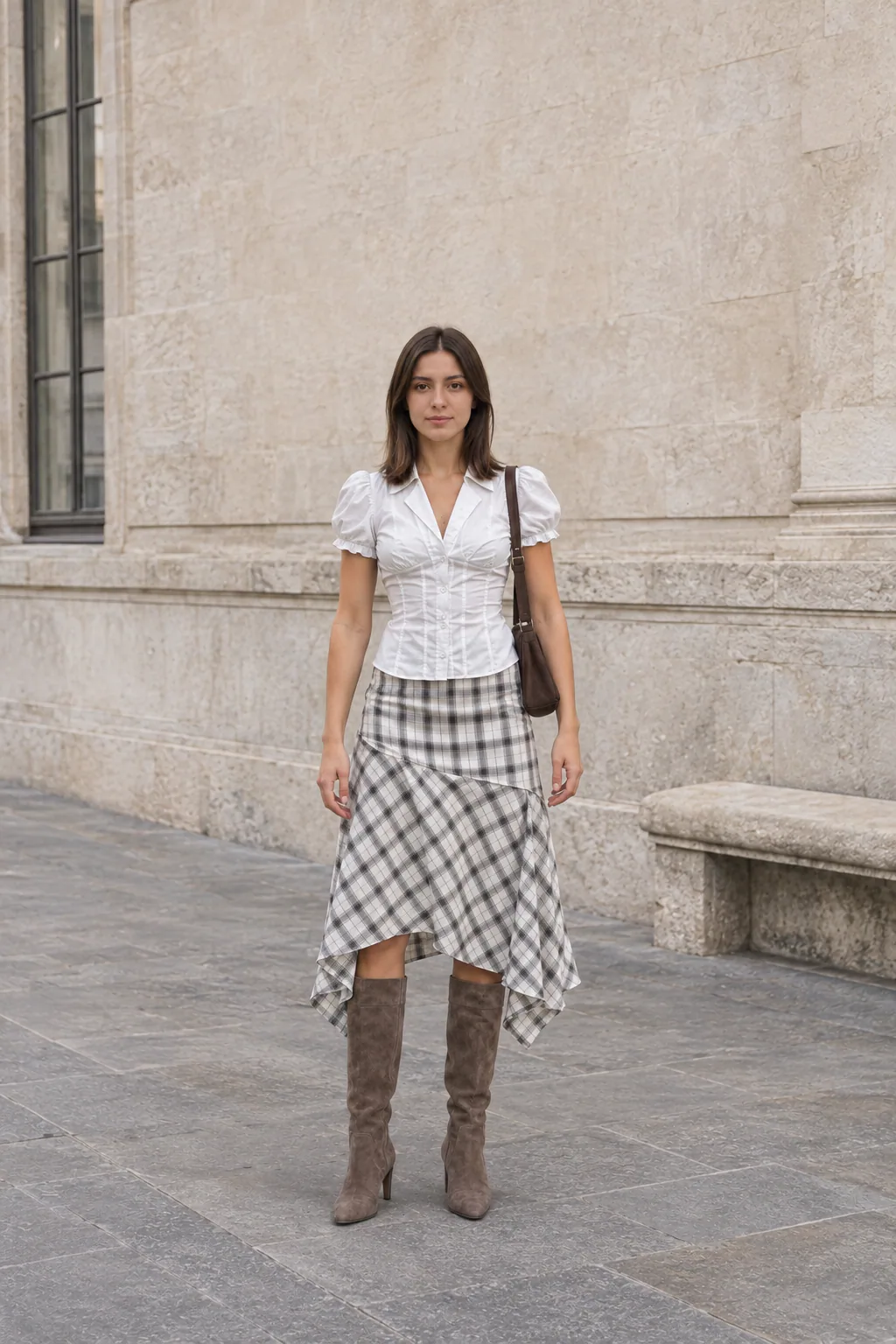
The Outfits library has 1,587 outfit references across 1,757 views. Use Flat Lay to see how garments and accessories go together, or Ghost Mannequin to see the shape and drape of the clothes. Search by name, filter by category, and switch views when available.
A clothing reference can show details that a phrase like “dark jacket” leaves open, such as the cut, fabric, and layering. Add it to your draft and use @ to say which garments and colors to carry into your scene. Save a look to My assets to use it again later.
Find Outfits in the editorCompare models on the same creative brief
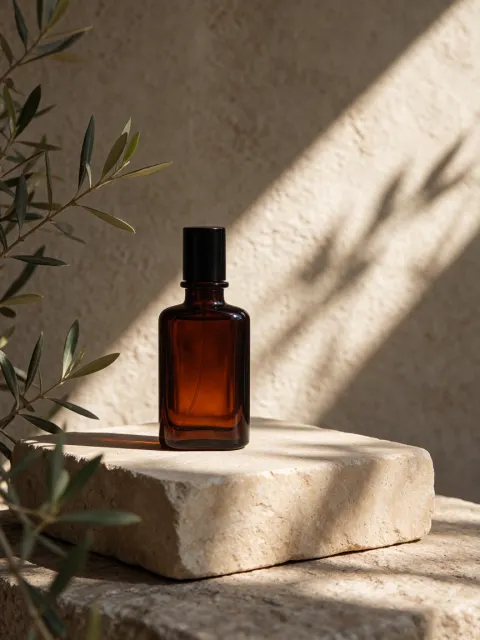
Seedream 5.5, GPT Image 2.6 Sunburst, and MiniMax H3 Image all received the same perfume prompt with a 3:4 canvas and their 1K preset. Look at the glass reflections, branch shadows, and room around the bottle to choose a direction. Try the prompt with a specific model or use Auto to select a compatible one.
View the shared prompt
Vertical editorial product photograph of a single unbranded amber glass perfume bottle centered on a pale limestone plinth. Low angled sunlight enters from the right, lighting the glass and casting soft olive branch shadows on the warm ivory backdrop. Keep the bottle fully in frame with space above it. Restrained warm palette, natural glass reflections, realistic stone texture. No label, lettering, logos, or watermarks.
A dark bottle against a sharply angled beam of light.
864 × 1152Use this prompt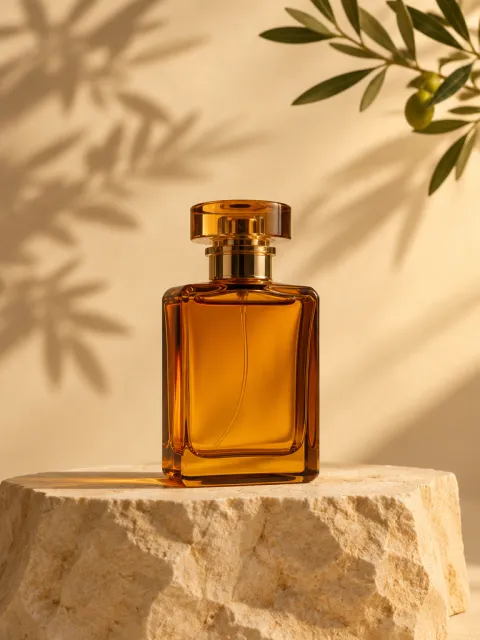
A close crop with warm reflections and rough stone texture.
768 × 1024Use this prompt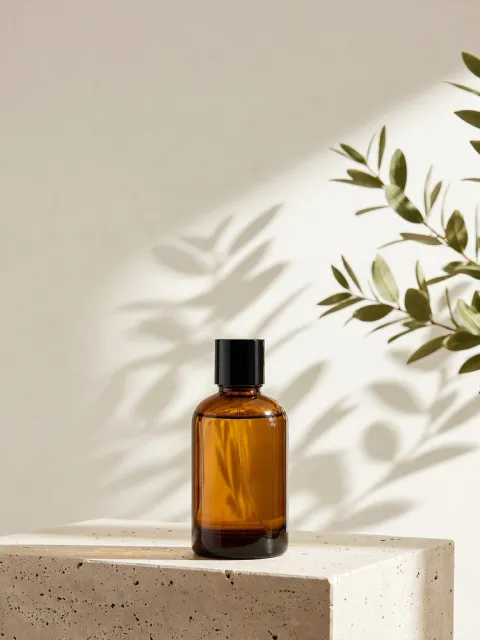
A wider composition with more space above the bottle.
768 × 1024Use this promptStart with a template you can change
Open a template to load its prompt and settings. For a series of product images, keep the lighting instructions and change the item in each prompt. For a portrait, keep the framing and describe a different subject. Add your own photos when the template calls for references.
Browse image templates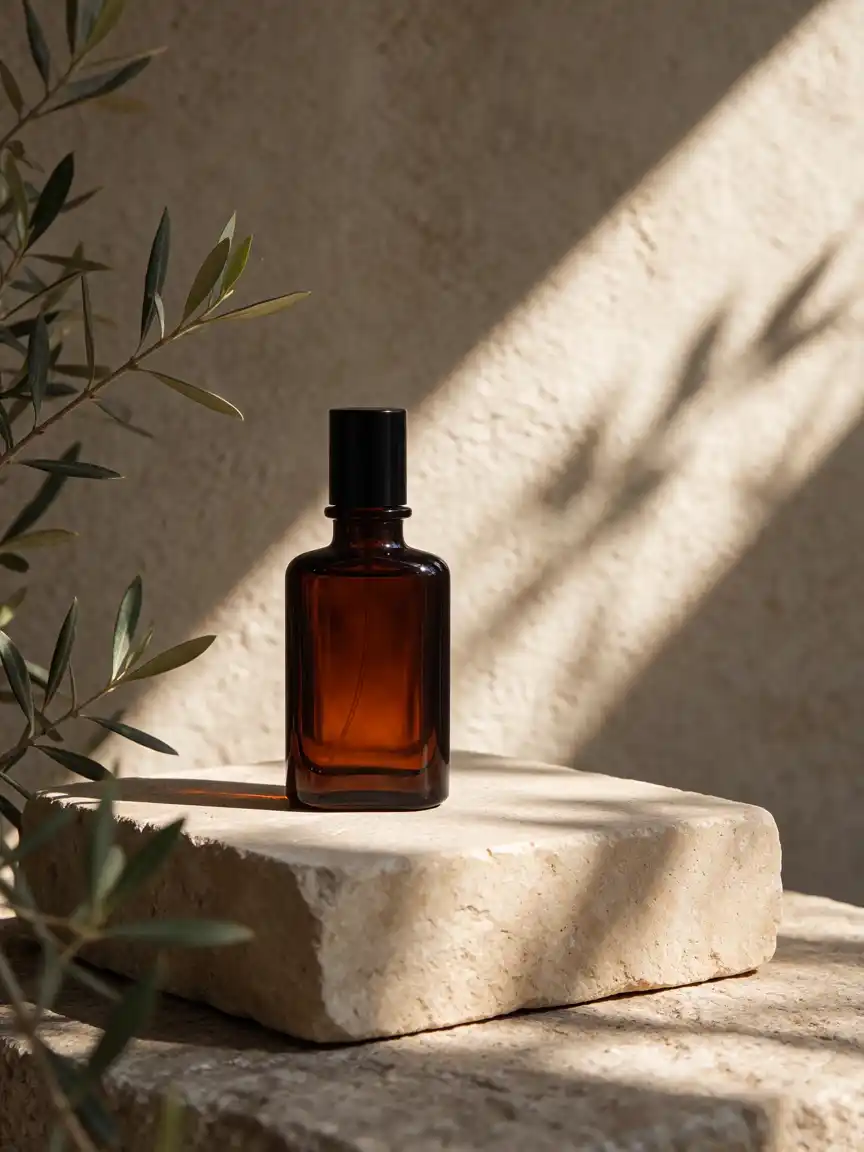
Make the image fit where you’ll use it
Pick a tall canvas for a cover, a square for a feed, or a wide frame for a banner. Choose a resolution supported by your model and check the credit estimate before generating. Then download the result, reopen it from History, or use it as a reference for your next edit.
Open the image generator3:41:116:9How to use AI Image Generator
Describe what you want to make
Start with a prompt or load a template. Include the subject, framing, and lighting. In Image to image mode, add references and use @ to tell the model what to take from each one.
Choose a model and an output size
Pick a model, set the aspect ratio and resolution, and review the credit quote. Available settings update as you switch models.
Generate and download
Create the image and inspect your result. Download it or reuse it as a reference for another edit.
Choose your next edit.
Compose a scene, change a pose, bring someone into a picture, or give a moment a punchline.
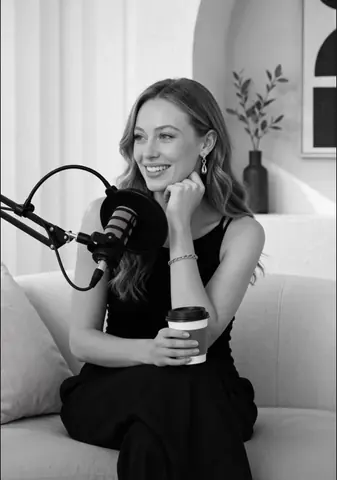
Combine images
Bring people, places, and ideas from separate photos into one composition.
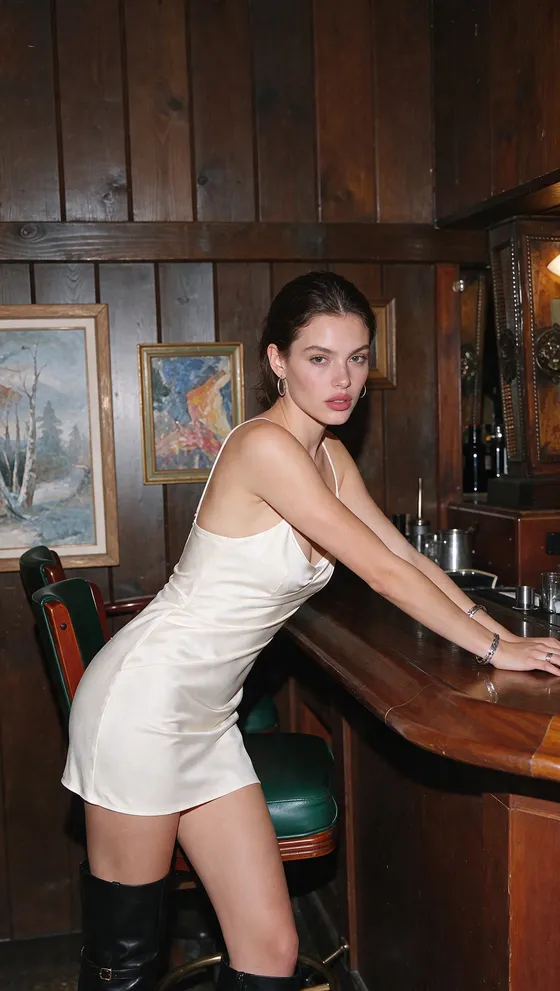
Change a pose
Start with your original photo and use a pose reference or written direction to create an edited portrait.
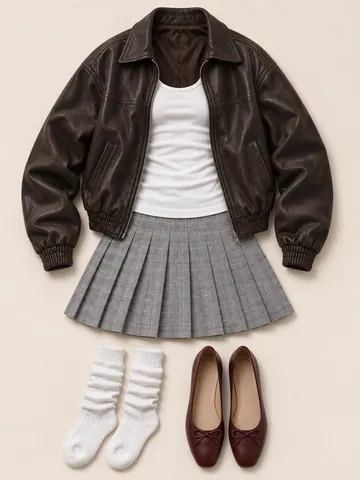
Change an outfit
Try different clothes in an existing photo using a reference or written description.
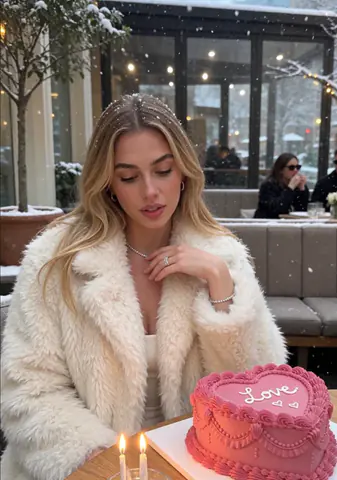
Add a person
Place someone into a background photo or a setting you describe, with optional placement directions.
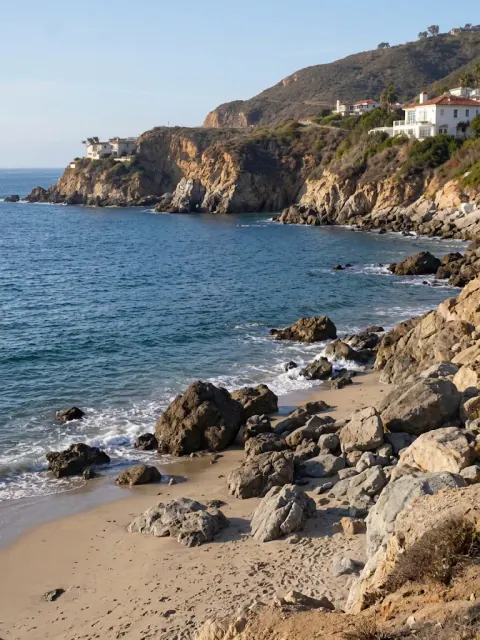
Create with Kling Image 4.0
Make images from text, edit with references, or design a long image in the Kling Image 4.0 editor.
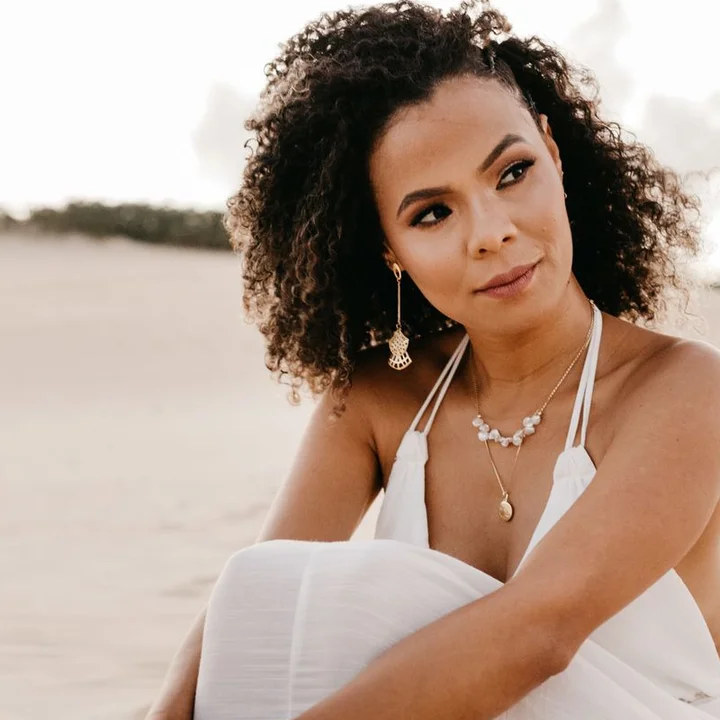
Fix pixelation
Reduce pixelation in portraits, landscapes, and other photos.
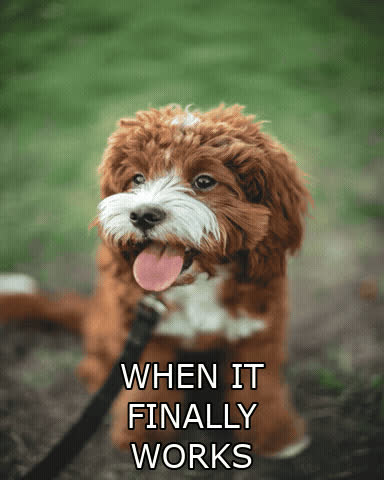
Make a GIF meme
Make a GIF from a clip, a written idea, or a photo. Add captions, control the motion, and choose OpenAI or Grok for a new animation.
AI Image Generator questions, answered.
Generate images from a written prompt or use reference photos to guide the result. Try the same creative brief with different models to see which result fits your project.
Do I need a reference image?
Text to image starts with a prompt alone. Use Image to image when a photo should guide the subject, composition, or style.
Can I change a template before generating?
Yes. A template fills the editor with a prompt and starting settings. Edit the prompt, replace the example references if present, or choose another model before generating.
How many credits does an image cost?
The quote depends on the model, output settings, and references. Sign in and check the credits shown in the editor before creating.
Create an image from your own prompt
Choose a model, set the canvas size, and start from text or a reference photo.
Open the image generator