Skip to content

How to Fix Pixelated Photos

Reduce visible blocks and jagged edges in portraits, product photos, and other low-resolution images. Upload the clearest copy you have and compare the result before downloading.

Portrait repaired with a clear reference, showing the eyes and curlsThe same portrait with large pixel blocks across the face and hairBeforeAfter
Seedream 5.5 repair with a clear referenceDrag to compare

How to Fix Pixelated Photos

  1. Upload area for selecting a photo from your device

    Upload your pixelated photo

    Choose a JPG, PNG, or WebP from your device.

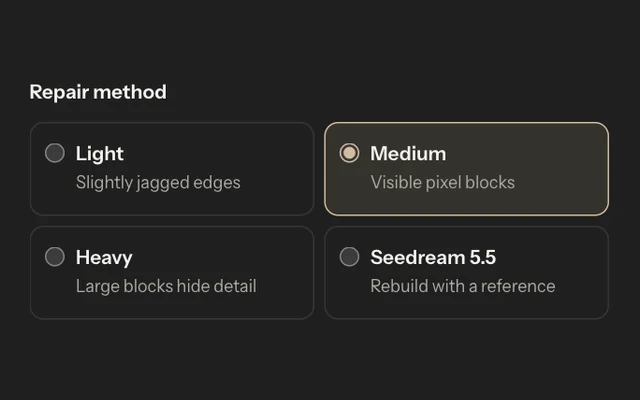
  2. Four repair methods in the editor with Medium selected

    Choose a repair method

    Start with Medium for visible blocks. Compare the methods below if compression or missing detail is the bigger problem.

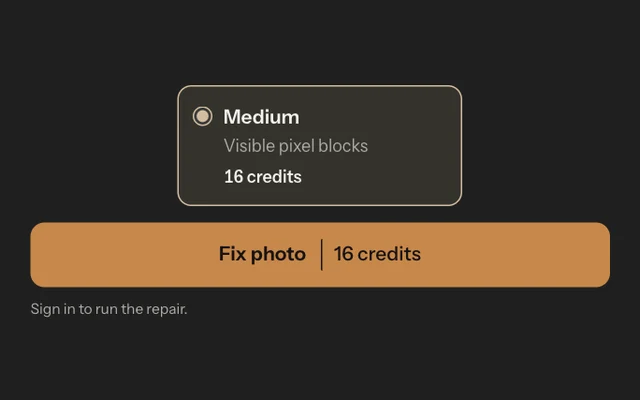
  3. Fix photo button in the editor with its credit price

    Run the repair

    Review the price and select Fix photo. For a guided repair, add a clear reference in Seedream 5.5.

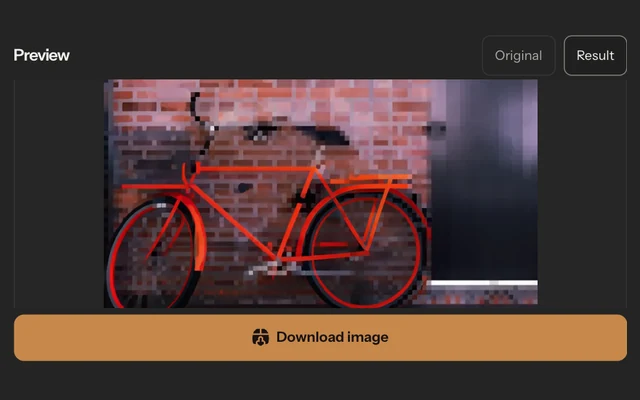
  4. Repaired bicycle preview with Original, Result, and Download image controls

    Check and download the result

    Switch between Original and Result. Check the edges and details, then download the image.

Which repair method should you try?

MethodWhat it does wellTrade-offs
LightSmall or compressed photos
Targets JPEG blocks and halos while preserving visible shapes.
Fine details may stay soft. Costs more to start than Medium.
MediumFirst pass for visible blocks
Smooths blocky edges on recognizable portraits and objects.
Thin lines may stay unclear. Textures can change.
HeavyVery low-resolution photos
Attempts to rebuild detail. Offers optional face enhancement.
Large blocks can remain. Rebuilt features may differ.
Seedream 5.5Guided repair
Can follow written instructions or a clear photo of the same subject.
May change expressions, colors, or text. A reference adds credits.

Why Photos Get Pixelated

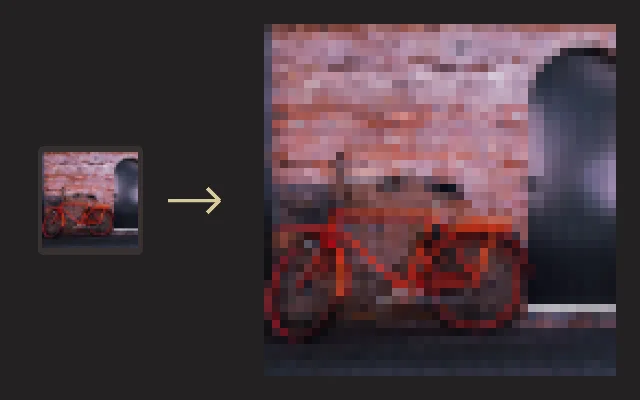
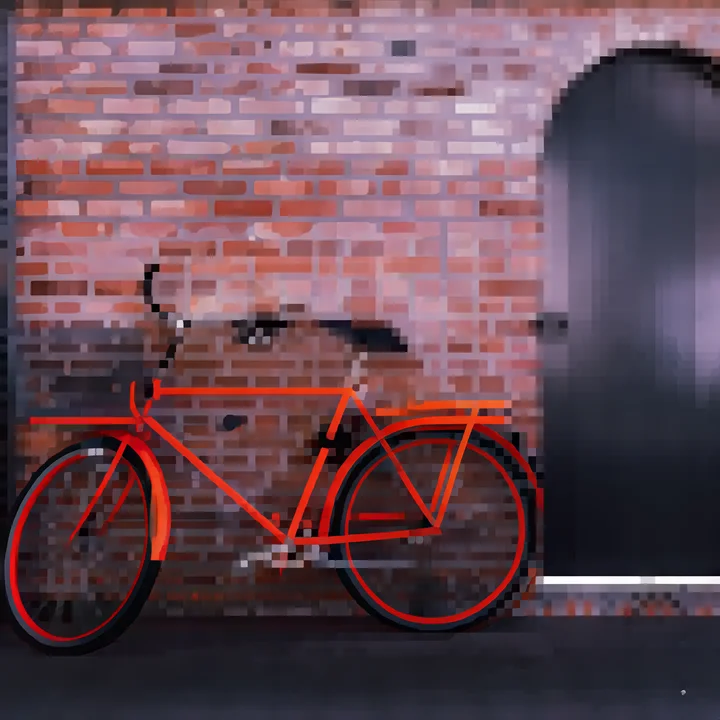
A small bicycle thumbnail beside an enlargement that exposes square pixels

Why does my photo look pixelated when I zoom in?

A small thumbnail can look sharp. Enlarge it and the same pixels show up as steps along the edges. Open the full-size file to check whether it has more detail.

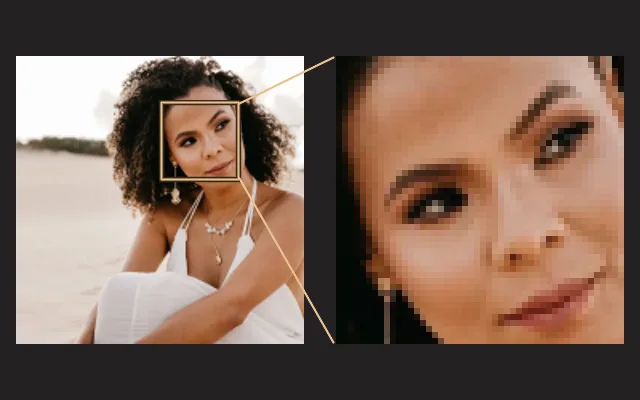
A crop outline on a portrait beside the enlarged face region with visible pixel blocks

Why did my photo get pixelated after cropping?

A tight crop leaves fewer pixels across the subject. Crop again from the original and leave more room around the face or object.

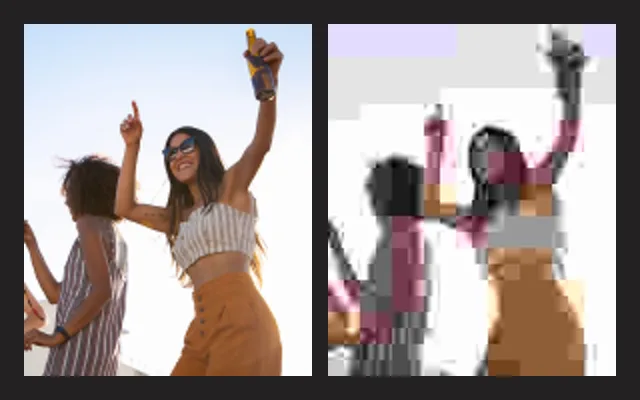
Matching photo crops showing color smearing and block artifacts after heavy JPEG compression

Why is my image pixelated after sending or saving it?

A shared preview may be downsized, and heavy JPEG compression can leave blocks or halos. Download the original attachment or export a higher-quality copy from the source.

How to make a pixelated image clearer

Keep the original display size

If the photo already looks clear at its native size, use it at that size. This works for a small profile image or a web thumbnail when you have room to change the layout.

Resize for smoother edges

Standard resizing can soften stair steps when you need a larger image. It estimates colors between the existing pixels. Fine writing, spokes, and other details that have disappeared will still be missing.

Use AI repair when the small copy is all you have

AI can reduce visible blocks and estimate missing texture. Keep the original so you can check facial features, product shapes, and any important text before you use the result.

Before / After Examples

Drag each slider to compare the original and repaired photo.

Light for JPEG compression
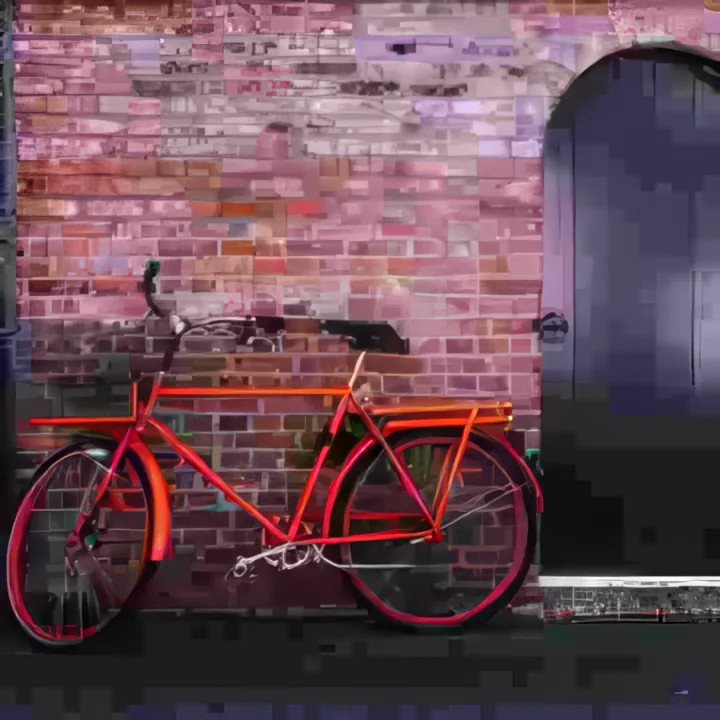
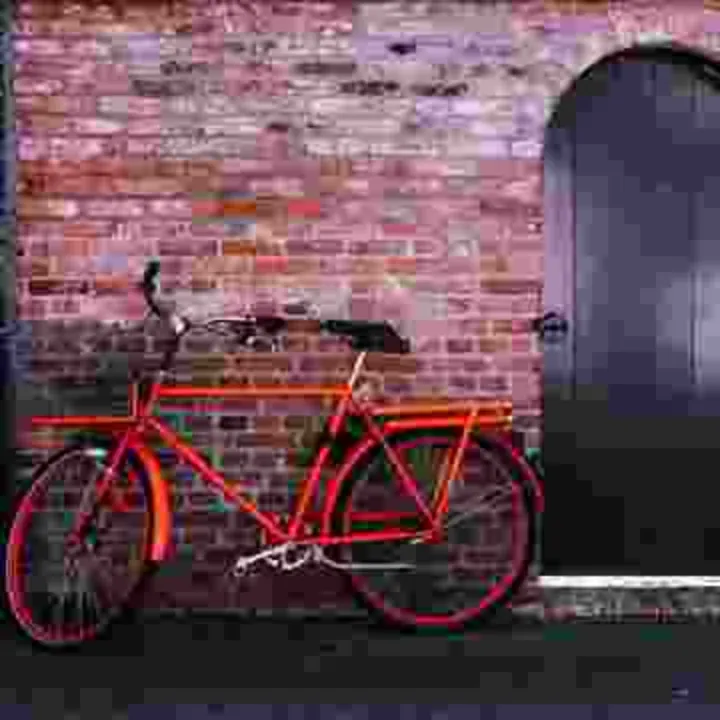
Red bicycle with a clearer frame and remaining JPEG blocksRed bicycle with JPEG color blocks on the door and pavementBeforeAfter
Heavy JPEG compression · 360 × 360 input · 720 × 720 output

The red frame and wheel rims look clearer. Large color blocks are still visible on the door and pavement.

Photo by Stefan Maritz on Pexels.

Medium for jagged edges

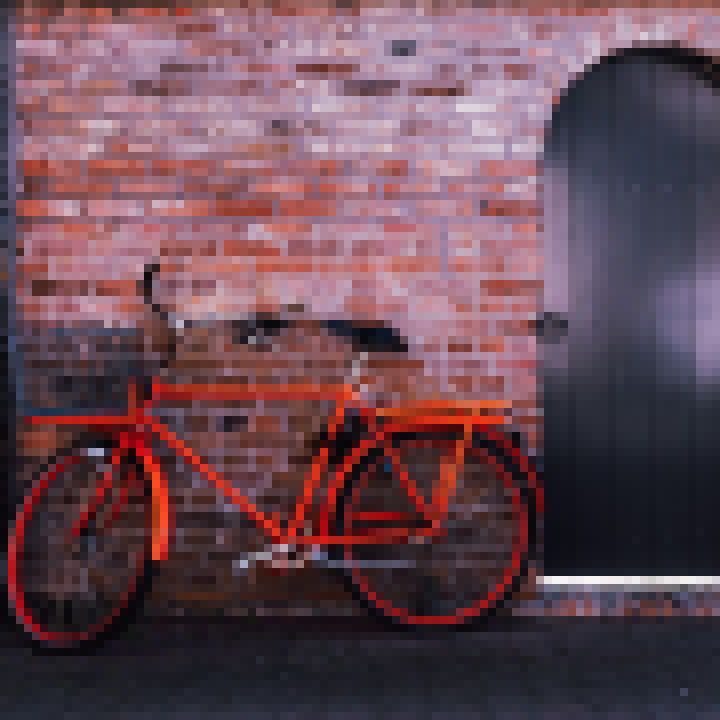
Red bicycle with smoother frame and rim edges after Medium repairRed bicycle with stair-step edges along the frame and front rimBeforeAfter
90 × 90 pixel grid enlarged to 720 × 720 · 2× output

The frame and front rim have smoother edges. Fine spokes are still hard to see, and some brick texture changed.

Photo by Stefan Maritz on Pexels.

Heavy for a very low-resolution portrait

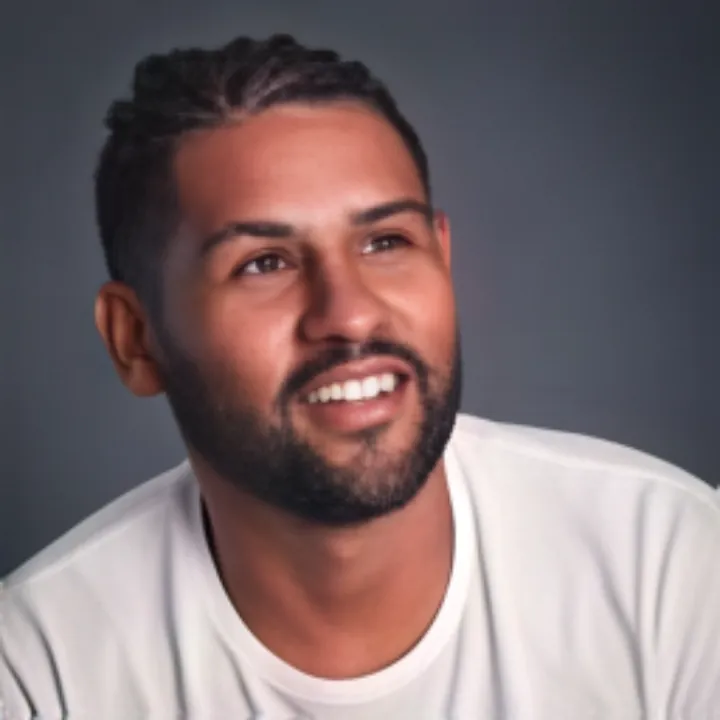
The same portrait with more defined eyes, braids, and beardLow-resolution portrait of a smiling man with soft facial edgesBeforeAfter
128 × 128 input · Enhance faces on · 256 × 256 output

The eyes, braids, and beard are more defined. Fine texture is reconstructed by the model.

Photo by Eric Moura on Pexels.

Seedream 5.5 with a clear reference

Portrait with clearer eyes and curls after reference-guided repairPortrait with large square blocks across the face and hairBeforeAfter
72 × 72 pixel grid enlarged to 720 × 720 · 1536 × 1536 output

Seedream used a clear copy of the same portrait to rebuild the eyes and curls. The pose and framing stayed close to the pixelated input.

Photo by Jonathan Borba on Pexels.View the clear reference photo
Repair your own photo

Fix Pixelated Photos Online

Unpixelate a portrait, product photo, or landscape in your browser. Upload a JPG, PNG, or WebP up to 20 MB to see the credit price for each method.

Repair method

Thin lines may stay unclear. Textures can change. Compare repair methods

Preview

Your photo will appear here.

FAQ

Can I unpixelate a photo online for free?

AI repair in Jovoscope uses credits. The editor shows the price after you select a photo, and you can read the guide and view the examples for free.

What is the difference between pixelated and blurry photos?

A pixelated photo shows square blocks or stair-step edges. In a blurry photo, edges tend to look soft or smeared. A low-quality copy can show both, so zoom in and look at a face, a straight line, or the edge of an object before choosing a repair method.

Can I fix pixelation in photos without people?

Yes. All four methods work with portraits, landscapes, products, and pet photos. Start with Medium for visible blocks on a recognizable subject. If you have a clear photo of the same subject, Seedream 5.5 can use it as a guide.

Can pixelation be reversed?

Switching back to a full-size original can recover detail missing from a thumbnail or crop. If only the pixelated copy remains, repairing it means smoothing the visible blocks or estimating lost detail. The reconstructed eyes or lettering can look clear and still differ from the original.

When should I add a reference photo?

Add a clear photo of the same person, product, or scene in Seedream 5.5 when it shows the detail you want to preserve. For a face, choose a sharp photo at a similar angle. Ask the repair to keep the pose and framing from the pixelated original.

What if Heavy repair still looks pixelated?

Look for a larger copy before running another repair. If you have a second sharp photo of the same subject, try Seedream 5.5 with that reference. If there is no clearer source, missing eyes, hair, or lettering may stay unclear even if the edges look smoother.

Can I fix a pixelated photo on my phone?

Yes. Open the editor in your phone browser, choose a JPG, PNG, or WebP from your device, and select a repair method. Sign in to run it, then switch between Original and Result before downloading.

Can AI restore unreadable text in a pixelated image?

AI can sharpen letters that are still partly visible and may guess characters that are missing. Check any text that must be exact against the source document or a clearer copy.