
What Is Kling Image 4.0? 8K Images, Series and Long Images
Choose the right Kling Image 4.0 mode for a still, an image series or a long graphic. Includes an 8K crop check and a prompt for lettering.
Kling Image 4.0, also called Kling Image V4, is a still-image model. Start with a description to make a new scene, add reference photos when a specific subject needs to carry over, or use Long Image to sketch the flow of a webpage. A single request can also return separate files planned as a series. Kling Image 4.0 release notes
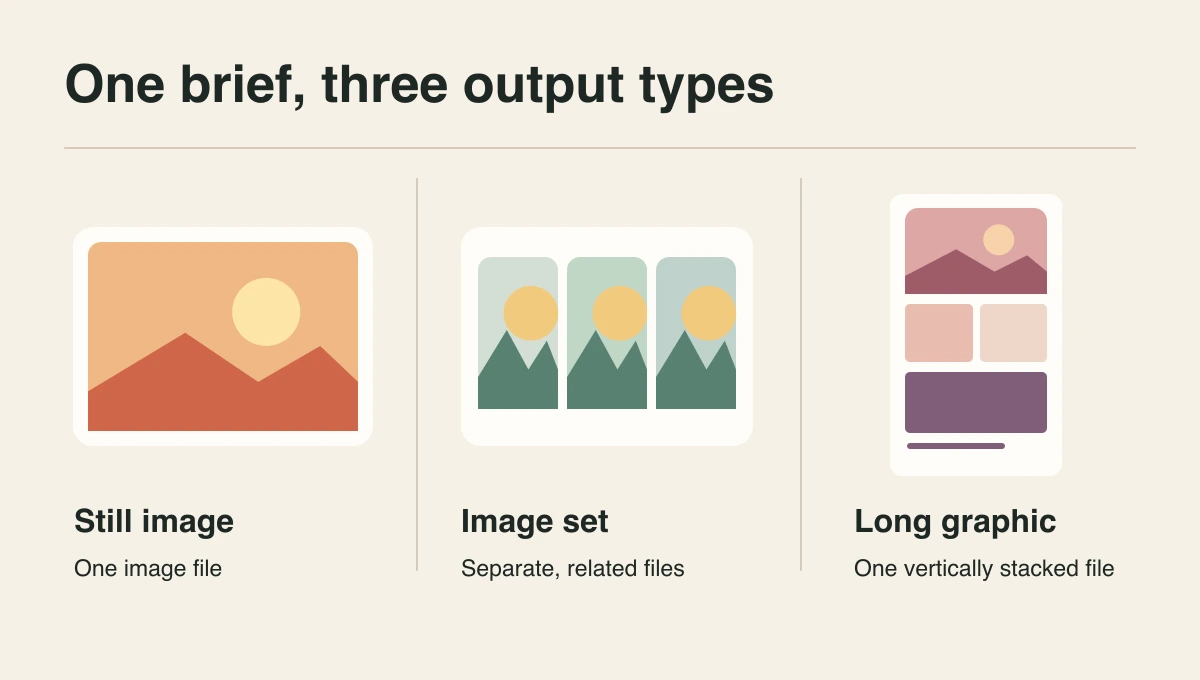
What can Kling Image 4.0 create?
| What you need to hand over | Choose in the editor | What to decide first |
|---|---|---|
| A poster, cover or standalone scene | Text to image, then Single | Decide the crop, the focal point and where lettering will sit. |
| A new composition with an existing product or person | Image to image, then Single | Identify the features the viewer should still recognize. |
| A carousel, shot list or set of product views | Text to image or Image to image, then Series | Give each file a purpose and decide what should be consistent. |
| A visual concept for a product page or website | Long image | Put the page sections in reading order and gather any required product photos. |
Single can also return independent options. Generate alternatives when the team is still choosing an art direction. If you already have an approved direction and need related files in order, plan the images as a series.
How do you make your first Kling image?
- Open the Kling Image 4.0 tool. Pick Text to image and decide where the image will appear. For a vertical print or social card, try a 3:4 crop.
- Write down what the viewer should notice first. Put that object or headline early in the prompt. Then describe the setting, light and the space around it.
- Open Output, choose Single under Result type, and start with one image at 2K. Check the credit quote before generating.
- Inspect the focal point, the crop and any letters before you change the briefing. Change one instruction at a time so you can see what helped.
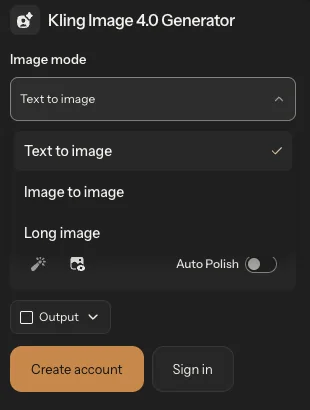
The Image mode menu in Jovoscope. Use Text to image for a first pass and switch to Image to image once you have a particular reference to work from.
Changing Image mode also changes what you see in Examples beside the editor. Compare the newspaper-style poster in Text to image with the reference photo and kitchen scene in Image to image. Long image shows a ceramics studio page concept. Start there to see the form of the output before you write your own brief. On a phone, open Preview to see the examples.
When does native 8K matter?
Start with the placement. A 600-pixel card uses little of an 8K file. If the same photo goes into a wide banner and a tight crop of the material, those extra pixels give you more to work with. Choose the aspect ratio first so the whole composition makes sense at the intended size. Text to image and Image to image in Jovoscope offer 2K, 4K and 8K. Long image offers 1K and 2K.
For a first pass, choose 2K and check where the subject sits. When the layout works, ask for the same framing at a higher resolution and compare the new image with the approved draft. Details can change in another generation, so review the higher-resolution file as a fresh result. If you need a tight crop, measure the downloaded crop itself. A 2,400-pixel crop printed eight inches wide supplies 300 pixels per inch. That calculation says how many pixels you have. The texture and lettering still need a visual check.
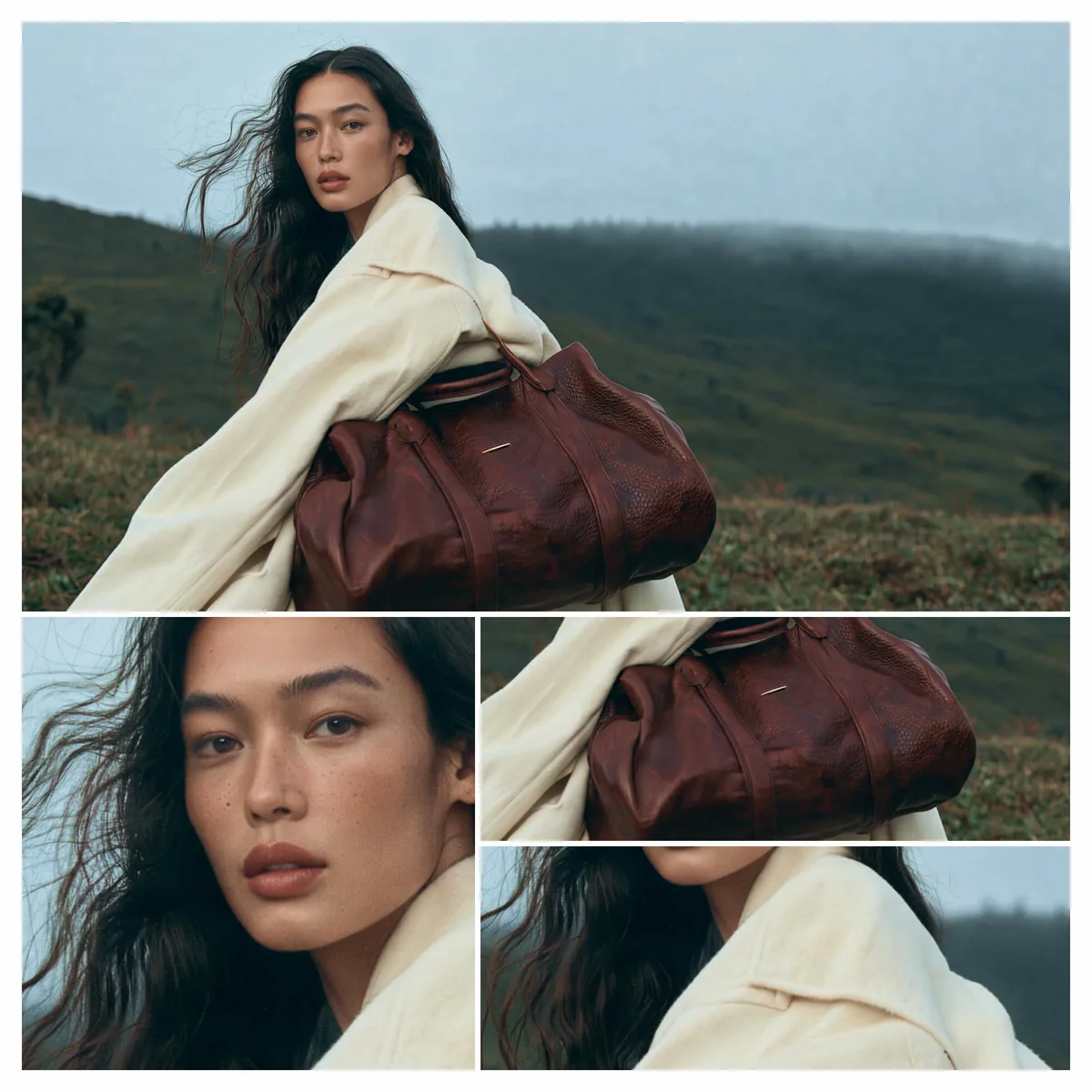
Kling AI’s release example pairs the full portrait with close views of skin and leather. The web preview shows where to inspect detail. Measure the pixels in your own downloaded file when the crop has to meet a print spec. Kling release notes
How do you prompt for text in the image?
Write the exact copy in quotation marks. Give each line a place, a relative size and a clear background. A short prompt for a ceramics workshop poster might read:
Design a 3:4 poster on ivory paper. Put the words “SATURDAY STUDIO” on one charcoal line along the top. In smaller type below it, write “OPEN WORKSHOP”. Place a blue ceramic bowl in the lower half. Leave a clear band of paper between the subtitle and the bowl so they never overlap.
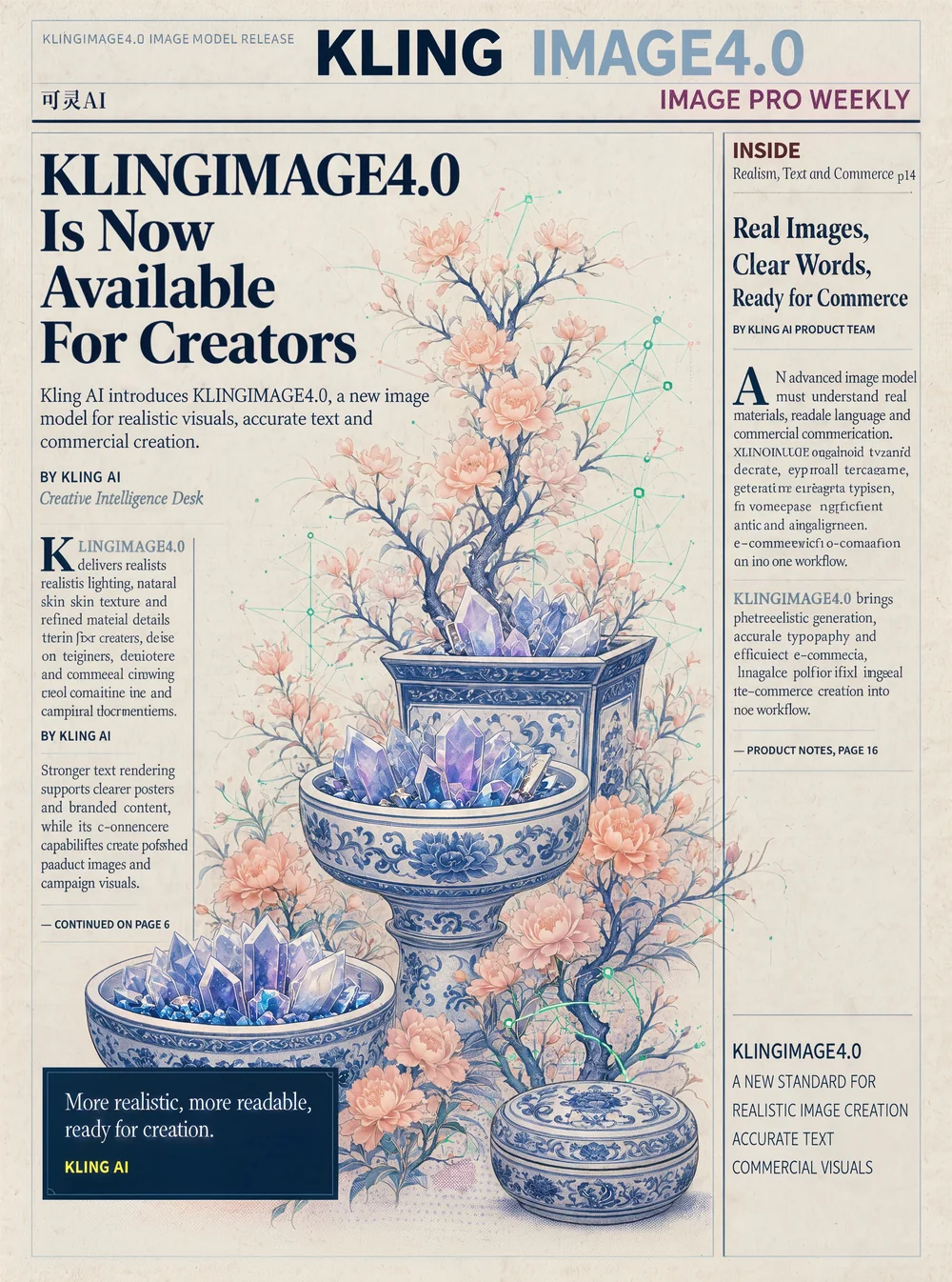
Lettering example from the Kling AI release notes. Check the hierarchy at poster size, then zoom in and read every word.
Review the result at the size the audience will see it. If a small subtitle is wrong, shorten the copy or give it more space before trying again. Keep changing details such as dates, prices and registration links in editable text. That lets you replace a date after the poster has been approved without redoing the image.
Kling's own Creative Studio includes font presets and layer editing for long designs. In the Jovoscope editor, guide typography in the prompt and download the result as an image. Plan any editable type or layers in your design app. Kling Image 4.0 user guide
Is Kling Image 4.0 the same as Kling 4.0 video?
Kling Image 4.0 generates stills. You can use a still as the opening frame for a separate video workflow. For that use, leave enough room around the subject for the movement you have in mind.
If you have a photo and need to preserve a specific detail, use the reference-image workflow. If you need a whole page concept, prepare a Long Image brief.